Why Isn't My QR Code Scanning? A Troubleshooting Guide (2026)
A QR code that will not scan is frustrating and, if it is printed, expensive. This troubleshooting guide walks through every common reason a QR code fails to scan, from contrast and size to damage and dead links, and how to fix each one.

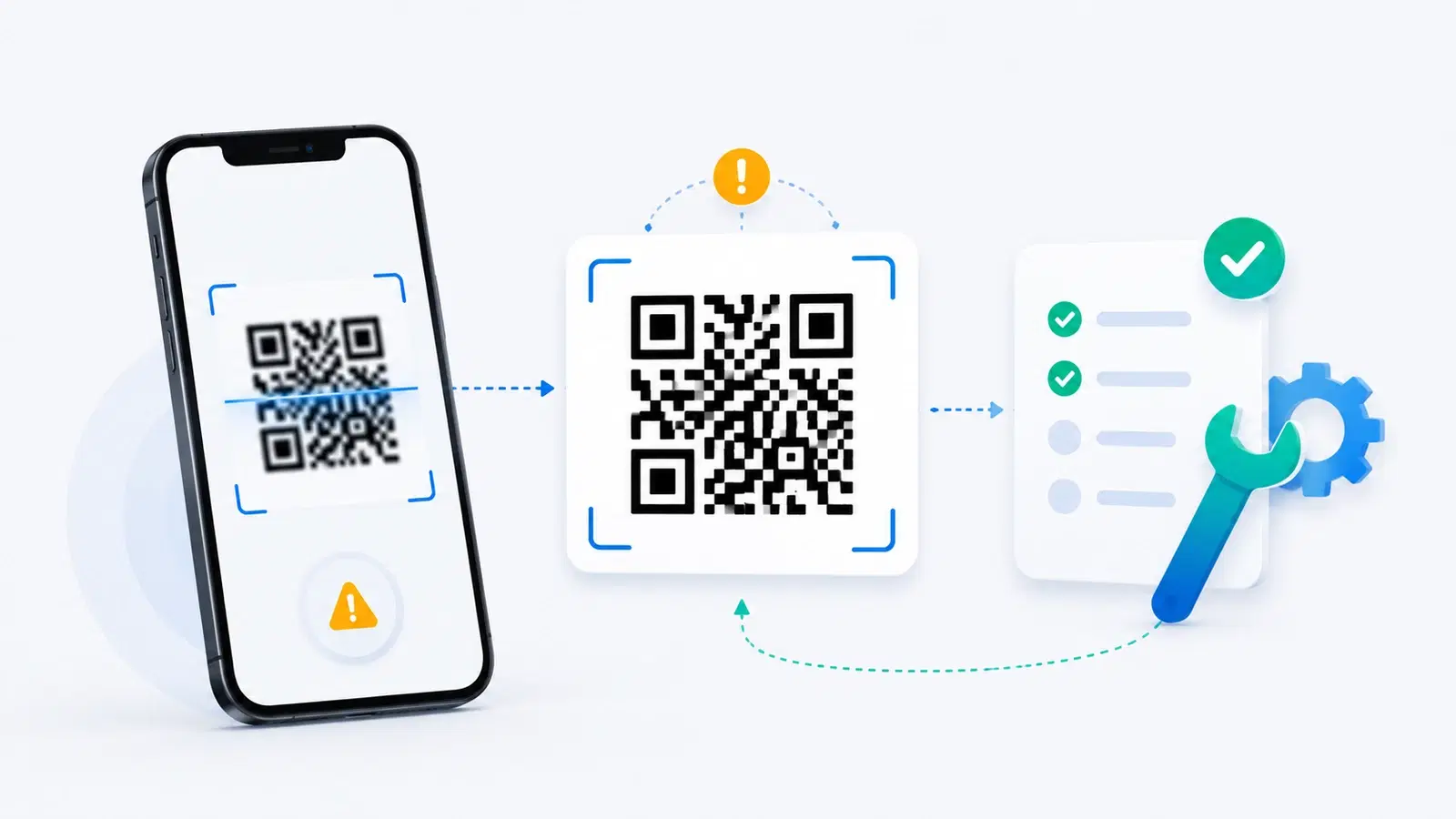
Few things are as quietly frustrating as a QR code that will not scan. You point your phone at it, and nothing happens. If it is a code you made and printed on thousands of flyers or a product label, that frustration turns into real cost. The good news: almost every scanning failure comes down to a short list of specific, fixable causes.
QR codes fail to scan for reasons that fall into two buckets: problems with the code itself (too small, poor contrast, damaged, distorted) and problems with where it points (a dead or broken link). Occasionally the problem is the scanning conditions (bad light, a dirty lens). This guide walks through each cause in the order worth checking, so you can find yours quickly.
Whether you are trying to scan someone else's code or debugging one of your own before it goes to print, this is the checklist. And if you are still in the design stage, the best fix is prevention; see our guide to common QR code mistakes to avoid.
First, Rule Out the Quick Things
Before assuming the code is broken, rule out the fast, common causes that have nothing to do with the code's design. These take seconds and solve a surprising share of failures.
Check your scanning basics:
- Clean your camera lens. A smudged or dirty phone lens blurs the code enough to prevent a read. Wipe it and try again.
- Improve the lighting. Too dark and the camera cannot see the pattern; too bright and glare washes it out. Move to even, moderate light and avoid direct reflections on glossy surfaces.
- Hold steady and adjust distance. Give the camera a moment to focus, and try moving slightly closer or farther. A code needs to sit clearly in frame to be read.
- Confirm your camera actually scans QR codes. Nearly every modern phone camera reads QR codes natively, but very old phones may need a dedicated scanning app. Make sure QR scanning is enabled in your camera settings.
- Try a second phone. If another phone scans it fine, the problem is your device or conditions, not the code.
Why start here: These conditions cause a large share of "it won't scan" moments, and they cost nothing to check. Only once you have ruled them out is it worth investigating the code itself. If a code fails on multiple phones in good light with a clean lens, then the problem is the code, and the next sections apply.
Pro Tip
The fastest diagnostic: try the code on a second phone in good light. If it scans there, the issue is your device or conditions (lens, lighting, an old camera). If it fails on every phone, the code itself is the problem, and you can move straight to checking contrast, size, and quiet zone.
Contrast and Color Problems
Poor contrast is one of the most common reasons a designed code fails, especially codes that were styled to look pretty at the expense of scannability.
The core rule: dark code on a light background. QR scanners read the code by distinguishing dark modules from light background. They need strong contrast. A dark code on a light background is the reliable standard. Problems appear when people invert or soften this.
Common contrast mistakes:
- Light code on a dark background (inverted). Many scanners struggle with a light code on a dark field. If you must use it, test relentlessly, because a large share of readers will fail.
- Low-contrast color combinations. A medium-blue code on a medium-gray background, or yellow on white, may look stylish but does not give the scanner enough difference to work with. Pale codes are a frequent culprit.
- Gradients that lose contrast. A code that fades toward light in places can drop below the contrast the scanner needs in those regions.
- Busy background images behind the code. A photo or pattern behind the code destroys the clean contrast scanners rely on.
How to fix it: Return to a genuinely dark code on a genuinely light background. If you want color, keep the code much darker than its background and test on several phones. If you want a colored or branded code that still scans, that is achievable with care; the key is preserving strong contrast, which we cover alongside broader design and branding.
Important
The most common self-inflicted scanning failure is prioritizing looks over contrast: inverting to a light-on-dark code, using pale or low-contrast colors, or placing the code over a busy image. If a designed code will not scan, contrast is the first thing to suspect. A code that scans reliably beats a beautiful one that does not scan at all.
Size, Distortion, and Damage
Physical problems with the code, too small, stretched, or damaged, are the next thing to check, and they matter most for printed codes.
Too small. A code has to be physically large enough for a phone to resolve its pattern at normal scanning distance. The rule of thumb is that scanning distance and required size scale together: the farther away people scan from, the bigger the code must be. A tiny code on a billboard, or a code shrunk to fit a cramped label, simply cannot be read. See our QR code size guide for the specifics.
No quiet zone. QR codes need a margin of empty space around them, called the quiet zone, so the scanner can tell where the code begins and ends. Crowding text, borders, or images right up against the code is a frequent, easily missed cause of failure. Give it clear breathing room.
Distortion. A QR code must stay square. If it has been stretched, skewed, or wrapped around a curved surface (a bottle, a cup), the pattern warps and the scanner cannot decode it. Never adjust a code's proportions non-uniformly, and be careful placing codes on curved objects.
Damage and print quality. A printed code that is scratched, smudged, folded across its pattern, or printed at low resolution loses the detail scanners need. Blurry, pixelated, or low-DPI printing is a common failure. QR codes have built-in error correction that tolerates some damage, but past a point the code becomes unreadable. Always print from a high-resolution version.
How to fix it: Make the code bigger, keep it perfectly square, preserve a clear quiet zone, and print from a crisp high-resolution file. For codes that will live in the physical world, higher error correction adds resilience against wear.
- Too small for the scanning distance: enlarge it
- No quiet zone: add clear empty margin around the code
- Stretched or skewed: keep the code perfectly square
- On a curved surface: the warp breaks it, reposition on a flat area
- Damaged, smudged, or low-resolution print: reprint from a crisp file
When the Code Scans but the Link Is Dead
Sometimes the scan works perfectly, the phone reads the code and opens a link, but the destination fails. This is a different class of problem, and it is often the most fixable.
The code is fine; the destination is not. If your phone recognizes the code and tries to open a page, the code itself scanned correctly. The failure is at the other end. Common causes:
- The destination URL is broken or mistyped. A typo in the original link, or a page that has since moved or been deleted, gives a "page not found" after a successful scan.
- The linked page or file was taken down. A document, form, or site that no longer exists leaves the code pointing at nothing.
- The QR code expired. This is a big one. Many free QR generators create codes that stop working after a trial period, so a code that scanned last month now leads to a dead or "upgrade required" page. See why free QR codes stop working.
The static-code trap. If the dead code is static, its destination is baked in permanently and cannot be changed; your only option is to create a new code. This is precisely why dynamic codes matter: with a dynamic QR code, a wrong or dead destination is fixed in seconds by editing the code's target without reprinting anything.
How to fix it: Check the destination link in a browser directly. If it is broken, and your code is dynamic, simply update the destination and every printed code follows. If the code is static and its link is dead, you will have to generate and reprint a new one, which is the expensive lesson that pushes most people to dynamic codes.
Prevent it going forward: Use dynamic codes so destinations are always editable, choose a provider whose codes never expire, and test the live link before and after printing. A code that scans but dies at the destination is entirely avoidable.
Conclusion
A QR code that will not scan is almost always failing for one specific, identifiable reason, and nearly all of them are fixable. Work through the causes in order: first rule out the quick things (dirty lens, poor light, an old camera) by testing on a second phone; then check the code itself for weak contrast, insufficient size, a missing quiet zone, distortion, or print damage; and finally, if the scan works but the destination fails, look at the link, which may be broken, taken down, or expired.
The through-line is that most failures are preventable. Strong dark-on-light contrast, adequate size with a clear quiet zone, crisp high-resolution printing, and, crucially, dynamic codes that never expire and can be re-pointed in seconds, together eliminate the large majority of scanning problems before they happen.
If you are debugging a code now, this checklist will find the cause. If you are creating one, build it right from the start: high contrast, big enough, undistorted, well printed, and dynamic. That is the difference between a code that works reliably for years and one that quietly fails when you need it most.
Related reading:
Create a reliable, permanent QR code with QRForever. Start a 7-day full-access trial, no credit card needed. Dynamic codes you can fix anytime, that never expire.
Explore QRForever Solutions
Ready to Create Your Own QR Codes?
Start creating dynamic QR codes for your business today. Track analytics, update content anytime, and never reprint again.
Related Articles
vCard QR Codes: The Complete Guide to Digital Business Cards (Updated 2026)
Create a vCard QR code that shares your contact info instantly, and updates itself when your job, phone, or email changes. Complete guide with placement strategy and networking scripts. Updated September 2026.
WiFi QR Codes: How to Share Your Network Password Instantly (Updated 2026)
Stop spelling out WiFi passwords letter-by-letter. WiFi QR codes let guests connect in seconds: for your home, café, hotel, or office. Updated 2026 setup guide with platform-specific instructions.
How to Set Up QR Code Check-In for Events: Step-by-Step Guide 2026
Replace paper lists and manual check-ins with a fast, contactless QR code system. Full setup guide for conferences, workshops, weddings, and corporate events.