Can You Scan a QR Code From a Screenshot? (2026)
Yes, you can scan a QR code from a screenshot or saved image, even one on the same phone, you just need the right method. Here is how to scan a QR code from a screenshot, photo, or your own screen in 2026.

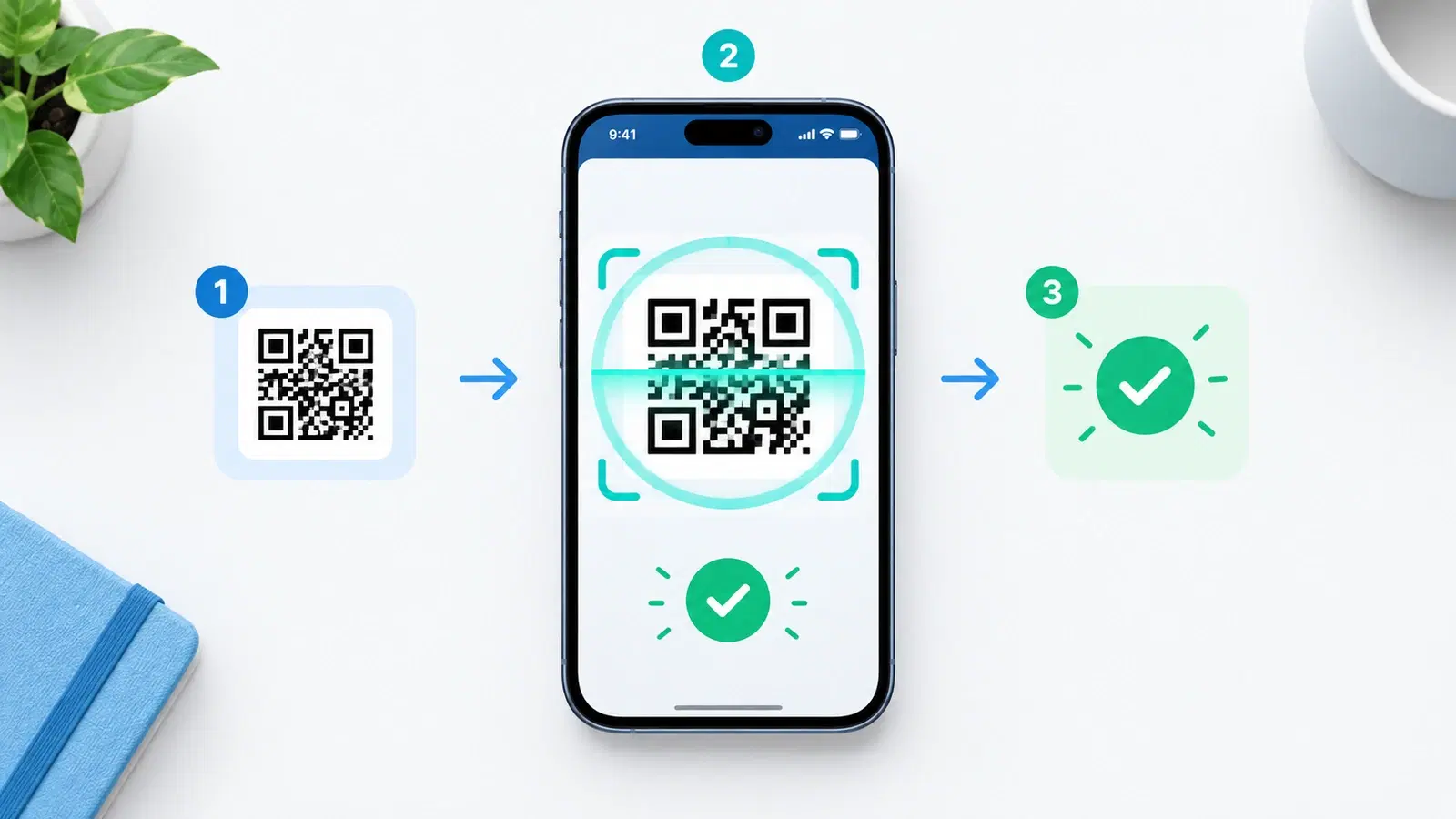
You have a QR code saved as a screenshot, a ticket, a coupon, a code someone texted you, but it is on the very phone you would normally scan with. Can you still scan it, without a second device or printing it out? Yes, you can. Scanning a QR code from a screenshot, a saved image, or even the screen you are looking at is entirely possible, you just need the right method, because pointing a phone at its own screen obviously does not work.
This is a common, practical situation: a code arrives digitally on the same device you would scan it with, and the usual "point your camera at it" does not apply. The good news is that modern phones have built-in ways to read a QR code straight from an image, no camera-on-a-code required.
This guide covers how to scan a QR code from a screenshot or saved image on iPhone and Android in 2026, how to handle a code someone sent you, and what to do if the usual methods are unavailable. It is a focused how-to for the "the code is already on my phone" situation, distinct from general scanning troubleshooting.
Yes, You Can, Here's the Core Idea
The key realization is that scanning does not have to mean "point a camera at a code." Phones can read a QR code directly from an image file.
The problem with same-device codes. If a QR code is a screenshot or image on your phone, you cannot point that phone's camera at it, the code and the camera are the same device. This is why people get stuck and assume they need a second phone or a printout. You do not.
The solution: read the code from the image itself. Modern phones can detect and act on a QR code inside a saved image or screenshot, without the camera. The phone analyzes the image file directly and offers to open the link. So instead of scanning in the air, you point the phone's QR-reading ability at the stored image. That is the whole trick, and the methods below are just the specific ways to do it on each platform.
When you would need this:
- A ticket, boarding pass, or coupon saved as a screenshot on your phone.
- A QR code someone texted, emailed, or messaged you.
- A code on a web page or app on your screen.
- A saved image of a code you want to open.
In all these cases, the code lives on your device, and you want to act on it using that same device. The next sections show exactly how, on iPhone and Android.
On iPhone
iPhones have built-in ways to read a QR code from a saved image or screenshot.
Method 1: Photos app (Live Text / built-in detection). Open the screenshot or saved image in the Photos app. Modern iPhones detect a QR code in the image automatically, often you will see the link become tappable, or a small indicator appear, and you can tap it to open the destination. Simply viewing the image in Photos and tapping the detected code is usually enough.
Method 2: Long-press the image. In many apps, long-pressing (press and hold) a QR code image, in Photos, Messages, or a web page, surfaces an option to open the link the code contains. Try pressing and holding directly on the code in the image.
Method 3: Share or save, then open in Photos. If a code arrives in a message or app, save the image to Photos (or use the share sheet), then open it in Photos and use the detection above.
Practical notes:
- Make sure the code in the image is reasonably clear and not tiny, detection works best on a legible code.
- If the first method does not surface the link, try long-pressing the code directly.
- These are built-in iOS capabilities, so no extra app is needed in most cases.
The gist on iPhone: get the code into Photos (or view it where it is), and let the built-in detection find it, then tap to open. No camera, no second device.
On Android
Android offers a couple of reliable ways to read a QR code from an image or the screen, though exact steps vary by phone and version.
Method 1: Google Lens. Google Lens can read a QR code from a saved image. Open the screenshot or image (in Google Photos or your gallery) and use the Google Lens option (often a Lens icon within Photos, or by sharing the image to Lens). Lens detects the code and offers to open the link. This is the most widely available method on Android.
Method 2: Google Lens on the current screen. If the code is on your screen (a web page, an app), many Android phones let you invoke Google Lens or a "search screen" function to analyze what is currently displayed, including a QR code, and act on it, without leaving the screen.
Method 3: Gallery / built-in detection. Some Android phones and gallery apps detect QR codes in saved images directly, offering to open the link when you view the image. Check whether your gallery surfaces the code when you open the screenshot.
Practical notes:
- Because Android varies by manufacturer and version, if one method is not present, try another, Google Lens (via Photos or the assistant) is the most universal fallback.
- As on iPhone, a clear, legible code in the image works best.
- No special QR app is needed; the capability is built into Google Photos/Lens on modern Android.
The gist on Android: use Google Lens (from Photos, the share sheet, or on the current screen) to read the code from the image, then open the link, again, no camera and no second device.
Pro Tip
The universal fallback, on any phone, if the built-in methods are unclear: open the image in your photo app and look for a Google Lens (Android) or built-in detection (iPhone) option, or long-press directly on the code. One of those reads the code straight from the image. You almost never need a second device or a printout to scan a code you already have on your phone.
If the Built-In Methods Don't Work
Occasionally the quick methods do not surface the link, usually because the code image has a problem, not because it is impossible. Here is how to handle it.
Make sure the code is clear and complete. Detection needs a legible code. If the screenshot is cropped, blurry, very small, or partially cut off, the phone may not read it. Get a cleaner, complete image of the code if you can, a full, sharp screenshot works far better than a tiny or partial one. This connects to general scannability, see why QR codes fail to scan.
Try a different method. If Photos detection does not work, try long-pressing the code; if that fails, try Google Lens (Android) or sharing the image to a QR-reading option. Different paths succeed on different phones.
Use a second device as a last resort. If all else fails and you have another device handy, display the code on one screen and scan it with the other's camera, the old-fashioned way. This is a fallback, not usually necessary, but reliable when the image-based methods are unavailable.
For codes you create: make them easy to scan from a screen. If you are the one sending or displaying a QR code that people may need to scan from their screen (for example, in an email or a digital ticket), make it large and clear enough to be read from an image, and remember many recipients will be on the same device, so a tappable link alongside the code helps too. See QR codes in email marketing for the link-plus-code approach.
The bottom line: Yes, you can scan a QR code from a screenshot, saved image, or your own screen, modern iPhones and Android phones read codes directly from images, no camera-on-a-code and no second device needed. Use Photos detection or a long-press on iPhone, and Google Lens on Android, make sure the code image is clear, and fall back to a second device only if needed. The code being on the same phone is no obstacle at all.
Conclusion
Can you scan a QR code from a screenshot? Yes, and it is easier than people expect. The confusion comes from assuming scanning means pointing a camera at a code, which obviously fails when the code is on the same phone. But modern phones can read a QR code directly from a saved image or screenshot, no camera-on-a-code and no second device required.
On iPhone, open the image in Photos and use the built-in detection, or long-press directly on the code, to surface and tap the link. On Android, Google Lens (from Photos, the share sheet, or on the current screen) reads the code from the image, and some galleries detect it automatically. In both cases, a clear, complete, legible code image is what makes detection reliable.
If the quick methods do not work, it is almost always because the code image is cropped, blurry, or tiny, get a cleaner image and try another method, with a second device as a last-resort fallback. So the next time a ticket, coupon, or code lands on your phone as a screenshot, you can open it right there. The code being on your own device is no obstacle at all.
Related reading:
Create clear, scannable QR codes with QRForever. Start a 7-day full-access trial, no credit card needed. Crisp codes that read easily, on a screen or in print.
Explore QRForever Solutions
Ready to Create Your Own QR Codes?
Start creating dynamic QR codes for your business today. Track analytics, update content anytime, and never reprint again.
Related Articles
vCard QR Codes: The Complete Guide to Digital Business Cards (Updated 2026)
Create a vCard QR code that shares your contact info instantly, and updates itself when your job, phone, or email changes. Complete guide with placement strategy and networking scripts. Updated September 2026.
WiFi QR Codes: How to Share Your Network Password Instantly (Updated 2026)
Stop spelling out WiFi passwords letter-by-letter. WiFi QR codes let guests connect in seconds: for your home, café, hotel, or office. Updated 2026 setup guide with platform-specific instructions.
How to Set Up QR Code Check-In for Events: Step-by-Step Guide 2026
Replace paper lists and manual check-ins with a fast, contactless QR code system. Full setup guide for conferences, workshops, weddings, and corporate events.