How to Make a Transparent QR Code (2026)
A transparent QR code has no background of its own, so it sits cleanly on top of any design, image, or colored surface. Here is how to make one, when it helps, and the one thing that will stop it scanning if you get it wrong.

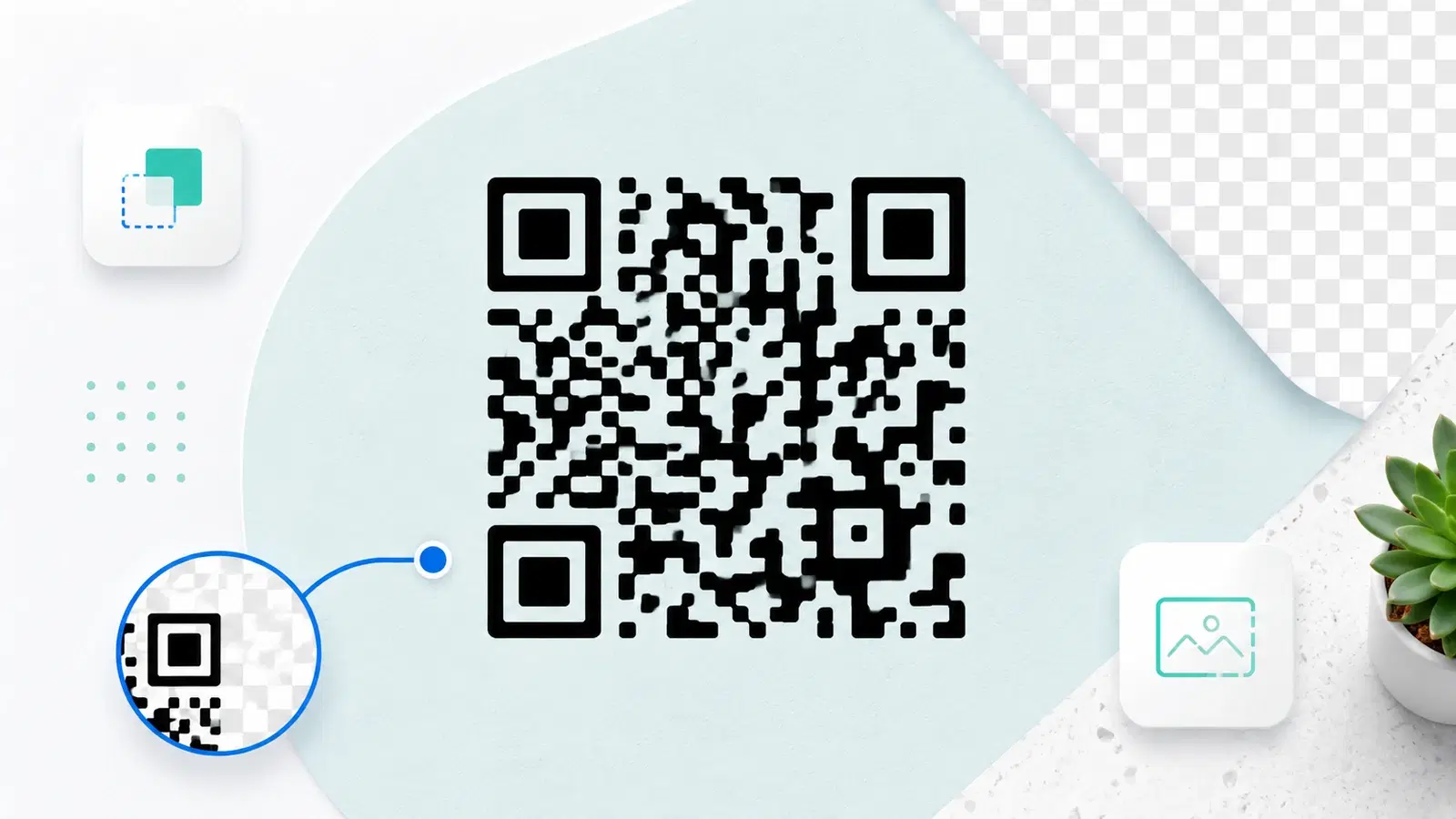
Sometimes a QR code's white background gets in the way. You want to place the code on a colored poster, over a photo, or inside a design, and that white box around it looks like an awkward sticker slapped on top. A transparent QR code solves this: it has no background of its own, so only the code's pattern shows and it blends onto whatever is behind it.
Transparent codes are genuinely useful for designers and anyone placing codes into richer layouts. But they come with one important catch: a code with no background is only scannable if whatever shows through behind it still provides enough contrast. Get that right and a transparent code is clean and professional. Get it wrong and it silently fails.
This guide explains what a transparent QR code actually is, when it helps, which file formats support transparency, and, most importantly, how to keep a transparent code scannable. It pairs closely with our guides on coloring a QR code and file formats, since both bear directly on doing this well.
What a Transparent QR Code Actually Is
It helps to be precise about what "transparent" means here, because it determines how the code behaves.
Transparent means no background fill. A normal QR code image has two visible parts: the dark pattern and a light (usually white) background, both baked into the image. A transparent QR code removes the background fill entirely. The image contains only the dark pattern; where the background would be, the image is see-through. When you place it onto a design, whatever is behind it shows through the gaps.
Why that is useful. Because there is no white box, the code sits cleanly on top of a colored surface, a textured background, or an existing design, as if it belongs there. Designers love this because it removes the "pasted-on" look and lets the code integrate into a layout.
The crucial consequence. Since the code brings no background of its own, the surface behind it becomes its background. And that surface now has to do the job the white box used to do: provide enough light, clean contrast for the dark pattern to read against. This is the single fact that determines whether your transparent code works. A transparent code on a light, clean surface scans; a transparent code on a dark or busy surface often does not.
Transparent vs just white. If the code will sit on a white or very light area anyway, you may not need transparency at all, a normal code with a white background looks identical there. Transparency earns its place specifically when you are placing the code onto something that is not plain white.
When to Use a Transparent QR Code
Transparency is a design convenience, so use it where it genuinely helps and skip it where it does not.
Good uses for a transparent code:
- On a colored (but light) background. A transparent code drops cleanly onto a pale brand color or soft tint without an awkward white box around it.
- Integrated into a design or layout. When the code needs to feel like part of a poster, flyer, or web graphic rather than an attachment. See design and branding.
- On a subtle texture or light image area. If part of your design is a light, low-detail area, a transparent code can sit there and blend in, provided contrast holds.
- Over a solid brand color in digital use. On websites and social graphics where you control the exact background color behind it.
When NOT to use transparency:
- On dark or busy backgrounds. This is the main trap. A transparent (dark) code over a dark or highly detailed background loses contrast and fails. In that case, do not go transparent; give the code a solid light backing instead.
- When a white background would look fine anyway. If the code sits on white, transparency adds risk for no visual gain.
- When you cannot control what is behind it. If the code might end up on an unpredictable surface, a self-contained code with its own light background is safer.
The guiding question: Is the surface behind the code light, clean, and under your control? If yes, transparency is a great choice. If the background is dark, busy, or unknown, keep a solid light background instead.
Important
The number one transparent-QR mistake is placing a dark, transparent code onto a dark or busy background. With no background of its own, the code relies entirely on the surface behind it for contrast. On a dark or detailed surface that contrast disappears and the code will not scan. If the backing is not light and clean, do not use transparency, give the code a solid light backing.
The Right File Formats for Transparency
Not every image format supports transparency, so choosing the right one matters.
PNG (raster, supports transparency). PNG is the common raster format that supports a transparent background (an alpha channel). If you want a transparent code as a normal image file, PNG is the standard choice. Just remember PNG is pixel-based, so export it at the size you need; enlarging it later degrades quality. See SVG vs PNG.
SVG (vector, naturally transparent). SVG is a vector format and is inherently background-free unless a background is explicitly added. It is ideal for design work and print because it scales to any size without losing sharpness, and it drops into design software cleanly. For anything printed or resized, SVG is the best transparent option.
Formats that do NOT support transparency:
- JPG/JPEG: cannot store transparency; it will always add a solid (usually white) background. Avoid JPG for QR codes anyway, since its compression softens the sharp edges scanners need.
Practical guidance:
- For print or any design handoff, use SVG, it is transparent by nature and scales perfectly.
- For a digital image at a known size, a transparent PNG is simple and widely compatible.
- Never use JPG for a code you want transparent (or for QR codes generally).
When you download a transparent code, confirm the background is actually transparent (often shown as a checkerboard pattern in image software) and not just white, so it behaves as expected when placed.
- SVG: vector, naturally transparent, best for print and resizing
- PNG: raster with alpha transparency, good for fixed-size digital use
- JPG: does NOT support transparency, avoid for QR codes entirely
- Confirm the download is truly transparent (checkerboard in editors), not white
How to Make One That Scans, Step by Step
Here is a reliable process for creating and using a transparent QR code without breaking it.
1. Create a dynamic code. As always, use a dynamic code so the destination stays editable after the code is placed and printed. See dynamic vs static.
2. Keep the pattern dark. A transparent code should still have a dark pattern, since it will rely on the light surface behind it for contrast. Dark pattern plus light backing is the winning combination.
3. Export with a transparent background. Choose the transparent option and the right format: SVG for print and design, transparent PNG for fixed-size digital use. Verify the background is genuinely transparent.
4. Place it only on a light, clean surface. This is where transparent codes live or die. Put it on a light, solid, low-detail area. If your intended background is dark or busy, either move the code to a light area or add a light shape behind it (a subtle rounded light panel) to guarantee contrast.
5. Preserve the quiet zone. Keep clear space around the code within your design; do not let surrounding elements crowd right up to the pattern. See common mistakes.
6. Test on the actual background. Because contrast depends entirely on what is behind it, test the code as it will actually appear, on the real background, at the real size. Scan it with a few phones. If it reads reliably, you are set. If it hesitates, the background is not providing enough contrast, so lighten the backing or add a light panel behind the code.
Follow this and a transparent code gives you a clean, integrated look with none of the pasted-on white box, while still scanning dependably.
Conclusion
A transparent QR code removes the white background so the code blends cleanly onto colored surfaces, designs, and layouts, no more pasted-on box. For designers and anyone placing codes into richer visuals, it is a genuinely useful option.
The one thing to remember is that a transparent code has no background of its own, so the surface behind it must do that job: it has to stay light, clean, and high-contrast for the dark pattern to read. Transparent codes shine on light, controlled backgrounds and fail on dark or busy ones. When the backing is not light and clean, keep a solid light background instead.
Use the right format, SVG for print and resizing, transparent PNG for fixed-size digital, never JPG, keep the pattern dark and the quiet zone clear, and always test on the actual background at the actual size. Do that, and a transparent QR code gives you a polished, integrated look that still scans every time.
Related reading:
Create a transparent QR code with QRForever. Start a 7-day full-access trial, no credit card needed. Export transparent SVG and PNG codes that drop cleanly into any design.
Explore QRForever Solutions
Ready to Create Your Own QR Codes?
Start creating dynamic QR codes for your business today. Track analytics, update content anytime, and never reprint again.
Related Articles

vCard QR Codes: The Complete Guide to Digital Business Cards (Updated 2026)
Create a vCard QR code that shares your contact info instantly, and updates itself when your job, phone, or email changes. Complete guide with placement strategy and networking scripts. Updated September 2026.
WiFi QR Codes: How to Share Your Network Password Instantly (Updated 2026)
Stop spelling out WiFi passwords letter-by-letter. WiFi QR codes let guests connect in seconds: for your home, café, hotel, or office. Updated 2026 setup guide with platform-specific instructions.

How to Set Up QR Code Check-In for Events: Step-by-Step Guide 2026
Replace paper lists and manual check-ins with a fast, contactless QR code system. Full setup guide for conferences, workshops, weddings, and corporate events.