How to Edit a QR Code After Printing (Without Reprinting). 2026 Guide
You can't edit a static QR code after printing, but you can edit a dynamic one. Here's exactly how dynamic QR codes let you change the destination after printing, with step-by-step instructions and a recovery plan if you used static codes.

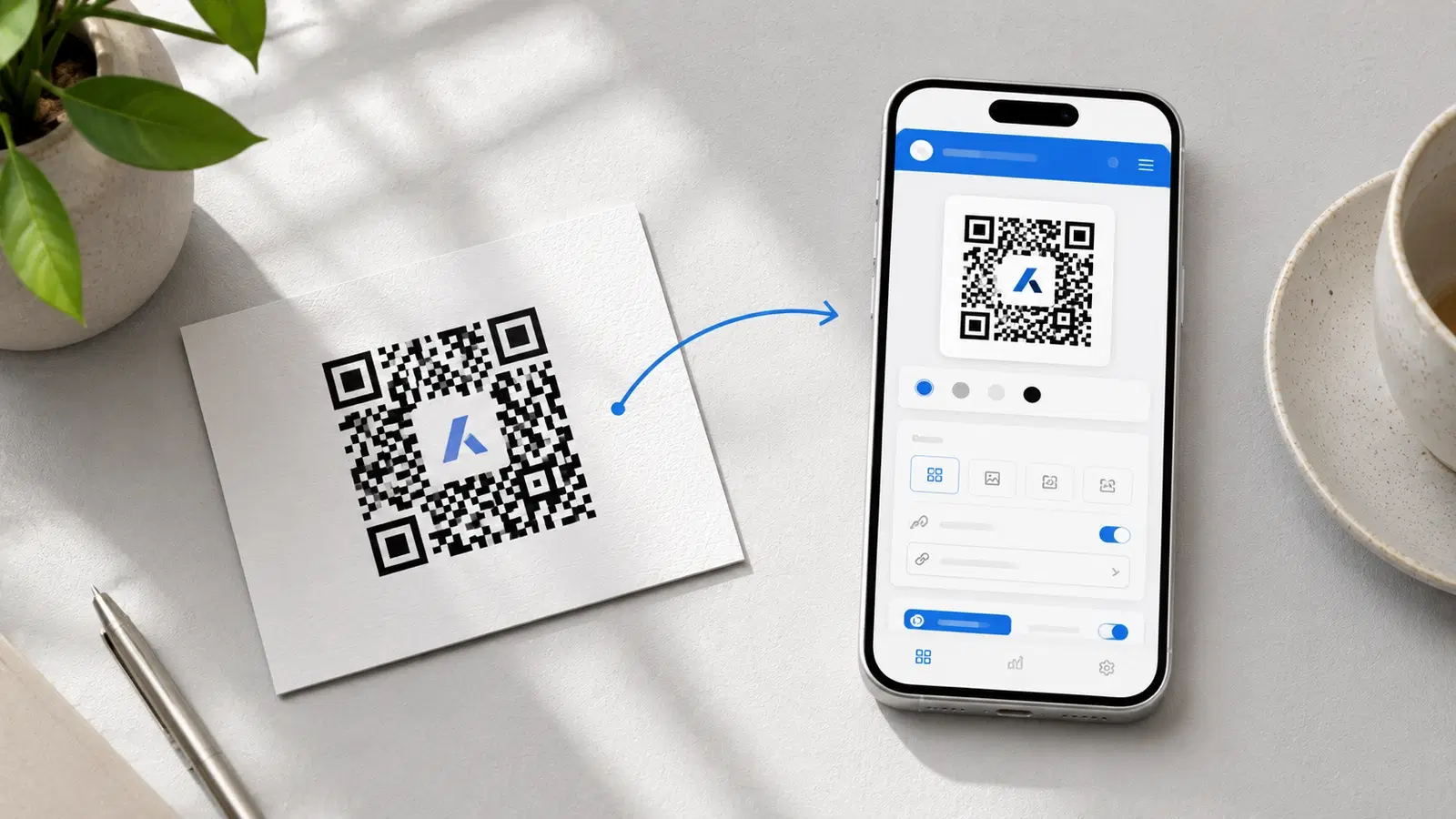
"Can I edit a QR code after I've printed it?" This is one of the most-asked questions about QR codes, and the answer depends entirely on which type of QR code you used.
Short answer:
- Dynamic QR code: Yes, edit the destination anytime, no reprinting needed
- Static QR code: No, you cannot edit it after creation, period
Editing a QR code after printing is only possible with a dynamic QR code generator; static QR codes cannot be changed once created.
This guide covers exactly how to edit a dynamic QR code (with step-by-step instructions), how to verify which type you have, and what to do if you discover you used a static code on important printed materials.
If you understand this difference before your first print run, you'll save yourself thousands in reprints over the lifetime of any business.
How Dynamic QR Codes Make Editing Possible
Understanding the mechanism is the fastest way to grasp why dynamic QR codes can be edited and static ones can't.
A static QR code's pattern IS the URL. When you generate a static QR code for "https://yoursite.com/menu", that exact URL is encoded into the black-and-white pattern. The pattern and the URL are the same thing. Change the URL → you must regenerate (and reprint) the entire QR code.
A dynamic QR code's pattern is a short redirect URL. When you generate a dynamic QR code, the platform creates a short URL like "qrforever.com/x7k2" and encodes that into the pattern. The QR code's pattern is the redirect URL, not your final destination.
When someone scans: 1. Their phone reads the redirect URL ("qrforever.com/x7k2") 2. Their browser hits that redirect URL 3. The platform's server looks up the current destination URL for "x7k2" 4. The browser is redirected to your destination
The key insight: You change the destination URL on the platform's dashboard. The QR code pattern doesn't change. Every printed code automatically uses the new destination because they all hit the same redirect URL.
This is why dynamic QR codes are sometimes called "editable QR codes" or "managed QR codes": the QR pattern is permanent, but what it points to is editable.
Pro Tip
Think of a dynamic QR code like a phone extension. The extension "1234" stays the same forever. But you can route extension 1234 to any phone in the building. Reroute the extension; everyone calling it still reaches the right person.
How to Check If Your QR Code Is Editable
The fastest way to check whether a QR code is editable is to look at the URL it encodes. Scan the code with any camera and read the URL. A short redirect URL (like qrforever.com/x7k2) means it is dynamic and editable. Your full destination URL baked into the pattern means it is static and cannot be changed.
If you've already created a QR code and aren't sure whether it's editable, here are four ways to confirm:
Check 1. Open your QR platform dashboard. Log into the platform you used to create the code. If you see options like "Edit destination URL," "Change link," or "Update QR code," you have a dynamic code. If editing isn't available, you have a static code.
Check 2. Look at the URL inside the QR code. Use any QR code reader to scan the code and look at the URL it contains. If the URL is short (like "qrforever.com/x7k2" or "bit.ly/abc123"), it's likely dynamic. If the URL is your full destination URL (like "https://yoursite.com/full-page-name"), it's static.
Check 3. Look for "dynamic" or "static" in the platform's product description. Most platforms label their QR types clearly. Search the platform's pricing page for "dynamic" or "static."
Check 4. Test by trying to change it. Most platforms make this obvious. If "Edit" or "Change URL" is available in the QR code's settings, you have a dynamic code.
Most common scenarios:
- Used Canva or Adobe Express → static (can't edit)
- Used QR Code Monkey or GoQR.me → static (can't edit)
- Used QRForever, Beaconstac, QR Tiger, Flowcode (paid) → dynamic (can edit)
- Used Bitly with QR feature → likely dynamic (Bitly is a redirect service)
For more on this distinction, see our Dynamic vs Static QR Codes guide.
Step-by-Step: Edit a Dynamic QR Code
Editing a dynamic QR code on QRForever takes under 30 seconds: log in, find the code on the dashboard, click Edit, update the destination URL, and save. Every physical copy of the code automatically redirects to the new destination without any changes to the printed material. The QR code pattern itself never changes.
On QRForever:
1. Sign in at qrforever.com 2. Go to your dashboard 3. Click the QR code you want to edit 4. Click "Edit" or open the destination URL field 5. Update the URL to your new destination 6. Save changes 7. The change takes effect within seconds. Every scan now goes to the new URL
Verify the change: 1. Scan the printed QR code with your phone 2. Confirm the new destination loads 3. Test on at least 2 different phones (iPhone + Android)
That's it. No reprinting. No new design. The same printed QR code now points wherever you want.
On other platforms (general process): The exact UI varies, but the general process is the same on Beaconstac, QR Tiger, Flowcode, etc.: 1. Log into your platform dashboard 2. Find the QR code in your list 3. Look for an "Edit" or "Settings" option 4. Update the destination URL 5. Save and verify
What you can typically edit:
- Destination URL (most common edit)
- QR code type (URL → vCard, etc., on some platforms)
- Tracking parameters
What you typically cannot edit:
- The QR code's visual design (colors, logo): for that, you generate a new code with the same redirect URL
- The redirect URL itself (this is what makes the code permanent)
For analytics on what your edits accomplish, see our QR code analytics guide.
Real-World Use Cases for Editing QR Codes
Editing dynamic QR codes is more common than you might expect. Real examples:
Restaurant menus: A restaurant prints 100 menus with a QR code linking to their digital menu. Six months later, they redesign their website and the menu URL changes. Two-minute fix: edit the destination URL in QRForever; all 100 menus continue to work.
Seasonal campaigns: A retailer prints display posters with a QR code linking to "Summer Sale 2026". Summer ends. Without reprinting, they edit the destination to "Fall Collection 2026." Same posters, fresh campaign.
Product packaging: A product launches with packaging featuring a QR code linking to a "How to use" video. Six months in, the company creates a better tutorial. Edit the destination → all units in inventory and on shelves now point to the improved video.
Real estate yard signs: An agent's yard sign QR code points to "Listing #123." Listing sells. Edit the destination to point to "current active listings" page. Sign keeps generating leads instead of becoming dead inventory.
Trade show booth materials: A company prints booth banners with a QR code for a specific show. After the show, they edit the destination to a generic landing page. The banners work for the next show too.
Business cards: You change jobs. Your old business cards still work because the QR code is dynamic. You redirect it to your new contact page or LinkedIn profile.
The pattern: Anytime your business needs change, your printed QR codes follow without reprinting. This is the entire value proposition of dynamic codes.
Important
When you edit a dynamic QR code, the change is immediate. Make sure your new destination URL is fully working before saving. Otherwise, every scan briefly hits a broken page until you fix it.
What If You Used a Static QR Code?
If you discover your printed QR codes are static and you need to change the destination, you have three recovery options.
Option 1, Sticker fix (fastest, cheapest): 1. Generate a new QR code (preferably dynamic this time) with the new destination 2. Print the new QR code as a small sticker 3. Apply over the existing static QR code on remaining inventory
Pros: Cheap, fast, works on most materials Cons: Looks unprofessional for premium contexts; doesn't help materials already distributed
Option 2, Reprint (cleanest, most expensive): 1. Generate a new QR code with the new destination 2. Reprint all affected materials 3. Replace old materials in the field where possible
Pros: Clean professional output Cons: Expensive, especially for large print runs
Option 3. Redirect setup (technical): If the static QR code points to a URL you control (your own website), set up a server-side redirect from that URL to the new destination. The static QR still points to the old URL, but the old URL now redirects to the new one.
Pros: No reprinting, works for all distributed materials Cons: Requires technical setup; only works if you control the original destination
Going forward: Switch to dynamic QR codes for any future prints. The small monthly cost of dynamic codes is significantly cheaper than ever facing this problem again.
For platform recommendations, see 5 Best Dynamic QR Code Platforms in 2026.
- Quick fix: print sticker over old code on remaining inventory
- Clean fix: reprint affected materials
- Technical fix: server-side redirect from old URL to new
- Long-term fix: switch all future codes to dynamic
- Document which platform you use and which codes are dynamic vs static
Best Practices for Editable QR Codes
Always use dynamic QR codes for business prints. The cost difference between static (free) and dynamic (₹499/month) is small. The cost of reprinting because you used static is large. Use dynamic by default for anything important.
Keep destination URLs simple and stable. Even with dynamic codes, frequent changes confuse analytics. Aim for stable destinations that change only when necessary.
Test edits before announcing them. After editing a destination URL, scan the printed code yourself before assuming the change works for your customers.
Track edits in a log. For multi-code deployments, keep a simple spreadsheet: code name, current destination, last edit date. Helps with troubleshooting and audits.
Monitor scan analytics after edits. Check scan counts before and after edits to see if the change affected user behavior. Sometimes new destinations underperform old ones.
Don't over-edit. A dynamic code that changes destination weekly confuses returning users. Use editing for genuine business changes, not constant tinkering.
Conclusion
Editing a QR code after printing is straightforward, but only if you used a dynamic QR code from the start. The 30-second edit process saves you the cost of reprinting materials when business needs change, which they always do.
If you're starting fresh, use dynamic codes by default for anything you'll print. If you've already printed static codes and need to change the destination, the sticker fix is usually fastest. Going forward, switch to a platform that offers genuinely permanent dynamic codes.
Related reading:
Create an editable dynamic QR code with QRForever: start a 7-day full-access trial, no credit card. Dynamic codes are editable anytime with full scan analytics, so no reprinting is needed when business changes.
Frequently Asked Questions
Can you edit a QR code after printing?
You can edit a dynamic QR code after printing, but not a static one. A dynamic code encodes a short redirect URL, so you change where it points from your dashboard and every printed copy updates automatically. A static code has the destination baked into the pattern, so the only way to change it is to generate and print a new code.
What happens to a printed QR code if I change the website URL?
It depends on the code type. If the code is dynamic, you simply update the destination in your dashboard and the printed code keeps working, now pointing to the new URL. If the code is static, changing your website URL breaks it, because the old address is encoded in the pattern and the scan lands on a dead page until you reprint.
How do I update a QR code without reprinting?
Use a dynamic QR code and edit its destination from the platform dashboard. On QRForever, sign in, open the code, change the destination URL, and save; the update takes effect within seconds across every printed copy. The QR pattern itself never changes, so nothing needs to be reprinted. This only works if the code was created as a dynamic code.
Can you change a QR code's destination without making a new one?
Yes, if it is a dynamic QR code. The redirect layer lets you repoint the same code to a different URL as often as you need without generating a new pattern. Static codes cannot be repointed at all; the destination is fixed at creation. This is the single biggest reason to choose dynamic codes for anything you print.
Explore QRForever Solutions
Ready to Create Your Own QR Codes?
Start creating dynamic QR codes for your business today. Track analytics, update content anytime, and never reprint again.
Related Articles
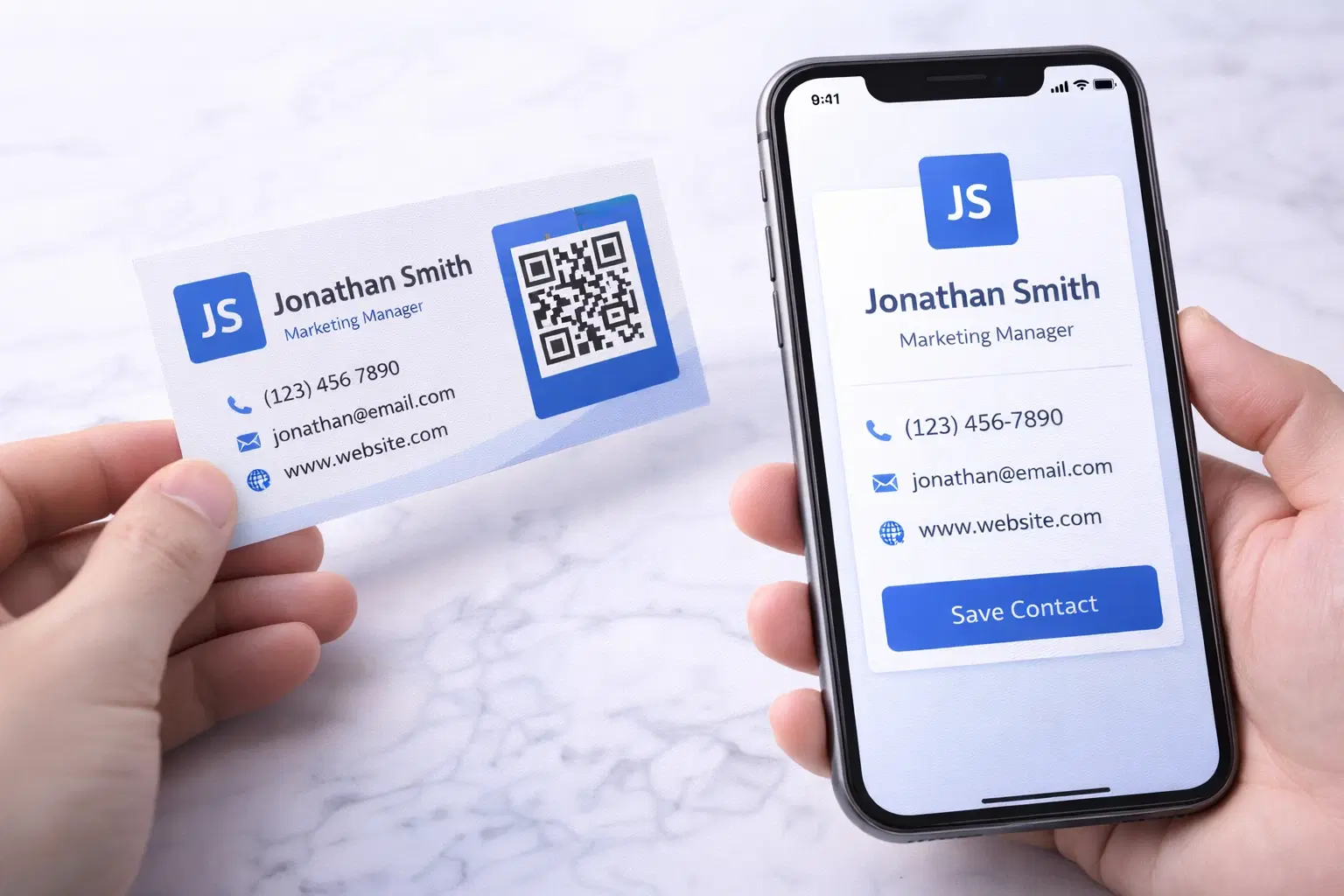
vCard QR Codes: The Complete Guide to Digital Business Cards (Updated 2026)
Create a vCard QR code that shares your contact info instantly, and updates itself when your job, phone, or email changes. Complete guide with placement strategy and networking scripts. Updated September 2026.
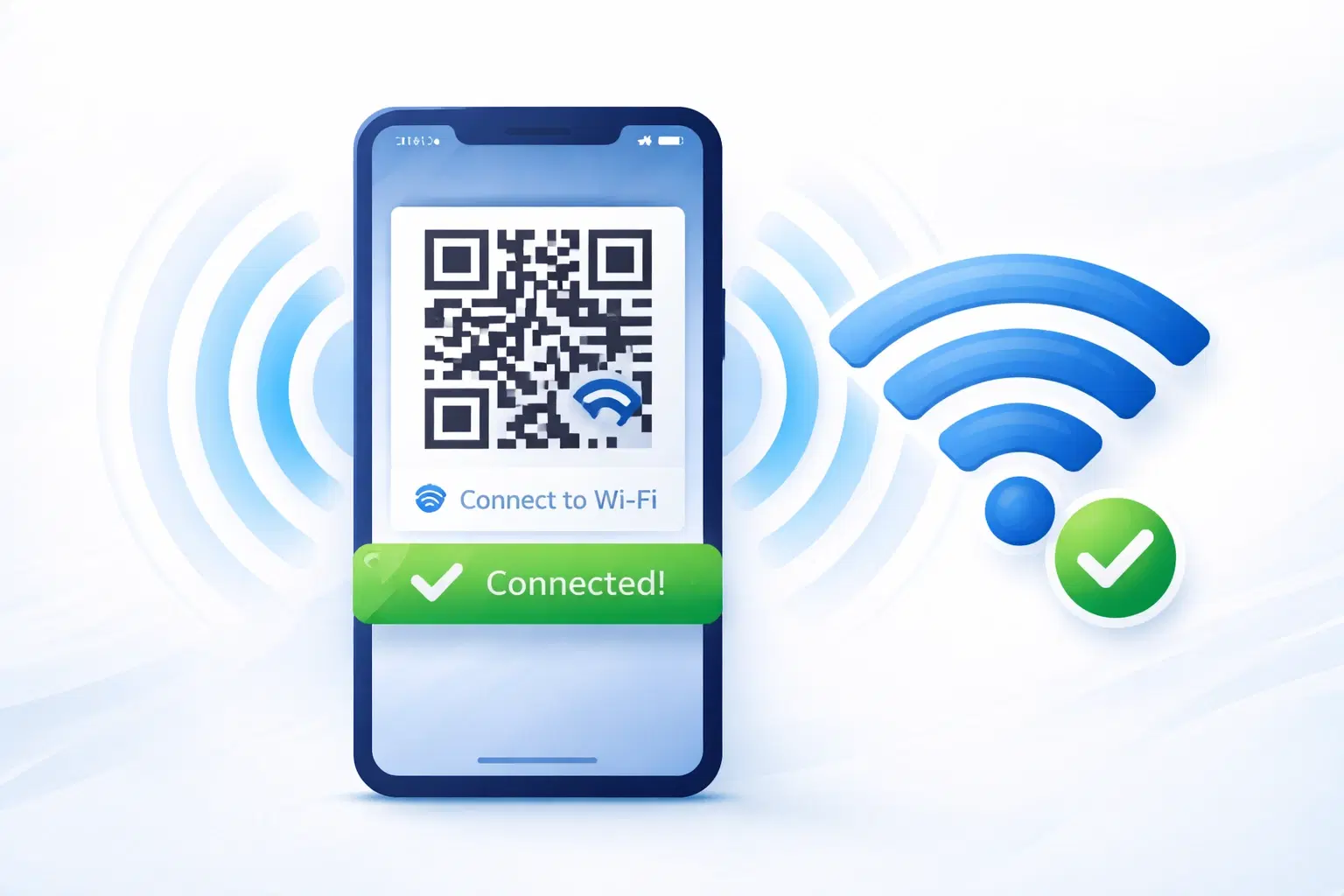
WiFi QR Codes: How to Share Your Network Password Instantly (Updated 2026)
Stop spelling out WiFi passwords letter-by-letter. WiFi QR codes let guests connect in seconds: for your home, café, hotel, or office. Updated 2026 setup guide with platform-specific instructions.

How to Set Up QR Code Check-In for Events: Step-by-Step Guide 2026
Replace paper lists and manual check-ins with a fast, contactless QR code system. Full setup guide for conferences, workshops, weddings, and corporate events.