How to Set Up QR Code Check-In for Events: Step-by-Step Guide 2026
Replace paper lists and manual check-ins with a fast, contactless QR code system. Full setup guide for conferences, workshops, weddings, and corporate events.

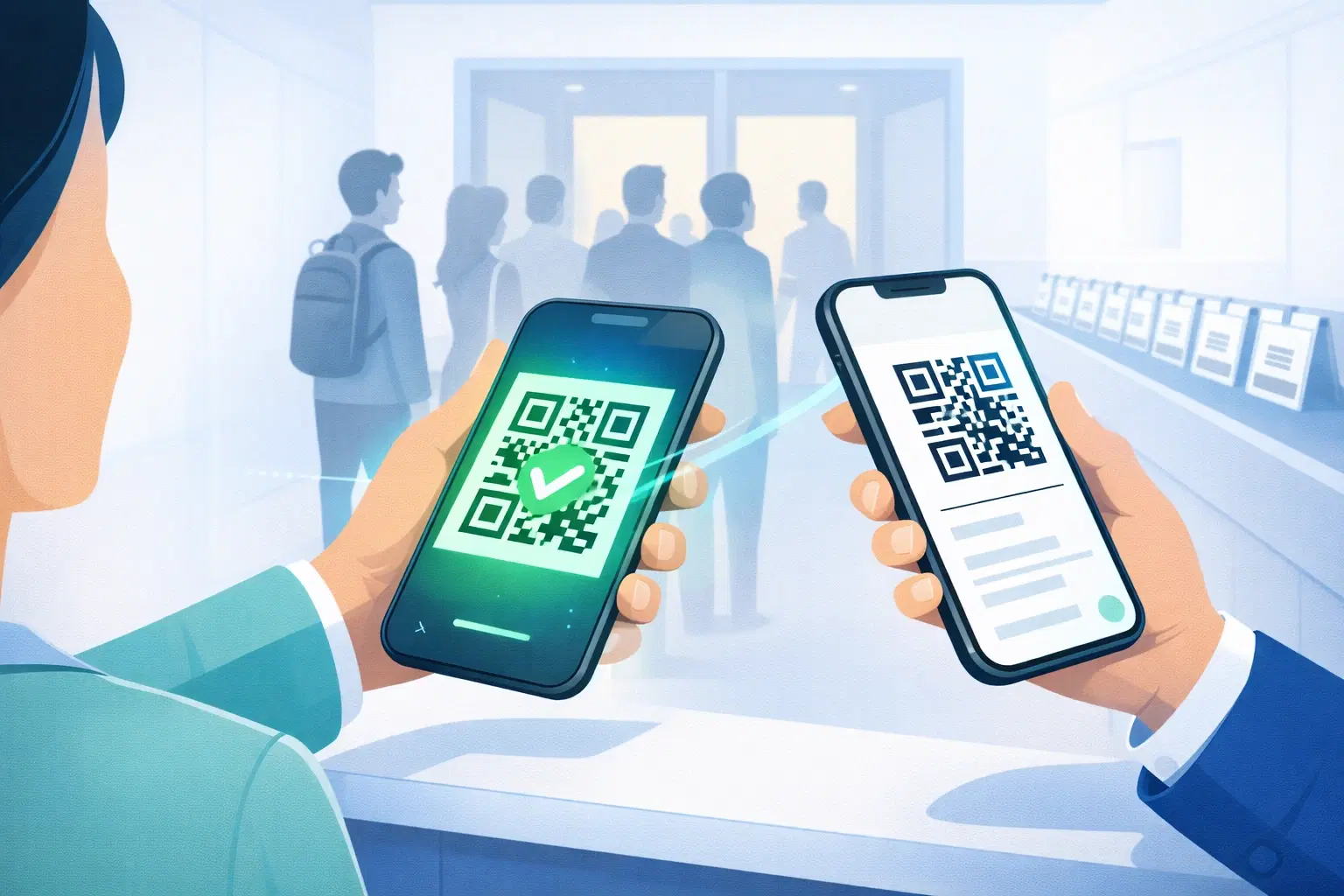
Manual check-in at events is slow, error-prone, and creates queues that frustrate attendees before your event even starts. A QR code check-in system solves all of this: attendees scan once, you get instant attendance data, and the queue moves 5x faster.
This guide walks you through setting up a complete QR code check-in system from scratch, no expensive event software required, no app for attendees to download. Just a QR code and a phone.
How QR Code Event Check-In Works
The concept is simple: each attendee gets a unique QR code (sent via email or on their ticket). At the event entrance, staff scan the QR code using any smartphone camera. The system marks them as checked in and your attendance list updates in real time.
There are two common setups:
1. Individual QR codes per attendee. Each person has a unique code tied to their registration. Best for paid events, conferences, or anywhere you need to verify who is attending.
2. Single entry QR code, one QR code at the door links to a check-in form where attendees type their name. Best for free community events, workshops, or informal gatherings.
For most events, individual QR codes give you cleaner data and faster check-in.
What You Need to Set Up QR Check-In
Before you start, gather these components:
For generating QR codes:
- A dynamic QR code platform (like QRForever). Dynamic codes let you update the destination URL if anything changes
- A spreadsheet with attendee names and emails
For check-in day:
- 1-2 smartphones or tablets at the entrance (any camera app reads QR codes)
- A printed backup list in case of connectivity issues
- Optional: a dedicated QR scanner app for faster scanning in low-light venues
For tracking attendance:
- Google Sheets or Airtable (free), or your event platform's built-in check-in tool
- If using QRForever, you can track scan counts per QR code in the analytics dashboard
You do not need special hardware. Modern smartphone cameras scan QR codes instantly.
Step 1: Set Up Your Check-In Landing Page
Before creating QR codes, decide what happens when an attendee scans their code.
Option A: Direct confirmation page Create a simple webpage (Google Sites, Notion, or your event platform) that shows the event name and date, a confirmation message, and schedule or session information.
Link each attendee's QR code to a unique URL like: yourevent.com/checkin?id=12345
Option B: Google Form check-in For smaller events, a Google Form works perfectly. Create a form with fields for name, email, and ticket type, set up a Google Sheet to capture responses, and all attendees scan the same QR code linking to this form.
Option C: Eventbrite, Townscript, or Konfhub If you registered attendees through an event platform, they already provide individual QR codes. You just need the scanning setup.
For most independent event organizers, Option A or B requires zero budget and works well for up to 500 attendees.
Step 2: Create QR Codes for Your Attendees
If you're generating individual QR codes (recommended for paid events):
Using QRForever: 1. Log in at qrforever.com 2. Use Bulk QR Creation. Upload a CSV with attendee names and their unique check-in URLs 3. QRForever generates all QR codes at once and lets you download as a ZIP or PDF 4. Each QR code links to that attendee's specific confirmation page
Why use dynamic QR codes for events:
- If you need to change the check-in page URL last minute, you update the destination once and all printed QR codes still work
- You can see scan analytics: which time slots had the most check-ins, whether attendees scanned before arriving, etc.
- No reprinting if anything changes
Naming your QR codes: Use the attendee's name as the QR code label so you can identify each one in your dashboard.
Step 3: Send QR Codes to Attendees
Once generated, distribute QR codes via:
Email (most common): Embed the QR code image directly in the confirmation email. Include a backup link in case scanning fails. Send a reminder 24 hours before the event with the QR code again.
Digital tickets: Add the QR code to a PDF ticket using Canva or Google Slides. Attendees screenshot it to their phone, no printing needed.
Physical tickets: For premium events, print QR codes on physical tickets. Use a minimum size of 2.5 × 2.5 cm for reliable scanning.
Tip: Always include the attendee's name visibly on the ticket alongside the QR code so staff can cross-check manually if needed.
Step 4: Set Up Your Check-In Station
On event day, your check-in station needs 1 device per 100 expected attendees, adequate lighting at the scanning point, and a printed backup list for the first 30 minutes while connectivity stabilizes.
Staff briefing (5 minutes): Open the camera app, ask attendees to show their QR code, scan and confirm the green checkmark, then wave them through. For any failed scans, check the printed list manually.
Pro tip for large events: Set up two lanes, one for phone QR codes, one for printed tickets. This prevents the common bottleneck of people searching for emails.
Tracking Attendance in Real Time
With QR code check-in, you get data traditional sign-in sheets never could:
Scan analytics from QRForever: Total scans by time of day (see your peak arrival window), device types, and first scan timestamp per attendee.
Google Sheets tracking: If using Google Forms for check-in, your spreadsheet updates in real time. Share it with your event team so everyone can see who has arrived without needing to be at the entrance.
No-shows: Compare your registration list to your check-in data after the event. A high no-show rate (above 30%) is useful data for future events: consider overbooking or sending day-of reminders.
Common Problems and How to Fix Them
QR code won't scan: Screen brightness too low, QR code image is too small, poor lighting at entrance, or cracked phone screen. Always have a printed backup list.
Attendee forgot their QR code: Have a printed backup list sorted by name. If using Google Forms, they can check in manually by filling the form.
Slow internet at the venue: Download your attendance list as a PDF before the event. Have a paper sign-in sheet as backup for the first 15 minutes.
Duplicate check-ins: For paid events requiring strict access control, use a dedicated check-in app (Eventbrite, Konfhub) which marks codes as used after first scan.
QR Check-In for Specific Event Types
Conferences and seminars: Use individual QR codes per attendee. Track which sessions they attended by placing different QR codes at each session entrance.
Weddings and private events: A single check-in QR code linked to a form works well. Guests appreciate not needing to find their name on a list. They just scan and fill their name in 5 seconds.
Corporate training and workshops: Individual QR codes double as attendance certificates. After the event, export your scan log as proof of attendance for HR or compliance records.
Recurring events (weekly classes, monthly meetups): Use one dynamic QR code per event series. Change the destination URL each week to that week's check-in form. The same printed QR code works every time, no reprinting needed.
Conclusion
QR code check-in is one of the fastest wins for event organizers. The setup takes under an hour, costs nothing beyond a QR code platform, and immediately improves the attendee experience at the door.
The key is using dynamic QR codes, so if anything changes (venue, platform, check-in page), you update the link once and every printed code still works.
Start your free trial on QRForever and use Bulk QR Creation to generate check-in codes for your entire attendee list in one go. No per-code fees, no limits during the 7-day trial.
Explore QRForever Solutions
Ready to Create Your Own QR Codes?
Start creating dynamic QR codes for your business today. Track analytics, update content anytime, and never reprint again.
Related Articles
vCard QR Codes: The Complete Guide to Digital Business Cards (Updated 2026)
Create a vCard QR code that shares your contact info instantly, and updates itself when your job, phone, or email changes. Complete guide with placement strategy and networking scripts. Updated September 2026.
WiFi QR Codes: How to Share Your Network Password Instantly (Updated 2026)
Stop spelling out WiFi passwords letter-by-letter. WiFi QR codes let guests connect in seconds: for your home, café, hotel, or office. Updated 2026 setup guide with platform-specific instructions.
How to Add a QR Code to Your Business Card: Print & Design Guide 2026
Add a scannable QR code to your business card that links to your contact info, portfolio, LinkedIn, or website. Full guide covering design, sizing, and printing.