How to Create a vCard QR Code: Step-by-Step (2026)
A vCard QR code shares your full contact details with one scan, ready to save. Here is the exact step-by-step process to create one in 2026, plus the one setting that decides whether you can ever update it.

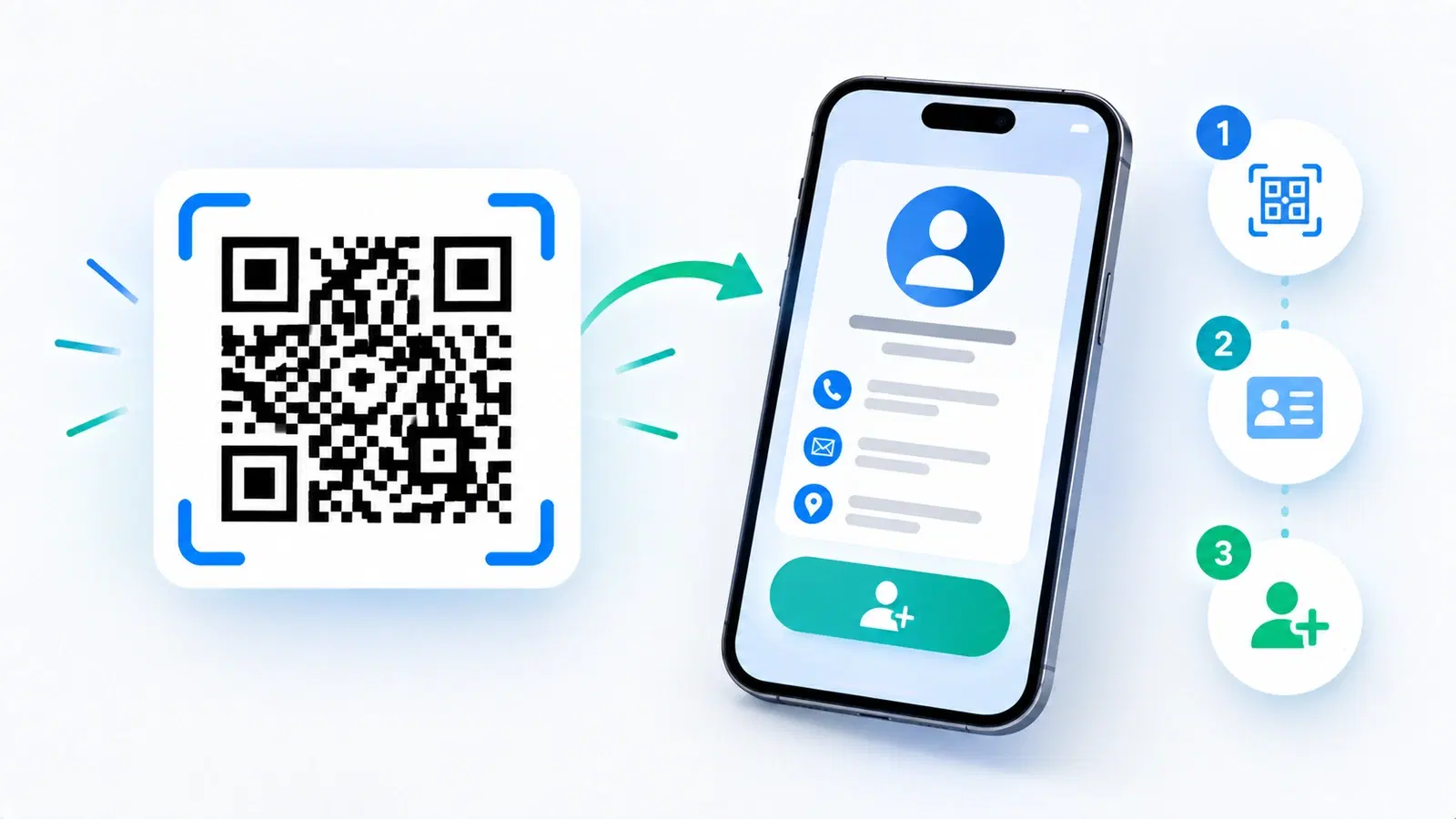
A vCard QR code turns the awkward moment of "let me get your number" into a single scan. Someone points their phone at your code, and your full contact details, name, phone, email, company, website, appear ready to save in one tap. No typing, no app, no paper card to lose.
This is a focused, step-by-step how-to: exactly how to create a vCard QR code, what to put in it, and how to make sure it works before you rely on it. If you want the bigger picture on why vCard codes beat paper cards, placement strategy, and networking tips, that is covered in our fuller vCard QR code guide; here we just walk through making one, correctly, from start to finish.
There is one decision along the way that matters more than all the others, whether to make it static or dynamic, because it determines whether you can ever update your details without reprinting. We will flag it clearly when we get there.
Before You Start: Decide What to Include
A vCard QR code can hold a lot of contact fields. Before generating, decide what you actually want to share, because a cleaner card scans and saves better than an overstuffed one.
The fields a vCard can include:
- Name (first and last) - essential
- Phone (mobile, and optionally work)
- Company and job title
- Website
- Address (optional; often unnecessary)
- Social or other links (optional)
Keep it to what matters. Include the details you genuinely want a new contact to have. For most people that is name, one phone number, email, company, title, and website. Piling in multiple addresses and every social handle makes the saved contact cluttered and, with a static code, can make the code denser and harder to scan. Share the essentials; leave the rest.
A note on two "flavors" of contact code. Some platforms encode the contact data directly into the code (a true vCard), while others point the code at a small hosted contact page with a "save contact" button. Both achieve the same goal, a saved contact, but the hosted-page approach is usually the one that can be dynamic (editable later) and can show a nicer card. We will cover that in the static-vs-dynamic step, which is the key choice.
Gather your details now. Have your name, number, email, company, title, and website ready before you start, so you can fill the form in one pass and generate a clean code.
The Key Choice: Static vs Dynamic
This is the single most important decision when creating a vCard QR code, and it is worth pausing on, because getting it wrong means you cannot fix your code later without reprinting.
Static vCard code: details baked in. A static vCard code encodes your contact details directly into the pattern. It works offline and never "expires," but the details are permanent, locked into the code. If your phone number, email, job title, or company changes, the code is now wrong and you must generate and reprint a brand-new one. For a code printed on business cards, that means reprinting the whole batch.
Dynamic vCard code: details you can update. A dynamic vCard code points to a small hosted contact page you control. You can update your details any time, new number, new job, new company, and the same code keeps working, now showing the updated information. No reprinting. As a bonus, dynamic codes can be tracked, so you can see how often yours is scanned. See dynamic vs static QR codes for the full explanation.
Which to choose:
- Choose dynamic if the code will be printed (business cards, badges, signage) or if your details might ever change, which, for a career, they will. This is the right choice for almost everyone. It protects you from the "outdated card" problem entirely.
- Choose static only for a truly one-off, short-term use where the details will never change and you want it to work without any hosted page.
The recommendation: For a business card or anything you print, use a dynamic vCard code. The ability to update your details without reprinting is exactly what makes a digital card better than paper. See how to make a permanent QR code that never expires so your dynamic code also stays live for good.
Important
The most common vCard regret is choosing a static code for printed business cards, then changing jobs or numbers and discovering the whole batch is now wrong and must be reprinted. If your vCard code will be printed, make it dynamic so you can update your details anytime without touching the printed code.
Step-by-Step: Create the Code
With your details ready and the static-vs-dynamic choice made, here is the actual process. The specifics vary slightly by platform, but the steps are the same.
1. Open a vCard QR code generator. Choose a platform that offers dynamic vCard codes (so you can update later). If you are weighing options, see how to choose a QR code generator.
2. Select the vCard (contact) code type. Most generators list QR types; pick "vCard," "Contact," or "Business Card."
3. Fill in your contact fields. Enter the details you decided on: name, phone, email, company, title, website. Double-check spelling and that the phone and email are exactly right, these are what people will save and use to reach you.
4. Choose dynamic (recommended). If the platform offers it, select the dynamic option so your details stay editable. This is the step that saves you from reprinting later.
5. Design the code (optional but worthwhile). Add your brand color and, if you like, a logo, keeping the code scannable. Keep strong contrast (dark code on light background). See how to add a logo without breaking it and how to make a colored code that scans.
6. Download in the right format. For print (business cards), download a vector file (SVG) so it stays crisp at any size; for screen use, a high-resolution PNG is fine. See SVG vs PNG.
That is the whole creation process. The next step, testing, is the one people skip and regret.
- Open a generator that offers dynamic vCard codes
- Select the vCard / Contact / Business Card code type
- Fill in your fields carefully (double-check phone + email)
- Choose the dynamic option so details stay editable
- Design it (brand color, optional logo) while keeping contrast
- Download SVG for print, high-resolution PNG for screen
Test It, Then Put It to Work
A vCard code that does not save cleanly is worse than no code, because it wastes the one moment you had to share your details. Always test before you rely on it.
How to test properly:
- Scan with an iPhone and an Android if you can. Contact handling differs slightly between them, so confirm the saved contact looks right on both.
- Actually save the contact and check every field: name spelled correctly, phone dials correctly, email is right, company and title as intended. A typo in the number defeats the entire purpose.
- Test at final size on the real material. If it is going on a business card, print one and scan it at that size. See the size guide. If it hesitates, see why codes fail to scan.
Where to use your vCard code:
- Business cards, the classic placement. See QR code on a business card design guide.
- Email signature, so every email can share your contact details. See how to add a QR code to your email signature.
- Name badges and lanyards at events and conferences.
- Your phone's lock screen or wallet, to share in person without anything printed.
- Presentation slides when speaking, so the audience can save your details.
Keep it current (the dynamic payoff). If you made it dynamic, update your details whenever they change, and the same code everywhere stays correct. That is the whole advantage: create it once, keep it accurate forever, and never reprint. For how a vCard QR compares to dedicated smart-card apps, see the best digital business card apps.
Pro Tip
Before printing your vCard code on anything, run the full save-the-contact test on both an iPhone and an Android, and confirm the phone number actually dials. A single wrong digit in the number turns every future scan into a dead end, and you will not notice until someone tries to call you.
Conclusion
Creating a vCard QR code is quick: decide what to include, choose dynamic over static, fill in your fields carefully, design it while keeping it scannable, download it in the right format, and, above all, test it before you rely on it. Done right, it replaces the paper card entirely, sharing your full contact details with a single scan that saves in one tap.
The decision that matters most is static versus dynamic. For anything printed or any details that might change, and over a career they will, choose a dynamic vCard code so you can update your information anytime without reprinting. That single choice is the difference between a card you update in seconds and a batch you have to throw away.
Make it once, make it dynamic, test it on both phone platforms, and put it everywhere you network: business cards, email signature, badges, and your phone. From then on, sharing your contact details is a scan, and keeping them current is an edit.
Related reading:
Create a dynamic vCard QR code with QRForever. Start a 7-day full-access trial, no credit card needed. Update your details anytime, no reprinting.
Explore QRForever Solutions
Ready to Create Your Own QR Codes?
Start creating dynamic QR codes for your business today. Track analytics, update content anytime, and never reprint again.
Related Articles
vCard QR Codes: The Complete Guide to Digital Business Cards (Updated 2026)
Create a vCard QR code that shares your contact info instantly, and updates itself when your job, phone, or email changes. Complete guide with placement strategy and networking scripts. Updated September 2026.
WiFi QR Codes: How to Share Your Network Password Instantly (Updated 2026)
Stop spelling out WiFi passwords letter-by-letter. WiFi QR codes let guests connect in seconds: for your home, café, hotel, or office. Updated 2026 setup guide with platform-specific instructions.
How to Set Up QR Code Check-In for Events: Step-by-Step Guide 2026
Replace paper lists and manual check-ins with a fast, contactless QR code system. Full setup guide for conferences, workshops, weddings, and corporate events.