SVG vs PNG QR Codes: Which Format Should You Use for Print? (2026)
Download a QR code and you are usually asked to choose a format: SVG, PNG, and sometimes more. The choice matters, especially for print. Here is the difference between SVG and PNG QR codes and which to use for every situation in 2026.

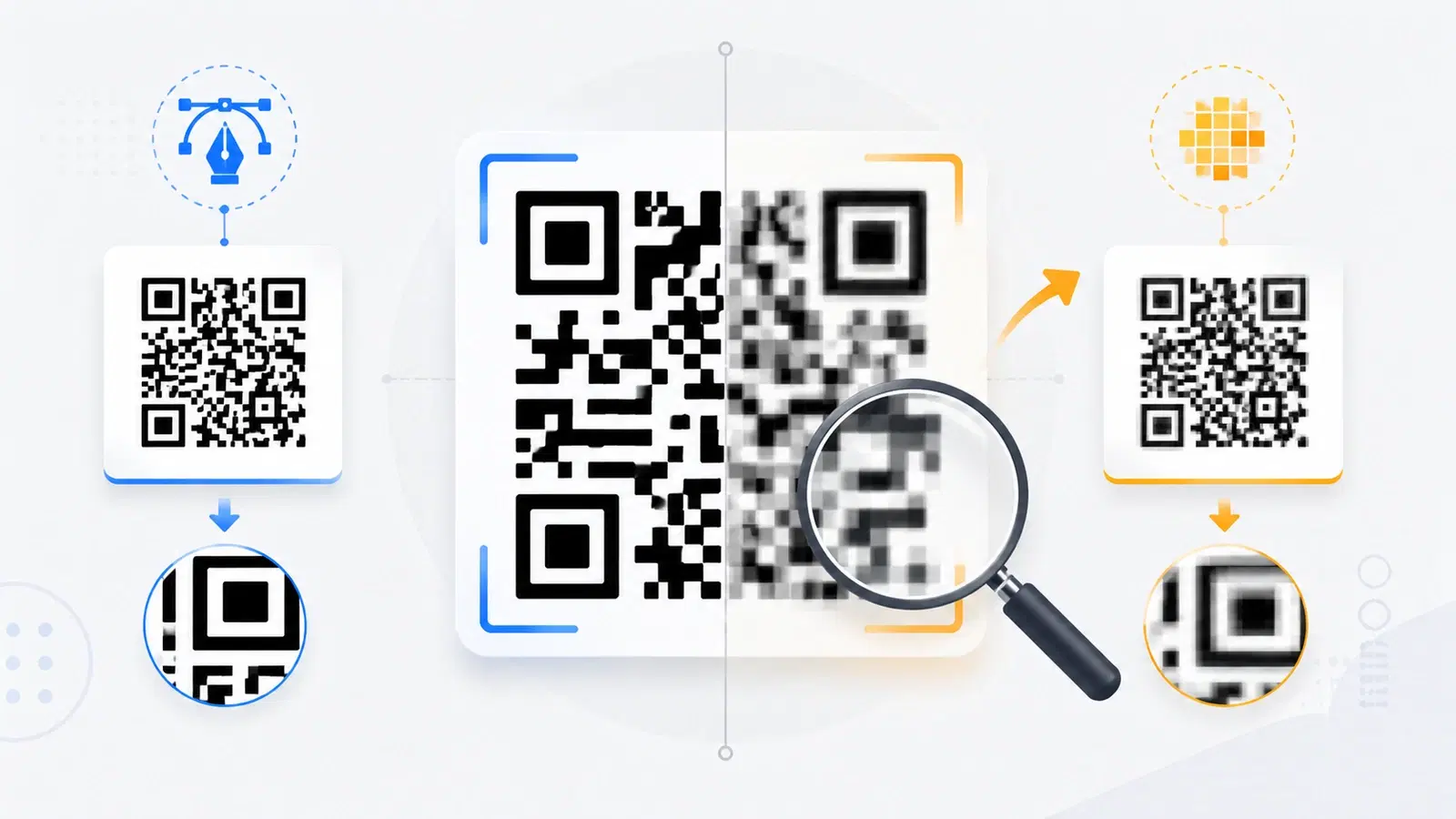
When you download a QR code, you are usually asked to pick a file format: SVG, PNG, and sometimes others like EPS or PDF. Many people click the first option and move on. But the format genuinely matters, especially if the code will be printed, and choosing wrong is a common reason a code comes out blurry or fails to scan.
The core distinction is simple: SVG is a vector format and PNG is a raster format, and that single difference determines how each behaves when you resize it. Get the format right and your code stays razor-sharp at any size. Get it wrong and a code stretched onto a poster can turn into an unscannable blur.
This guide explains the difference between SVG and PNG QR codes in plain terms, shows which to use for print versus screen, covers the other formats you might see, and gives you a simple rule for every situation in 2026.
Vector vs Raster: The Core Difference
Everything about choosing a QR code format comes down to understanding vector versus raster. It is simpler than it sounds.
Raster (PNG): a grid of pixels. A PNG stores the image as a fixed grid of colored pixels, like a photo. It has a set resolution. When you display it at its intended size, it looks fine. When you enlarge it beyond that size, there are no extra pixels to show, so the software stretches the ones it has, and the image becomes blocky or blurry. Shrinking is fine; growing past its resolution is where PNG degrades.
Vector (SVG): math, not pixels. An SVG stores the image as instructions, shapes, lines, and coordinates, rather than a fixed grid of pixels. Because it is described mathematically, it can be scaled to any size, a business card or a billboard, and stay perfectly crisp. There is no fixed resolution to exceed. This makes vector ideal for anything that might be resized or printed large.
Why this matters so much for QR codes specifically. A QR code is all sharp edges and precise squares, exactly the kind of image that suffers most from blur. Scanners rely on cleanly distinguishing dark modules from light. A blurry, pixelated code loses that precision and becomes hard or impossible to scan. So the format's effect on sharpness is not cosmetic for QR codes; it is functional. See why codes fail to scan.
When to Use SVG (Vector)
SVG is the right choice whenever quality and flexibility matter, which for printed codes is almost always.
Use SVG for:
- Any print work. Flyers, posters, packaging, signage, business cards, banners, anything physical. Vector guarantees the code stays sharp at whatever size the print requires, from a tiny label to a large sign.
- Anything that might be resized. If you are not certain of the final size, or the code may be reused at different sizes, SVG protects you. One vector file works everywhere.
- Professional design workflows. Designers work in vector tools, and an SVG drops cleanly into design software, scales without loss, and integrates with the rest of a layout. If you are handing a code to a designer or print shop, give them the SVG.
- Large-format printing. For anything big, a poster, a billboard, a vehicle wrap, vector is essential. A raster file large enough to print at that size cleanly would be enormous and still limited; vector simply scales.
The simple guideline: If the code will be printed, or you are unsure of the final size, choose SVG. It is the safe default for real-world use, because it can never become the blurry code that will not scan. When in doubt, SVG. For print specifics also see the QR code size guide.
Pro Tip
When handing a QR code to a print shop or designer, always give them the SVG (or another vector format like EPS or PDF). Vector scales to any size without losing sharpness, which is exactly what print work needs. Sending a PNG to be printed large is the most common way a code ends up blurry and unscannable on the final material.
When PNG Is Perfectly Fine
SVG is not always necessary. PNG is a raster format, but for plenty of uses it is exactly right, and often more convenient.
Use PNG for:
- On-screen and digital use. Websites, apps, emails, social media, digital slides. As long as you export the PNG at the size it will be displayed (or a bit larger), it looks perfectly sharp on screen. Screens are pixel grids anyway, so a correctly-sized PNG is ideal.
- Quick, simple sharing. PNG opens everywhere with no special software. If you just need to drop a code into a document or send it to someone, PNG is the easy, universally-compatible choice.
- Small, fixed-size print at high resolution. If a code will be printed at a known, small size and you export a high-resolution PNG, it can print fine. The key is exporting enough resolution for the print size; a low-resolution PNG printed even small will blur.
The catch with PNG: Its quality is tied to the resolution you export. A PNG is only as sharp as the pixels it contains, so if you might need it larger later, you would have to re-export at a higher resolution, and if you enlarge an existing PNG past its resolution, it degrades. For fixed digital use at a known size, none of that is a problem. For print or uncertain sizing, that limitation is exactly why SVG wins.
The simple guideline: If the code lives on a screen at a known size, PNG is fine and convenient. Just export it at the resolution you need. See our print vs digital guide for more on the two contexts.
- PNG: websites, apps, email, social, slides (export at display size)
- PNG: quick sharing and dropping into documents
- PNG: small fixed-size print IF exported at high resolution
- SVG: all print, large format, and anything that might be resized
- SVG: handing off to a designer or print shop
Other Formats and a Simple Rule for Every Situation
Beyond SVG and PNG, you may see a few other options. Here is what they are and a rule that covers everything.
Other formats you might encounter:
- EPS: another vector format, common in professional print workflows. Like SVG, it scales cleanly and is a safe choice for print, especially if a print shop requests it.
- PDF: can hold vector data and is a convenient, universal way to hand a scalable code to a printer. Often a good print-handoff format.
- JPG/JPEG: generally avoid for QR codes. JPEG compression can introduce artifacts and soften the sharp edges a code needs. PNG is the better raster choice because it keeps edges crisp.
The simple rule for every situation:
- Printing anything, or unsure of size? Use a vector format: SVG (or EPS/PDF if requested). It will never blur.
- On a screen at a known size? Use PNG, exported at that size. Simple and sharp.
- Handing off to a designer or printer? Give them vector (SVG/EPS/PDF).
- Avoid JPG for codes. Its compression works against the crisp edges scanners need.
The bottom line: Format is not a trivial click. For a QR code, sharpness is not cosmetic, it is what lets the code scan. When the code will be printed or might be resized, vector (SVG) protects that sharpness at any size. When it lives on a screen at a fixed size, PNG is perfectly fine. Match the format to where the code will live, and you will never ship a blurry, unscannable code again.
Conclusion
The SVG versus PNG choice comes down to one thing: vector versus raster. SVG is vector, described mathematically, so it scales to any size, from a business card to a billboard, and stays perfectly sharp. PNG is raster, a fixed grid of pixels, so it looks great at its intended size but degrades if enlarged past its resolution. For QR codes, where sharpness is what makes a code scannable, that difference is functional, not cosmetic.
The rule is simple. For anything printed, or when you are unsure of the final size, use SVG (or another vector format like EPS or PDF), because it can never become the blurry code that fails to scan. For codes that live on a screen at a known size, PNG is perfectly fine and more convenient, just export it at the resolution you need. And avoid JPG for codes, since its compression softens the edges scanners rely on.
Match the format to where the code will live, vector for print and flexibility, PNG for fixed-size screen use, and your codes will stay crisp and scannable everywhere.
Related reading:
Download print-ready QR codes with QRForever. Start a 7-day full-access trial, no credit card needed. Export crisp vector and high-resolution codes for any medium.
Explore QRForever Solutions
Ready to Create Your Own QR Codes?
Start creating dynamic QR codes for your business today. Track analytics, update content anytime, and never reprint again.
Related Articles
Dynamic vs Static QR Codes: Which One Should You Use? (Updated 2026)
The complete 2026 guide to dynamic vs static QR codes: when each type is right, the hidden costs of choosing wrong, and a decision framework you can apply in 60 seconds.
QR Code Payments Explained: How They Work and Why They Matter (Updated 2026)
QR code payments crossed record transaction volumes in 2025 and are now infrastructure, not novelty. Understand how they work: merchant-presented vs consumer-presented, UPI, security, and what it means for your business. Updated June 2026.
QR Codes That Never Expire: Why Most Free QR Codes Stop Working (Updated 2026)
Free QR codes often expire after 14–90 days, breaking printed materials and costing more in reprints than a paid plan ever would. Updated 2026 guide with platform expiry timelines and a step-by-step rescue plan.