QR Code on Business Card: Complete Design Guide for 2026
Everything you need to know about adding a QR code to your business card: what to link it to, where to place it, minimum size, and design rules that actually look professional.

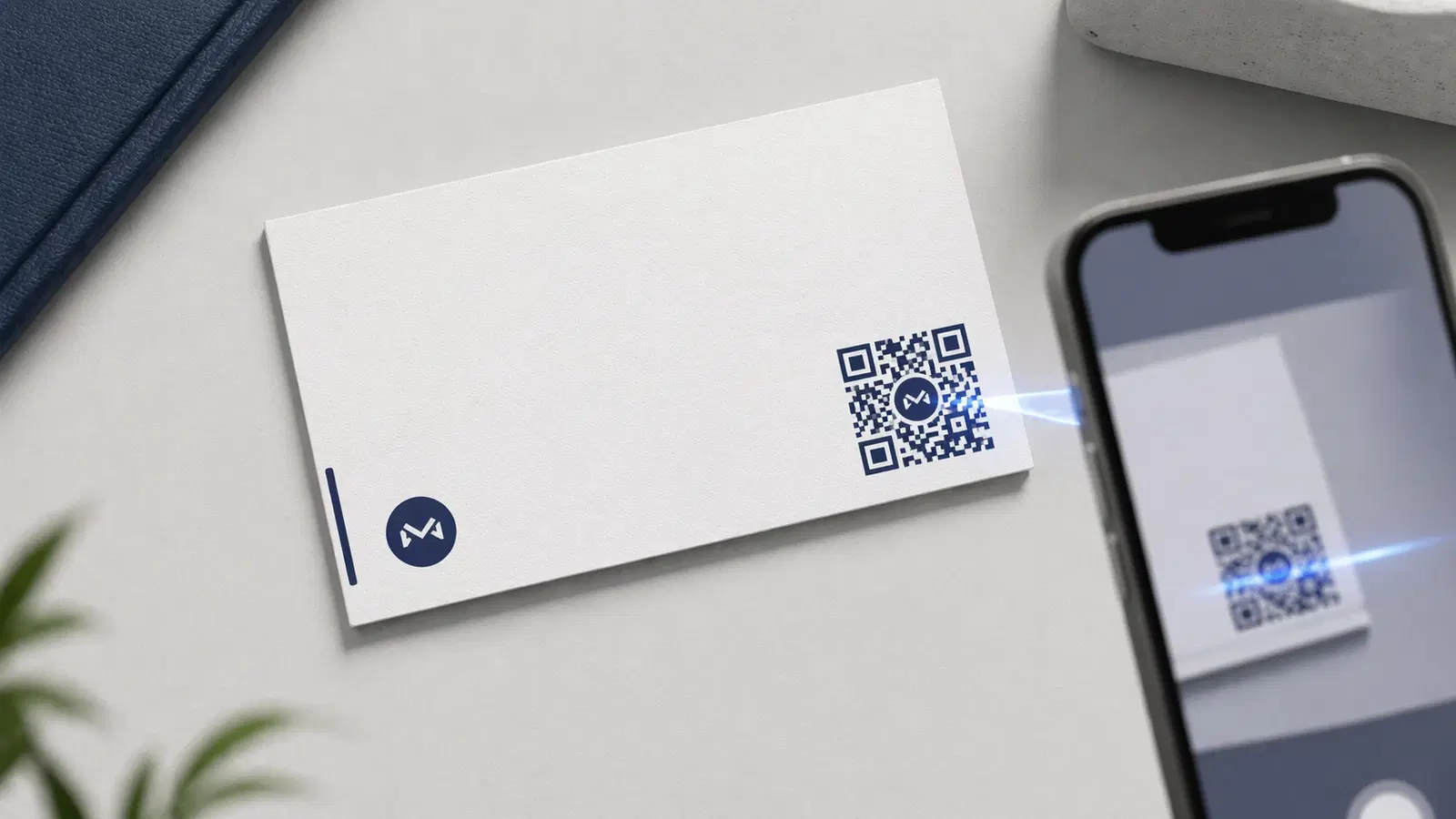
A QR code on a business card transforms a static piece of cardstock into a live digital touchpoint. When done right, it looks intentional and professional. When done wrong, it looks like an afterthought, a tiny, unbranded box stuck in the corner that nobody scans.
This guide covers everything: what to link your QR code to, exact sizing rules, front vs back placement, design principles, and the most common mistakes that make business card QR codes fail. By the end, you'll know exactly how to add one that actually gets used.
What Should Your Business Card QR Code Link To?
This is the most important decision. The destination determines whether the QR code adds value or just adds noise.
Option 1. VCard / Digital Contact Card (most popular) Scanning opens a contact card the person can save directly to their phone. No typing, no errors. Includes name, company, phone, email, website, and optionally a photo.
*Best for:* Networking events, conferences, sales professionals
Option 2. LinkedIn Profile Direct link to your LinkedIn profile. Works well for B2B professionals where the relationship continues on LinkedIn.
*Best for:* Recruiters, consultants, B2B sales
Option 3. Personal Website or Portfolio Links to your website or portfolio. Gives the receiver a full picture of your work.
*Best for:* Freelancers, designers, creatives, agencies
Option 4. WhatsApp Chat Opens a WhatsApp conversation directly. High conversion for markets where WhatsApp is the primary communication channel.
*Best for:* Service businesses, small businesses in WhatsApp-dominant markets
Option 5. Booking / Calendar Link Links to your Calendly or similar booking page. The receiver can schedule a call immediately.
*Best for:* Consultants, coaches, sales teams
Pro Tip
A vCard QR code is the most universally useful option. It works offline, saves contact details with one tap, and does not require the receiver to have any particular app installed.
QR Code Size Rules for Business Cards
Standard business cards are 3.5" × 2" (89mm × 51mm). This is small real estate, which means you need to get the sizing right.
Minimum size: 1.5cm × 1.5cm (approximately 0.6" × 0.6") Recommended size: 2cm × 2cm (approximately 0.8" × 0.8") Maximum practical size: 2.5cm × 2.5cm (any larger crowds other information)
Why 2cm is the sweet spot:
- Scanning distance from a held card is typically 10–20cm
- Using the 10:1 distance rule: 15cm scan distance → 1.5cm minimum
- At 2cm, you have a comfortable margin for low-light conditions and slightly older phone cameras
- Anything smaller risks scan failure on phones with lower-quality cameras
Print resolution: Always export your QR code as SVG or at minimum 300 DPI PNG. If your printer renders it at 72 DPI it will appear pixelated and may not scan.
Important
Never shrink a QR code to fit, redesign the layout instead. A 1cm QR code on a business card is effectively decorative, not functional.
Front or Back: Where to Place the QR Code
Back of the card (recommended for most designs): The back gives you full real estate for the QR code plus a short CTA. It keeps the front clean and professional. Most designers prefer this approach.
*Layout suggestion:* QR code centered or bottom-right, with a two-line CTA above it: > "Scan to save my contact" > [QR code]
Front of the card (works for minimal designs): If your front design is intentionally minimal (just name and title), a small QR code in the corner can work. It signals digital-forward thinking without crowding the card.
*Avoid:* Placing the QR code directly over background patterns, gradients, or dark photography. It needs a clean, high-contrast area.
The golden rule: The QR code needs a "quiet zone", at least 4 modules of blank space around all four sides. If your design crowds this margin, the code may fail to scan. Most design errors happen here.
Single-Sided Cards
Place the QR code in the bottom-right corner with at least 3mm margin from the card edge. Balance it with your contact details on the left. Keep the CTA text above the code, not below: eyes naturally read top-to-bottom.
Double-Sided Cards
Use the entire back for the QR code and CTA. This gives you room for a larger code, better contrast, and more compelling copy. The front stays clean: just your name, title, and key contact.
Design Rules That Keep It Looking Professional
1. Match the brand, don't clash with it If your card is black and gold, your QR code should use the same palette. Dark modules on a light background (or inverted if the contrast is sufficient). A generic black-and-white QR code on a premium card is a missed opportunity.
2. Add your logo to the center Most QR code generators (including QRForever) let you embed a logo in the center of the code. This works because QR codes have built-in error correction. They can still be read even if 30% of the pattern is obscured. A centered logo makes the code look intentional rather than generic.
3. Never use a QR code with a colored background that reduces contrast The modules (dark squares) must be darker than the background. Light gray on white fails. Dark blue on navy fails. Black on white, dark blue on white, dark green on cream. These all work.
4. Always test before going to print Generate the QR code, export it, drop it into your card design file, and scan the actual print-preview PDF on your phone. Do not assume it works, test it.
5. Include a short CTA "Scan to connect" or "Scan to save contact" tells the receiver what to do and why. QR codes without context get ignored. Two words of copy dramatically improves scan rate.
Pro Tip
Use QRForever's branded QR codes. You can set custom colors, add your logo, and download as SVG for perfect print quality at any size.
Dynamic vs Static QR Codes on Business Cards
Static QR codes encode the destination directly. They cannot be updated. If you change your phone number, website, or LinkedIn URL, the QR code on every card you've printed is now wrong.
Dynamic QR codes (available on QRForever) point to a redirect URL. Update the destination anytime. Every printed card automatically points to the new destination.
For business cards specifically, dynamic is the right choice because:
- People change jobs, phone numbers, and websites
- You can update a vCard without reprinting
- Analytics tell you how many people actually scanned your card
- If you have multiple card designs (different roles, different events), you can track which performs better
The analytics alone justify dynamic: Knowing that 47 people scanned your card from last week's conference tells you exactly how effective your networking was. Static codes give you nothing.
Common Mistakes That Make Business Card QR Codes Fail
Mistake 1. QR code too small Anything under 1.5cm is a gamble. Under 1cm is effectively broken. Size it properly or don't include it.
Mistake 2, No quiet zone Design bleeds or card edge cutting into the QR code margins. Always leave at least 3mm between the code's quiet zone and the card edge.
Mistake 3. Low-resolution export Exporting at 72 DPI then scaling up. Use SVG or 300+ DPI PNG. Your printer needs vector or high-res raster.
Mistake 4, No CTA A QR code with no explanation. Add "Scan to save contact" or similar, two words doubles scan rate.
Mistake 5. Linking to a homepage instead of a specific page If they scan and land on a generic homepage, conversion drops. Send them somewhere specific: a contact card, a LinkedIn profile, a booking page.
Mistake 6. Using a free QR code generator that watermarks or expires Free codes from some platforms expire or add watermarks. Use a platform that gives you reliable codes: QRForever's free static QR generator creates permanent codes with no watermark or expiry, and a 7-day full-access trial lets you create dynamic, editable QR codes with scan analytics.
- Check minimum size: at least 2cm × 2cm for business cards
- Verify quiet zone: no design elements touching the border of the code
- Export at 300 DPI or SVG format for print
- Test on three different phones before sending to print
- Add a CTA: "Scan to save contact" or equivalent
- Use a dynamic QR code so you can update the destination later
Conclusion
A well-executed business card QR code is a small detail with outsized impact. It signals that you're thoughtful, digital-first, and easy to connect with. A poorly executed one is worse than having none at all. It creates a dead end exactly when someone is trying to reach you.
Follow the sizing rules, give it breathing room, brand it to match your card, and link it to something genuinely useful. The 15 minutes it takes to set up correctly pays off every time someone scans it.
Create your business card QR code on QRForever: full customization, branded design, SVG export for print, and dynamic links you can update anytime. Free trial, no credit card required.
Explore QRForever Solutions
Ready to Create Your Own QR Codes?
Start creating dynamic QR codes for your business today. Track analytics, update content anytime, and never reprint again.
Related Articles
QR Code Design Guide: Branding, Colors, and Customization (Updated August 2026)
A plain QR code is a missed branding opportunity, but bad design makes codes unscannable. This 2026 guide covers colors, logo placement, error correction, and the exact rules that keep branded QR codes working. Updated June 2026.

QR Code Design Trends 2026: What Is In, What Is Out
QR code design has matured past the novelty phase. Heavy gradients and artistic distortion are out; restraint, contrast, and confident branding are in. Here is what is working in 2026, and what to avoid.