How to Add a QR Code to Your Email Signature (2026 Guide)
A QR code in your email signature bridges digital and physical: recipients on a computer see your email, but scanning with their phone saves your contact or opens your booking page instantly. Here is how to add one properly.

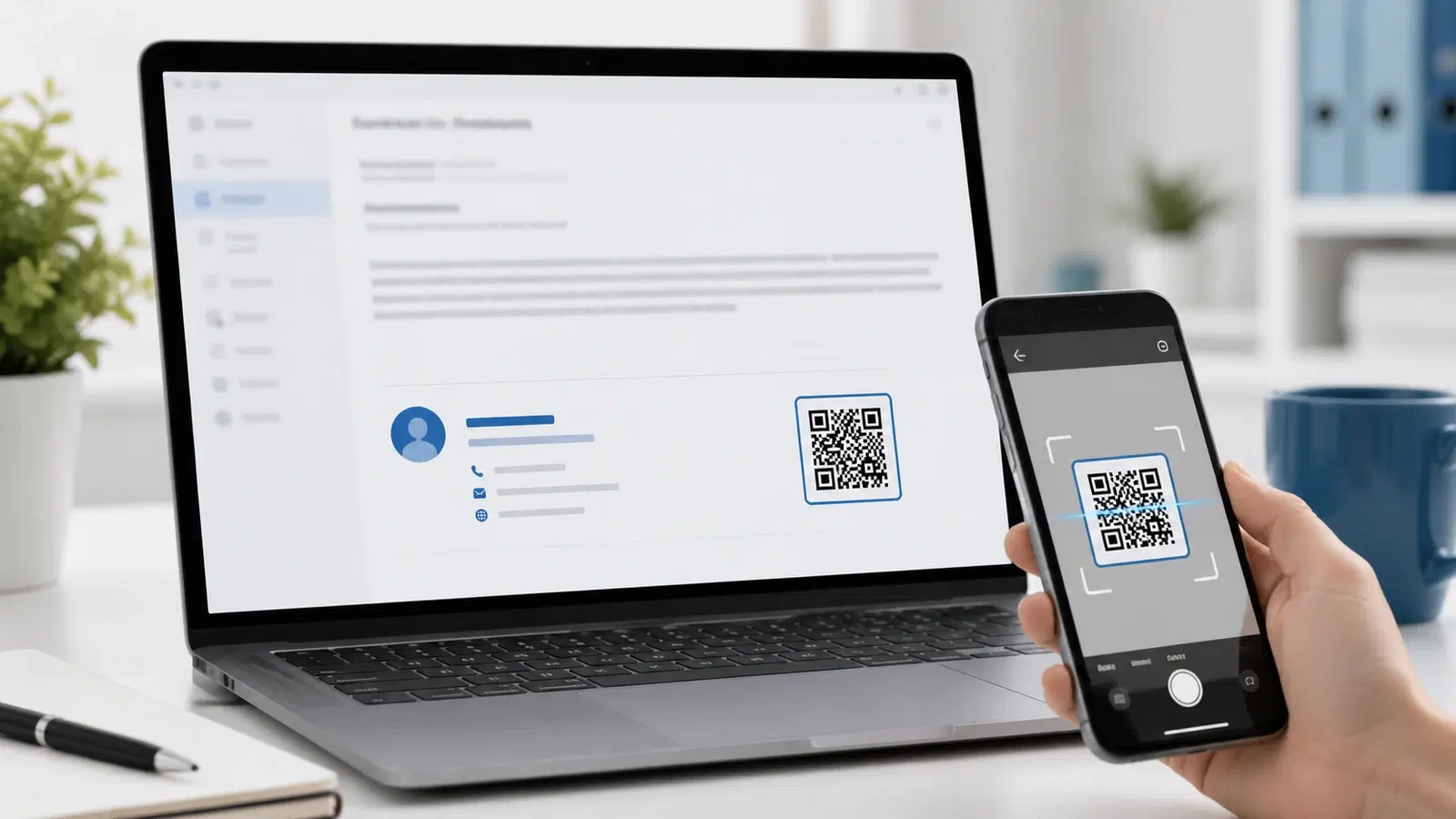
A QR code in your email signature is a small addition that solves a specific, common situation: someone reads your email on their computer, wants to save your contact or reach your booking page, and the fastest way is to scan a code with the phone already in their hand rather than typing anything.
It sounds slightly odd at first, a scannable code in an email, but the logic is sound. Your email is often read on one device while the phone sits right there. The QR code lets the reader bridge instantly from the email on their screen to an action on their phone: saving your contact, opening your calendar, visiting your portfolio, or reaching your latest content.
This guide explains when an email signature QR code is worth it, what to link it to, how to add one in the major email clients, and the mistakes to avoid. It is a practical companion to our guides on vCard QR codes and adding QR codes to documents.
When an Email Signature QR Code Is Worth It (and When It Is Not)
Like any QR code, this one is valuable in some situations and pointless in others. Being honest about which saves you from adding a code that just clutters your signature.
It is worth it when:
- You want recipients to easily save your contact details (a vCard QR is ideal)
- You have a booking or scheduling link you want to make one-tap accessible
- You are in a role where the recipient often wants to act on your contact: sales, consulting, freelancing, real estate, recruiting
- Your email is frequently read on desktop while the reader has their phone nearby
- You want a single, consistent link (portfolio, latest content, link-in-bio) reachable from every email you send
It is less useful when:
- Your signature already has clickable links and recipients mostly read on the same device they would act on (they can just click)
- You have nothing specific worth linking to
- Your emails are internal only, where a QR code adds little
The key insight: The QR code's value is the device bridge: email on the computer, action on the phone. If your recipient is already on their phone reading the email, a normal clickable link is simpler, and you should have that too. The QR code is a complement to clickable links for the desktop-reader case, not a replacement.
The honest recommendation: Add a QR code to your signature if you have a genuinely useful destination (save my contact, book a meeting) and your emails are often read on desktop. Otherwise, well-formatted clickable links may serve you better. Do not add a code just because you can.
What to Link Your Signature QR Code To
The destination determines whether the code is useful. The best options, roughly in order:
1. Your contact details (vCard) - usually the best. A vCard QR code that saves your name, title, company, phone, and email directly to the recipient's phone. This is often the single most useful signature QR, because "save this person's contact" is exactly what a recipient frequently wants to do, and typing it is tedious. See our vCard guide.
2. Your booking or scheduling link. If you want people to book meetings with you, a QR code to your scheduling page makes it one tap from any email. Powerful for sales, consulting, and anyone whose job involves booking calls.
3. Your link-in-bio or personal hub. A QR code to a page that routes to everything: your work, your other platforms, your latest content. One code, always current, giving recipients access to your whole professional presence.
4. Your portfolio or website. For creatives, freelancers, and professionals whose work sells them, a QR code to your portfolio puts your best work one scan away.
5. Your latest content or offer. For marketers, a QR code to current content, a lead magnet, or an offer. Because a dynamic code is updatable, you can change what it points to as your campaigns change, without editing your signature.
What to avoid linking to:
- A generic homepage with no clear next step
- Anything requiring login before delivering value
- A destination that is not mobile-optimized (recipients scan on phones)
The dynamic advantage: Use a dynamic QR code so you can change the destination without editing your signature across every device and email client where it is set up. Your booking link moves, your portfolio changes, your campaign updates, and the same code in every email you have ever sent points to the current destination. See dynamic vs static QR codes.
Pro Tip
For most people, a vCard QR code that saves your contact details is the highest-value signature code, because "save this person to my phone" is the most common thing a recipient wants to do with your contact information, and it is the most tedious to do by hand.
How to Add It: The Universal Method
The reliable way to add a QR code to any email signature is to insert it as an image with a link. This works across essentially every email client.
The steps: 1. Generate your QR code on a QR platform, choosing a dynamic code so you can update the destination later 2. Download it as a PNG image (a modest size, since signature images should be small) 3. Open your email client's signature settings 4. Insert the QR code image into your signature, sized small (roughly 80 to 120 pixels is usually enough, since it sits alongside text) 5. Optionally, add a short label next to it like "Scan to save my contact" so recipients know what it does 6. Optionally, hyperlink the image itself to the same destination, so desktop readers can click it too 7. Save
Sizing guidance: Keep the code small enough not to dominate your signature but large enough to scan reliably from a screen. Around 100 pixels square is a common, workable size. Test it (see below) to be sure it scans at your chosen size.
The label matters: A bare QR code in a signature is a small mystery. A short label ("Scan to book a call," "Scan to save my details") tells the recipient what they get, which is the difference between a code that gets used and one that gets ignored. See the psychology of QR code scanning.
Why hyperlink the image too: If you link the QR image to the same destination, a recipient reading on their phone can simply tap it, while a desktop reader can scan it. You cover both cases with one element. This is the small detail that makes a signature QR code genuinely useful rather than only working for the desktop-plus-phone case.
- Generate a dynamic QR code and download it as a small PNG
- Open your email client's signature settings
- Insert the QR image, sized around 100 pixels square
- Add a short label so recipients know what it does
- Hyperlink the image to the same destination for phone readers
- Save and test that it scans at the size you used
Client-Specific Notes and Common Mistakes
The universal image method works everywhere, but a few client-specific notes and common pitfalls are worth knowing.
Gmail: Add the QR code image in Settings, under the signature section, using the insert-image option. Gmail signatures support images, so the code inserts directly. Keep it small so it sits neatly with your text.
Outlook: Outlook signatures support images across the desktop and web versions. Insert the QR image in the signature editor. Note that very old Outlook versions can be finicky with signature images, so test how it renders.
Apple Mail: Apple Mail supports images in signatures. Add the code and size it appropriately. Be aware that how a signature renders can vary between the sender's setup and how it arrives.
The cross-client reality: Email signatures render differently across clients and devices, which is the source of most signature problems generally. This is exactly why testing matters.
Common mistakes to avoid:
Making the code too big. An oversized QR code dominates your signature and looks unprofessional. Keep it modest, sized to sit alongside your text.
Making it too small to scan. The opposite error. If shrunk too far, it will not scan reliably. There is a workable middle, around 100 pixels, but test it.
No label. A code with no context gets ignored. Tell recipients what it does.
Not testing. The biggest mistake. Send yourself a test email, open it on a computer, and scan the code with your phone. Then check how the signature looks and scans across a couple of email clients if you can. Signatures render inconsistently, and a code that looks fine in your editor may break in a recipient's client.
Using a static code. A static code locks your destination forever. If your booking link or portfolio ever moves, a static code in your signature becomes wrong across every email you have sent. Use dynamic.
Overloading the signature. One purposeful QR code is good. Three competing codes plus a cluttered signature is not. Keep it clean, with one clear code and one clear purpose.
Important
Always send yourself a test email and scan the code from a real recipient's perspective before rolling it out. Email signatures render inconsistently across clients, and a QR code that displays and scans perfectly in your signature editor can render broken or unscannable in a recipient's email client. Test before you rely on it.
Conclusion
A QR code in your email signature is a small, useful bridge for a specific situation: a recipient reading your email on their computer who wants to act using the phone in their hand. It lets them save your contact, open your booking page, or reach your latest work in one scan, without typing anything.
It is worth adding when you have a genuinely useful destination (a vCard to save your contact is usually the best) and your emails are often read on desktop. Use a dynamic code so you can change where it points without editing your signature everywhere, keep it small but scannable, label it so recipients know what it does, hyperlink the image so phone readers can tap it too, and above all test it across clients before relying on it.
Done well, it is a professional, frictionless way to turn every email you send into an easy path to your contact, your calendar, or your work. Done carelessly, with no label or an untested broken image, it is clutter. The details make the difference.
Related reading:
Create a dynamic QR code for your email signature with QRForever. Start a 7-day full-access trial, no credit card needed. Point it at your contact card or booking page, and update it anytime without editing your signature.
Explore QRForever Solutions
Ready to Create Your Own QR Codes?
Start creating dynamic QR codes for your business today. Track analytics, update content anytime, and never reprint again.
Related Articles
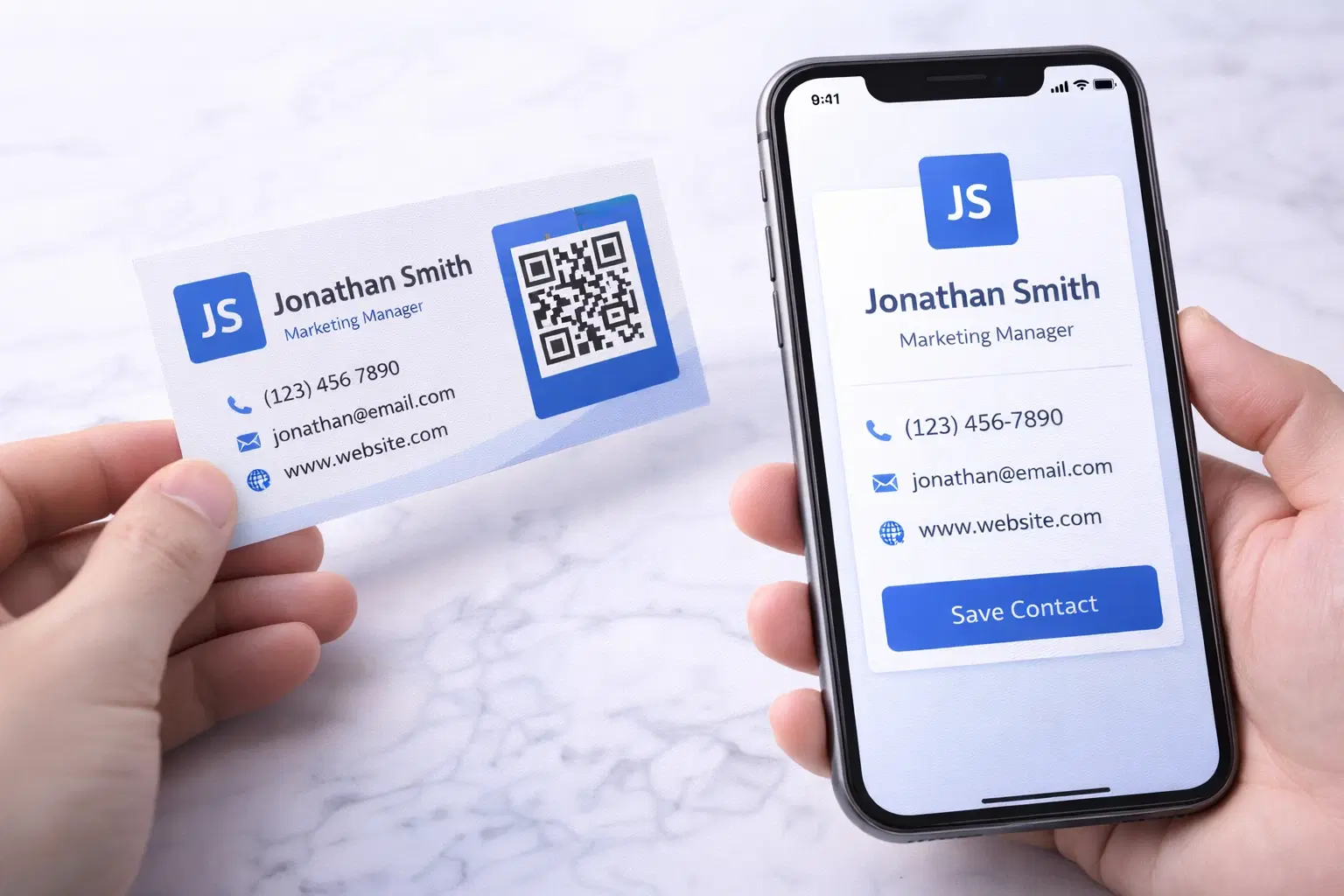
vCard QR Codes: The Complete Guide to Digital Business Cards (Updated 2026)
Create a vCard QR code that shares your contact info instantly, and updates itself when your job, phone, or email changes. Complete guide with placement strategy and networking scripts. Updated September 2026.
WiFi QR Codes: How to Share Your Network Password Instantly (Updated 2026)
Stop spelling out WiFi passwords letter-by-letter. WiFi QR codes let guests connect in seconds: for your home, café, hotel, or office. Updated 2026 setup guide with platform-specific instructions.
How to Set Up QR Code Check-In for Events: Step-by-Step Guide 2026
Replace paper lists and manual check-ins with a fast, contactless QR code system. Full setup guide for conferences, workshops, weddings, and corporate events.