How to Make a QR Code That Doesn't Expire: Permanent QR Code Guide (2026)
Most "free" QR codes expire after 14–90 days, breaking your printed materials. Here's the step-by-step process to create a truly permanent QR code that works forever: including which platforms genuinely offer it.

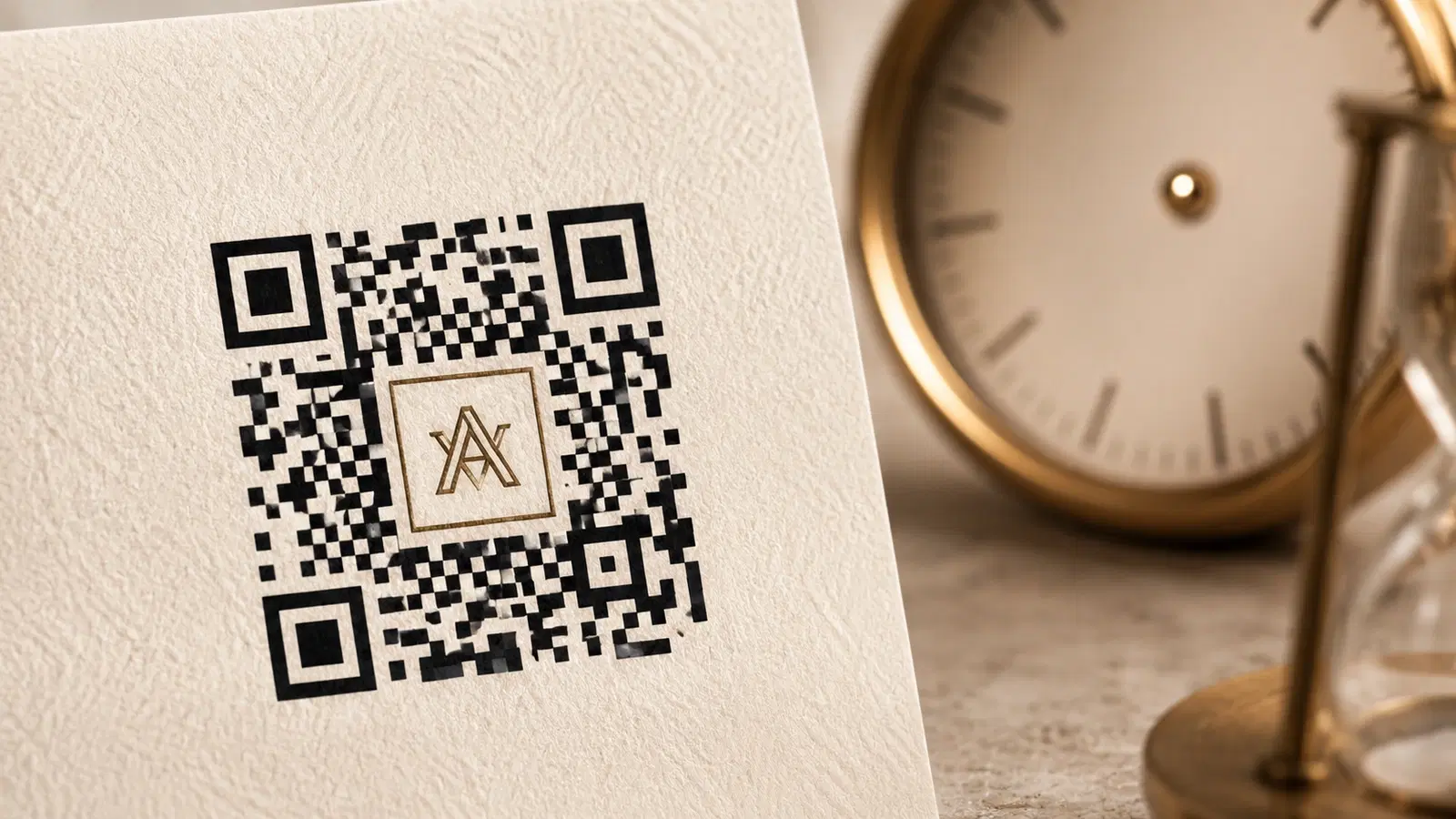
If you're printing QR codes on anything that costs money to reprint (business cards, menus, packaging, signage), you need a permanent QR code. Not a "free trial" code. Not a code that expires in 14 days. A code that works as long as you do.
This is the step-by-step guide to creating one. The fastest way to create a free permanent QR code that encodes your URL directly is QRForever's static generator. We'll cover which platforms genuinely offer permanent codes (and which fake it), the difference between "static" and "dynamic" permanent codes, and a verification checklist you can run before sending anything to print.
If you've ever discovered a QR code on your business card was dead a month after printing, this guide is for you.
Step 1: Understand the Two Types of Permanent QR Codes
Both types are permanent in different ways. Choose the right one for your use case.
Type A: Static permanent QR codes The destination URL is encoded directly into the QR code pattern. The code never expires because there's no server involved, the data is in the pattern itself.
Pros:
- Truly permanent (no server can shut it down)
- Free on most platforms
- No platform dependency
Cons:
- Cannot be edited after creation
- No scan analytics
- Larger/denser code if data is long
- If the destination URL changes, the QR code becomes useless
Type B: Dynamic permanent QR codes The QR code encodes a short redirect URL hosted on a platform. The code itself never changes; the destination URL behind it can be edited anytime. The code is permanent because the platform commits to keeping the redirect alive for as long as your plan is active.
Pros:
- Editable destination URL
- Full scan analytics
- Smaller QR pattern (less dense)
- Update content without reprinting
Cons:
- Depends on platform staying online
- Most platforms charge for permanent dynamic codes
- Free options are limited (most platforms (QRForever included) let you try dynamic codes via a free trial rather than a permanent free tier)
Quick decision: If you'll never need to edit the URL and don't need analytics → static. For everything else (most business use) → dynamic.
For a deeper dive, see our Dynamic vs Static QR Codes guide.
Step 2: Choose a Platform That Genuinely Offers Permanent Codes
This is where most people get tricked. Many "free QR code generators" hide expiry in their fine print.
Platforms with genuinely permanent codes:
For static codes (free, permanent everywhere):
- QR Code Monkey
- GoQR.me
- QRForever (static codes are unlimited and free)
- Adobe Express (with caveats. See our comparison)
- Canva (with caveats. See our comparison)
For dynamic codes you can try free (no credit card):
- QRForever (7-day full-access free trial. Unlimited dynamic codes and all features during the trial)
For dynamic codes that are permanent on paid plans:
- QRForever (flat Pro plan at ₹499/month)
- Beaconstac / Uniqode (paid plans only)
- QR Tiger (paid plans only)
- Flowcode (paid plans only)
- Bitly (paid plans only)
Platforms to avoid for permanent codes:
- Any tool that doesn't clearly state "permanent" or "never expires" in its free tier description
- Tools that say "free trial" instead of "free tier"
- Tools that say "active for 14 days" or similar in the fine print
- Generic ad-supported QR generators with vague terms
For our full evaluation of free options, see 5 Best Free QR Code Generators in 2026.
Important
Always read the platform's pricing page carefully before creating a code you plan to print. Search for "expires," "trial," "active for," or "validity." If any of these appear, the free tier likely expires.
Step 3: Create Your Permanent QR Code
Using QRForever (recommended for dynamic):
1. Sign up at qrforever.com (start a 7-day full-access free trial, no credit card) 2. Click "Create QR Code" 3. Choose your QR type (URL, vCard, WiFi, etc.) 4. Enter your destination URL or content 5. Customize design (colors, logo, dot style) 6. Download as SVG (best for print) or PNG (best for digital) 7. Subscribe to keep the dynamic redirect live permanently, no expiry once you're on a plan
Using QR Code Monkey (for static):
1. Go to qrcode-monkey.com 2. Enter your URL 3. Customize design as needed 4. Click "Create QR Code" 5. Download PNG or SVG 6. Code is static and permanent, but cannot be edited later
Using GoQR.me (for simple static):
1. Go to goqr.me 2. Choose QR type and enter content 3. Adjust size if needed 4. Download PNG, SVG, or JPG 5. Code is static and permanent
Verification step (do this before printing): 1. Scan the QR code with your phone right after creating it 2. Take a screenshot of the destination 3. Wait 24 hours 4. Scan again. Confirm the destination still loads correctly 5. Take note of the platform you used in case you need to verify expiry policies later
- Pick your platform based on dynamic vs static needs
- Create the code with your real destination URL
- Customize design (colors, logo) before downloading
- Download as SVG for print, PNG for digital
- Test scan immediately and again after 24 hours
- Document which platform created the code (for future verification)
Step 4: Verification Checklist Before Printing
Run this checklist before committing your QR code to expensive print runs.
Verification checklist:
- ☐Scan with iPhone. Opens correct destination
- ☐Scan with Android. Opens correct destination
- ☐Scan with an older phone. Works on devices 2+ years old
- ☐Scan from arm's length. Works at typical scanning distance
- ☐Scan from intended distance, if printed on a yard sign or poster, test at that distance
- ☐Platform's pricing page confirms "permanent" or "never expires"
- ☐No expiry date visible in your platform dashboard
- ☐Destination URL still works if you scan a code created earlier
- ☐Tested at smallest planned print size (minimum 2cm × 2cm)
- ☐Tested at largest planned print size (codes can fail if too big with some platforms)
The 30-day re-test: After 30 days, scan the code again. If it still works after 30 days on a free platform, that's a strong signal the platform genuinely offers permanent codes (most expiring platforms fail at 14–30 days).
For more verification techniques, read our guide to QR codes that never expire.
Step 5: What to Do If Your QR Code Already Expired
If you're reading this because your printed QR code stopped working, here's how to recover:
For materials still in your possession: 1. Create a new permanent QR code with the same destination URL on a real permanent platform 2. Print as a sticker (any office supply store can print circular stickers) 3. Apply over the dead QR code on your existing materials 4. The fix isn't pretty, but it salvages most of your investment
For materials already distributed (cards handed out, packaging shipped): 1. You unfortunately cannot fix codes already in the field 2. Future runs of the same materials need new permanent codes 3. Consider this a paid lesson on platform selection
Migration steps: 1. Pick a platform with genuinely permanent codes (see Step 2) 2. Create new dynamic QR codes for ongoing campaigns (so future URL changes don't repeat this problem) 3. Document which platform you're using and where each code is deployed 4. Set a calendar reminder to re-verify codes every 6 months as a safety check
Pro Tip
If you're fixing many materials at once, ask your office supply store for a sticker quote. Most can print 100+ small circular stickers cheaply, and applying them over dead codes is faster than reprinting everything.
When You Need More Than One Permanent Code
Most permanent QR code situations require multiple codes: one per touchpoint, location, or campaign. This is where free tiers run out and you'll need a paid plan.
Examples of multi-code needs:
- Restaurant: 1 menu QR + 1 review QR + 1 WiFi QR per location
- Real estate: 1 QR per active listing + 1 contact QR per agent
- Retail: 1 QR per product line or aisle for promotions
- Marketing: 1 QR per campaign or distribution channel for tracking
Cost-effective options:
- QRForever Pro plan: ₹499/month ($6), one flat plan for dynamic codes
- Mixed approach: Free tier static codes for non-trackable use cases + paid dynamic codes for important ones
For pricing comparison across platforms, see How Much Does a Dynamic QR Code Cost? 2026 Pricing Breakdown.
Conclusion
Making a permanent QR code is straightforward when you know which platforms genuinely deliver. Skip the trial-disguised-as-free tools. Test before printing. Document what you used. And re-verify after 30 days as a safety check.
For a permanent dynamic code with full features (analytics, dynamic editing, custom design), QRForever's 7-day full-access free trial is the easiest way to try it before subscribing. For unlimited static codes, QR Code Monkey or GoQR.me work well. For business-scale needs, paid plans on dedicated QR platforms become worth the cost quickly.
Related reading:
Create your permanent QR code with QRForever. Start a 7-day full-access trial, no credit card. Dynamic codes are editable anytime with full scan analytics, and stay permanent once you subscribe.
Explore QRForever Solutions
Ready to Create Your Own QR Codes?
Start creating dynamic QR codes for your business today. Track analytics, update content anytime, and never reprint again.
Related Articles
vCard QR Codes: The Complete Guide to Digital Business Cards (Updated 2026)
Create a vCard QR code that shares your contact info instantly, and updates itself when your job, phone, or email changes. Complete guide with placement strategy and networking scripts. Updated September 2026.
WiFi QR Codes: How to Share Your Network Password Instantly (Updated 2026)
Stop spelling out WiFi passwords letter-by-letter. WiFi QR codes let guests connect in seconds: for your home, café, hotel, or office. Updated 2026 setup guide with platform-specific instructions.
How to Set Up QR Code Check-In for Events: Step-by-Step Guide 2026
Replace paper lists and manual check-ins with a fast, contactless QR code system. Full setup guide for conferences, workshops, weddings, and corporate events.