How to Add a QR Code to a PowerPoint or Google Slides Presentation (2026)
A QR code on a presentation slide lets your audience instantly access resources, give feedback, or follow up, no typing URLs while you talk. Here's how to add one to PowerPoint or Google Slides, and the live-presentation tricks that make it work.

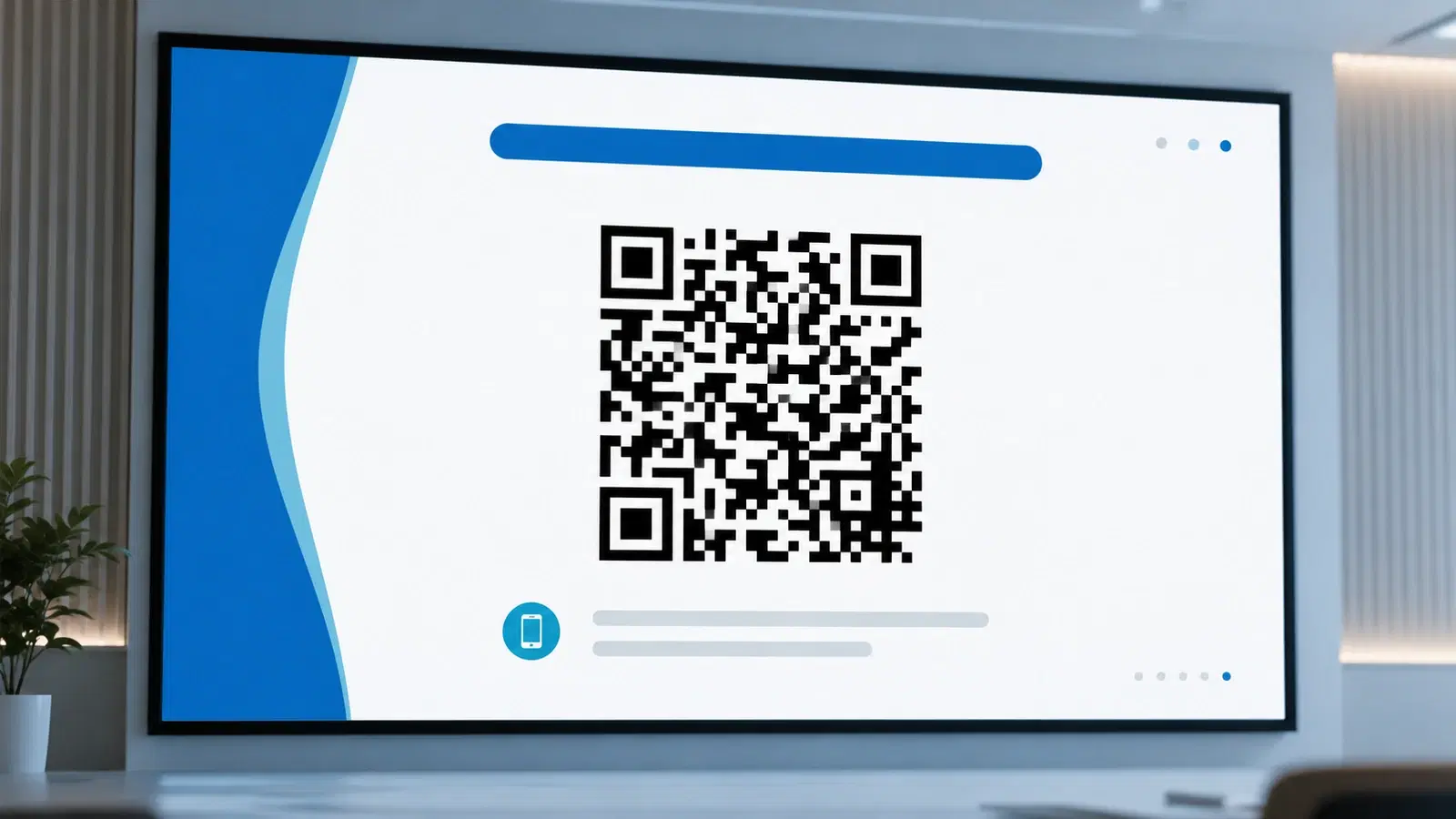
A QR code on a presentation slide is quietly one of the most effective uses of QR technology. Instead of reading out a URL while your audience scrambles to type it (and gets it wrong), you display a QR code. Everyone scans, everyone lands on exactly the right page.
Use cases: linking to slides for download, a feedback form, a sign-up page, additional resources, your contact details, a product demo, or a follow-up offer. The audience acts in the moment, while their attention is on you.
This guide covers adding QR codes to both PowerPoint and Google Slides, and (just as important), the live-presentation techniques that actually get people to scan.
The Core Method (Both PowerPoint and Slides)
The reliable method is the same in both tools: generate the QR code, then insert it as an image.
Steps: 1. Generate your QR code on a QR platform. Use dynamic so you can change the destination between or during presentations 2. Download as PNG (high resolution) or SVG (PowerPoint supports vector) 3. In your presentation, go to the slide where you want the code 4. Insert → Image → Upload from computer (or drag the file onto the slide) 5. Resize it large enough to scan from the back of the room 6. Position it where it won't be blocked by your body or the podium 7. Add a clear call-to-action ("Scan to download these slides")
Why dynamic codes are especially useful for presentations: You give the same talk multiple times to different audiences. With a dynamic QR code, the same slide deck can point to different destinations for different events. Change the destination URL before each presentation without editing the slides. Present to Company A → code points to their custom resource; present to Company B → repoint it, same deck.
You can even change the destination mid-event: start with a slide pointing to the agenda, then repoint the same QR code to the feedback form at the end, without touching the slide.
This flexibility is unique to dynamic codes. See how to edit a QR code after printing (the same principle applies to slides).
Pro Tip
Size matters more for presentations than almost any other use case. A QR code that's scannable on your laptop screen may be far too small to scan from the back of a conference room when projected. Make presentation QR codes LARGE: at least a quarter of the slide for big rooms.
PowerPoint-Specific: Add-ins and Tips
Using a PowerPoint add-in: 1. Insert → Get Add-ins 2. Search "QR code" in the Office store 3. Add a reputable QR code add-in 4. Generate and insert directly
PowerPoint advantages:
- Supports SVG (vector) QR codes. Perfectly crisp when projected at any size
- Precise positioning and sizing controls
- Animation options (you can have the QR code appear on click, drawing attention to it)
The animation trick: Set the QR code to appear with a click animation at the moment you want the audience to scan. This focuses attention. "Now, scan this". Rather than having the code sit on screen the whole time being ignored.
Slide design for QR codes:
- High contrast: dark QR code on a light slide background (or vice versa). Never a QR code on a busy photo or gradient
- Position in a consistent spot (e.g., bottom right) if used across multiple slides
- Give it breathing room. Quiet zone clear of text and graphics
Projection consideration: Projectors vary in quality and brightness. A QR code that scans on a sharp monitor may struggle on a dim or low-resolution projector. Test on the actual presentation setup if possible, and err on the side of larger and higher-contrast.
Google Slides-Specific: Add-ons and Tips
Using a Google Slides add-on: 1. Extensions → Add-ons → Get add-ons 2. Search "QR code" 3. Install a reputable add-on 4. Generate and insert
Google Slides advantages:
- Cloud-based. Easy to update from anywhere before presenting
- Simple image insertion (Insert → Image → Upload or by URL)
- Shareable. Collaborators can update the deck
Google Slides image-by-URL trick: Google Slides lets you insert an image by URL. If your QR platform gives you a direct image URL for your QR code, you can insert it that way, though downloading and uploading a high-res PNG usually gives better quality control.
Best practices (same as PowerPoint):
- Make it large for room scanning
- High contrast, clean background
- Clear call-to-action
- Consistent positioning if used on multiple slides
The cross-tool recommendation: Whether PowerPoint or Slides, generate a dynamic QR code on a dedicated platform and insert it as an image. The built-in add-ons produce static codes; a dynamic code lets you reuse the same deck across events by repointing the destination, and gives you scan analytics so you know how many people engaged. See how to track QR code scans without an app.
Important
Don't put a QR code over a busy background image, photo, or gradient on your slide. QR codes need high contrast against a plain background to scan reliably, especially when projected. A QR code on a photo will frustrate your audience when it won't scan.
Live-Presentation Techniques That Get People to Scan
Adding the QR code is easy. Getting the audience to actually scan it is where most presenters fail. These techniques work:
1. Leave it on screen long enough. A QR code that flashes by for 3 seconds gets scanned by no one. Leave it up for at least 20-30 seconds, and explicitly pause: "Take a moment to scan this now."
2. Tell them WHY before you show it. "I'll share these slides plus a bonus resource. Scan this to get them." Give the reason to scan before displaying the code.
3. Make it big. Bigger than you think. A small QR code is unscannable from row 10. For large rooms, a quarter of the slide isn't too big.
4. Have a dedicated "scan now" slide. Rather than a tiny code in the corner of a content slide, use a full slide: large QR code, one line of text ("Scan to download"), nothing else competing for attention.
5. Repeat it at the end. Show a scan opportunity early (for slides/resources) and again at the close (for feedback or follow-up). Latecomers and the initially-distracted get a second chance.
6. Use it for live interaction. A QR code to a live poll, Q&A board, or feedback form turns a passive audience into participants. This is where presentation QR codes shine, real-time engagement.
7. Pair with the spoken URL as backup. Some people won't scan. Say the short URL too: "Scan this, or visit qrforever.com/slides." A dynamic code with a clean short URL makes this easy.
The dynamic advantage for live events: Because a dynamic code is repointable, you can run one "scan this" slide for multiple purposes across your talk (agenda → resources → feedback), by changing the destination as you go, all with the same on-screen code. And you see scan counts afterward, measuring real engagement.
- Make the QR code large: scannable from the back row
- Leave it on screen 20-30 seconds and say "scan now"
- Give the reason to scan before showing the code
- Use a dedicated full "scan this" slide for important links
- High contrast, plain background: never over a photo
- Repeat the scan opportunity at the end (feedback/follow-up)
- Say the short URL too, as a backup for non-scanners
Conclusion
A QR code on a presentation slide converts passive attention into action (downloads, sign-ups, feedback, follow-up), in the moment when your audience is most engaged. Adding one to PowerPoint or Google Slides is a simple image insertion, but the details that make it work are size (large enough for the back row), contrast (plain background), and live technique (leave it up, say "scan now," give a reason).
Use a dynamic QR code generated on a dedicated platform: it lets you reuse one slide deck across multiple events by repointing the destination, change a code mid-talk from agenda to feedback form, and measure engagement with scan analytics. The built-in add-ons are quicker but produce static, untrackable codes.
Related reading:
Create a dynamic QR code for your presentation with QRForever. Start a 7-day full-access trial, no credit card. Reuse one deck across events by repointing the code, and track every scan.
Explore QRForever Solutions
Ready to Create Your Own QR Codes?
Start creating dynamic QR codes for your business today. Track analytics, update content anytime, and never reprint again.
Related Articles
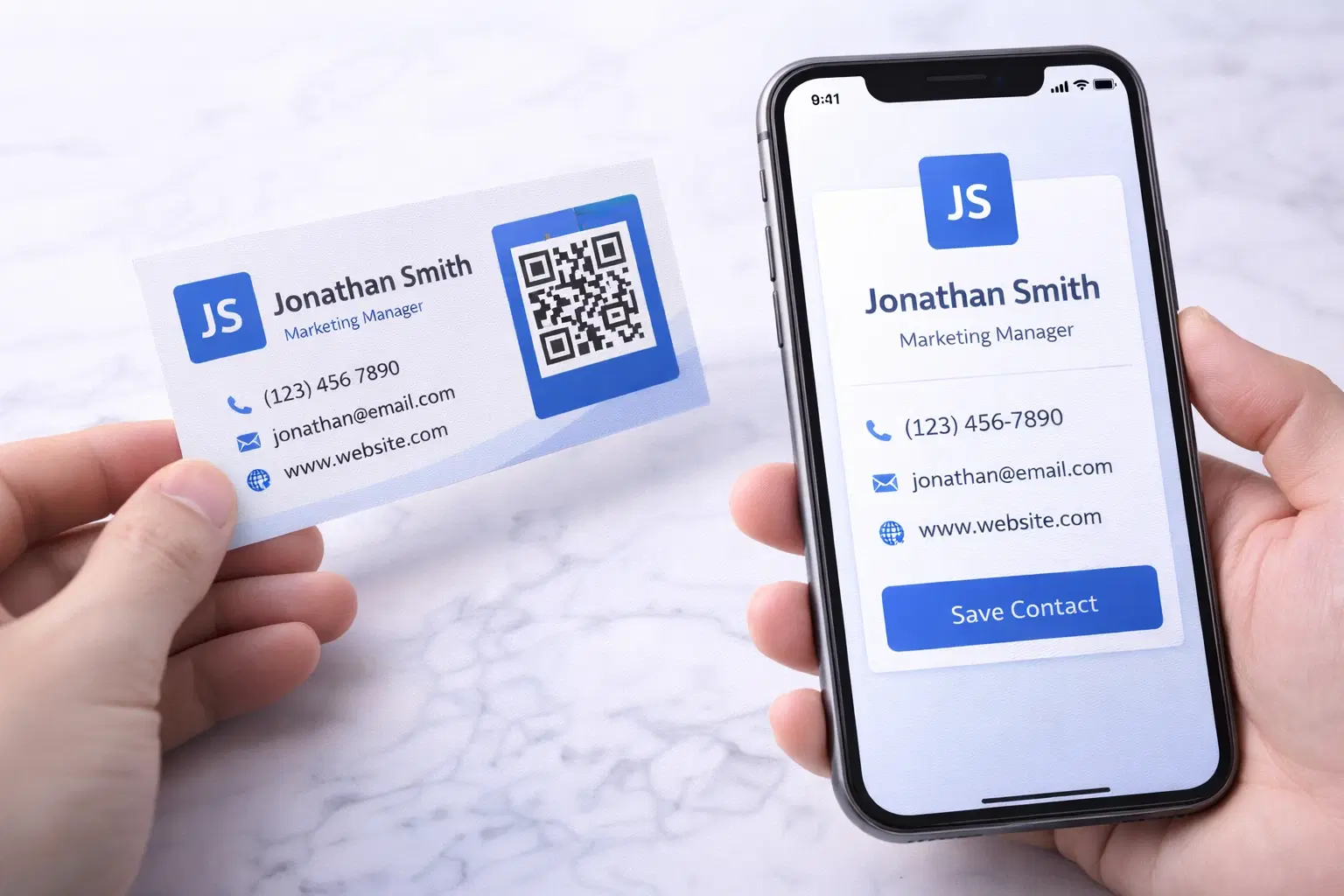
vCard QR Codes: The Complete Guide to Digital Business Cards (Updated 2026)
Create a vCard QR code that shares your contact info instantly, and updates itself when your job, phone, or email changes. Complete guide with placement strategy and networking scripts. Updated September 2026.
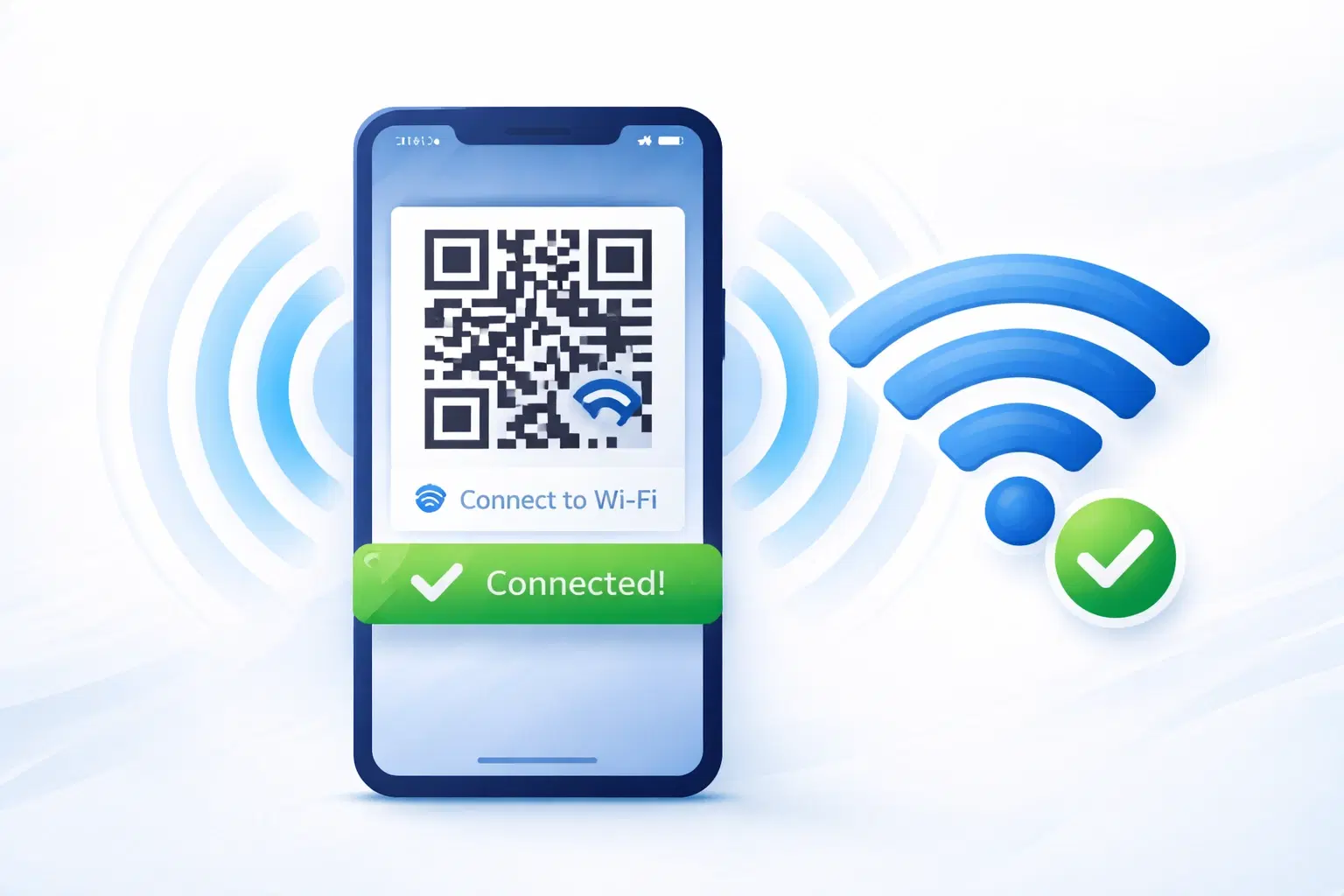
WiFi QR Codes: How to Share Your Network Password Instantly (Updated 2026)
Stop spelling out WiFi passwords letter-by-letter. WiFi QR codes let guests connect in seconds: for your home, café, hotel, or office. Updated 2026 setup guide with platform-specific instructions.
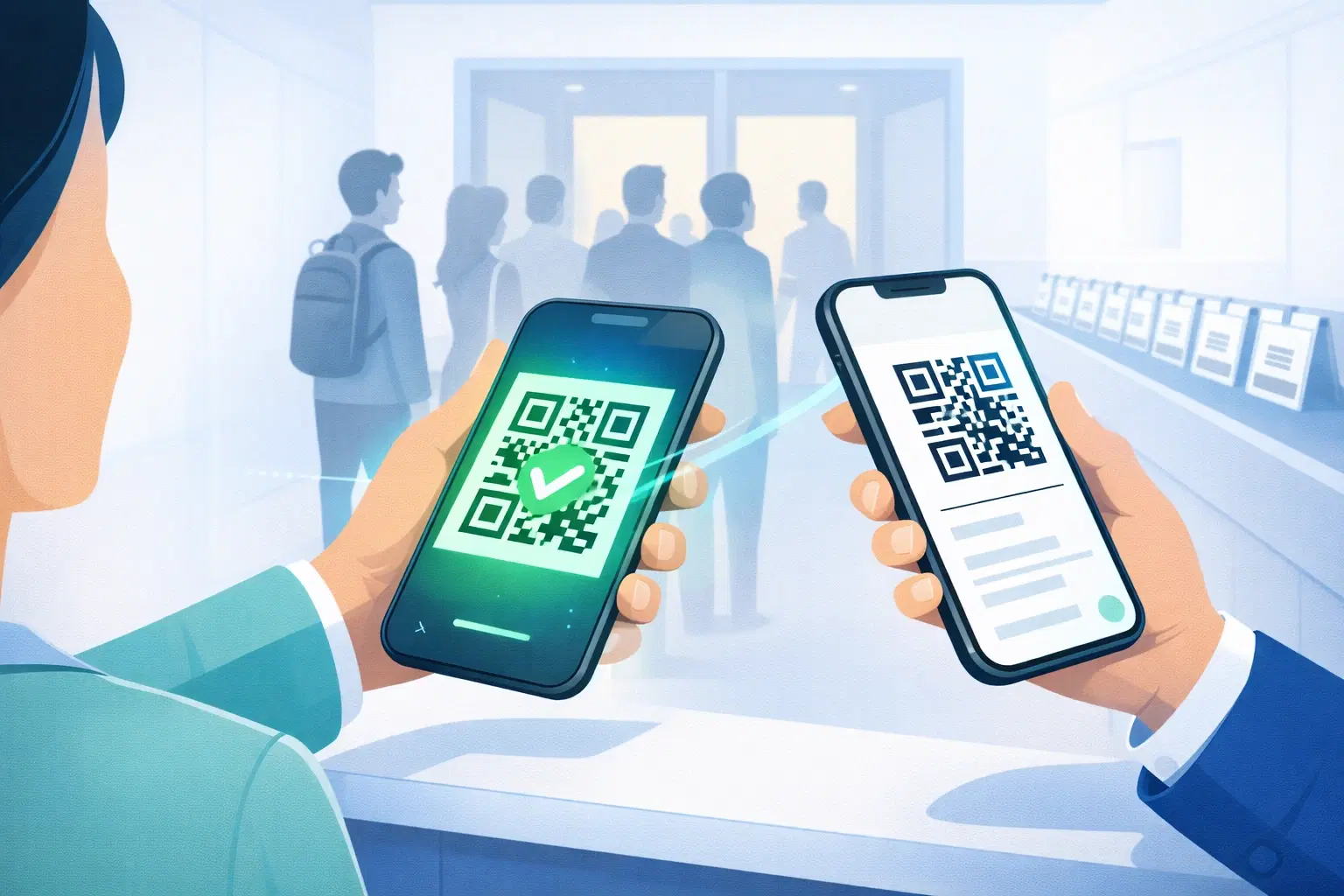
How to Set Up QR Code Check-In for Events: Step-by-Step Guide 2026
Replace paper lists and manual check-ins with a fast, contactless QR code system. Full setup guide for conferences, workshops, weddings, and corporate events.