QR Code for Customer Feedback & Surveys: Collect Reviews and Insights Instantly in 2026
A feedback QR code lets customers share opinions in 30 seconds, right after the experience. Setup guide for restaurants, retail, clinics, hotels, and any customer-facing business.

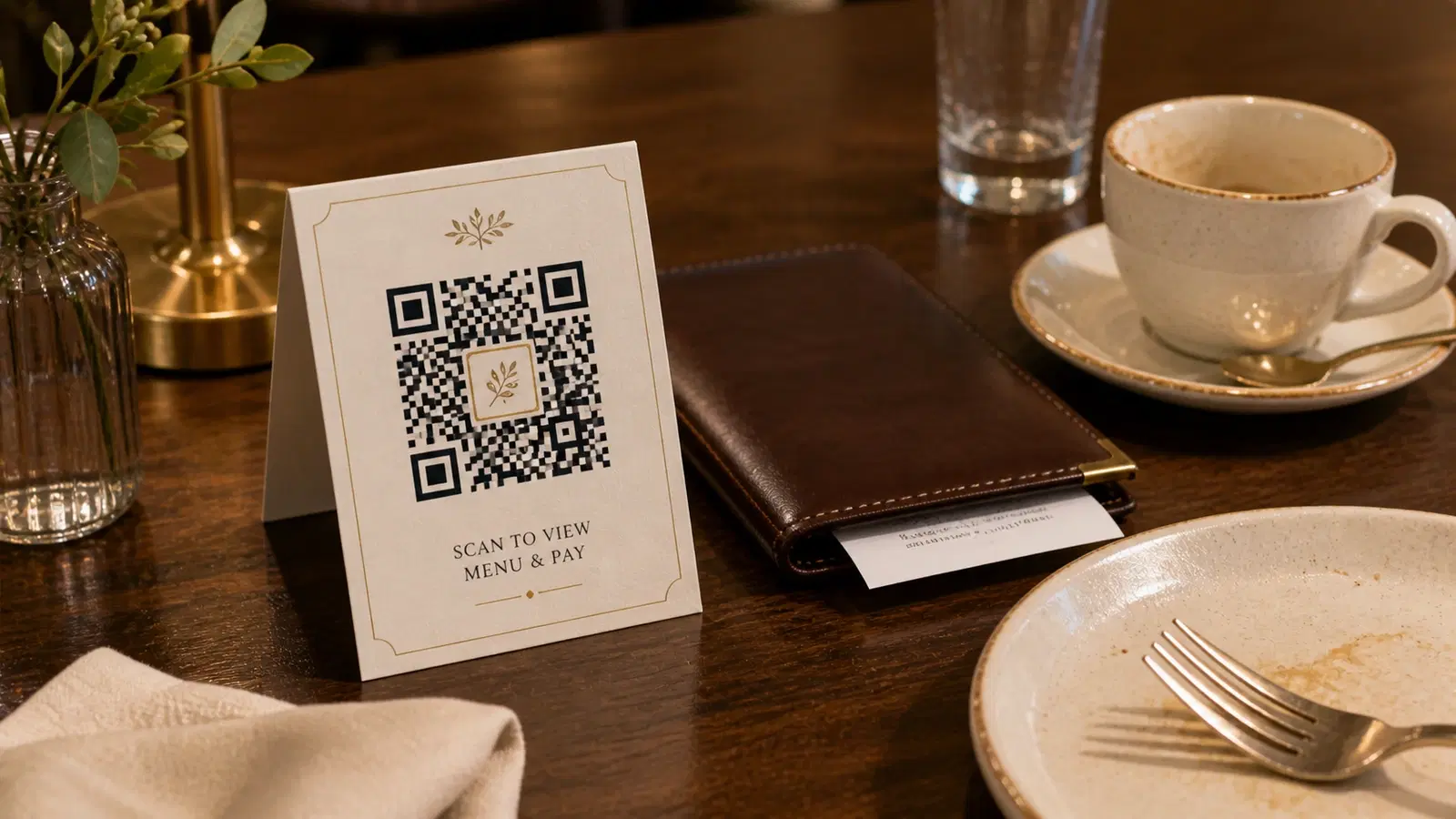
Most businesses collect feedback wrong. They send an email survey 3 days after the experience, when the customer has forgotten the details and has no motivation to respond. Response rates hover around 5–10%, and the feedback that does come in is biased toward extremes, either thrilled or furious.
A QR code changes the timing. Placed at the point of experience (on the restaurant table, at the checkout counter, in the hotel room, on the service receipt), it captures feedback in the moment, while the experience is fresh and the customer is physically present. Response rates jump to 15–30%, and you get the nuanced, specific feedback that actually helps you improve.
This guide covers how to set up a feedback QR code system, which survey platforms to use, where to place codes for maximum responses, and how to turn scan data into operational improvements.
Why QR Codes Beat Email Surveys for Feedback
The fundamental problem with email-based feedback is delay. By the time the survey arrives in the customer's inbox, the emotional peak of the experience has passed. They can't remember whether the server's name was Priya or Pooja, whether the wait was 15 minutes or 30, or exactly what about the product packaging was confusing.
QR code feedback captures the moment:
Timing: Customer gives feedback while sitting at the restaurant table, standing at the checkout, or sitting in the waiting room. The experience is happening right now.
Specificity: Because the moment is fresh, feedback is more detailed and actionable. "The music was too loud during dinner" is more useful than "the ambiance could improve."
Response rate: QR code feedback forms get 2–3x the response rate of email surveys. The barrier to entry is one scan, not finding an email, opening it, and clicking through.
Unbiased sample: Email surveys over-represent customers who had extreme experiences. QR codes placed at every table or checkout capture the middle majority, the customers whose mildly positive or mildly negative feedback is actually most useful for improvement.
No contact information needed: Email surveys require the customer's email address. QR codes work with completely anonymous customers: walk-in restaurant guests, retail shoppers, event attendees.
Choosing the Right Survey Platform
Your QR code links to a survey form. The platform behind that form determines the customer experience.
Key requirements:
- Mobile-optimized (90%+ of scans will be on phones)
- Loads fast (under 2 seconds)
- No login or app download required
- Short form support (1–5 questions max)
- Free or low-cost tier available
Recommended platforms:
Google Forms (free): The simplest option. Create a form with 2–3 questions, get a shareable URL, create a QR code. Responses go to a Google Sheet for easy analysis. Mobile-friendly, no login required for respondents. Best for businesses just getting started with feedback collection.
Typeform (free tier + paid): Beautiful, conversational forms that feel more engaging than traditional surveys. One question at a time. Higher completion rates than traditional form layouts. Great for customer experience surveys where you want a premium feel.
SurveyMonkey (free tier + paid): The established player. Templates for NPS, CSAT, and general feedback. Built-in analytics and reporting. Good for businesses that want structured reporting without exporting to spreadsheets.
Jotform (free tier): Flexible form builder with conditional logic. Can route different questions based on initial answers (e.g., if rating is 1–3, ask "what went wrong?").
Tally (free): Simple, clean forms with unlimited submissions on the free plan. No branding. A good choice for small businesses that want professional-looking forms without paying.
Direct Google Review link: Not a survey, but worth considering. If your primary goal is public reviews rather than private feedback, link the QR code directly to your Google Review page. See our Google Review QR code guide for details.
Pro Tip
Keep your survey to 3 questions or fewer. Every additional question drops completion rates by 10–15%. The ideal format: one rating question (1–5 stars or NPS), one open-text question ("What could we improve?"), and one optional question.
Survey Design: Questions That Get Useful Answers
The survey itself needs to be designed for speed and specificity. Customers standing at a checkout counter will not complete a 10-question form.
Format 1, The one-question pulse check: "How was your experience today?" with a 1–5 star rating or emoji scale. Takes 5 seconds. Gets the highest completion rates. Best for: ongoing monitoring, benchmarking over time.
Format 2. Rating + open text (recommended for most businesses): 1. "Rate your experience today" (1–5 stars) 2. "Anything we could improve?" (optional text field) This takes 15–30 seconds and captures both quantitative data (for trends) and qualitative feedback (for action items).
Format 3, NPS (Net Promoter Score): 1. "On a scale of 0–10, how likely are you to recommend us to a friend?" 2. "What's the primary reason for your score?" (optional text) Best for: tracking loyalty over time, comparing across locations or time periods.
Format 4. Specific touchpoint survey: For businesses wanting feedback on specific aspects: 1. "Rate the food quality" (1–5) 2. "Rate the service speed" (1–5) 3. "Any comments?" (text) Maximum 3 rated dimensions. More than that and you're writing a thesis, not collecting feedback.
Writing effective questions:
- Use simple language. "How was your experience?" not "Please evaluate your holistic satisfaction quotient"
- Be specific. "Rate the cleanliness of our facilities" not "Rate our facilities"
- Make text fields optional: some customers just want to tap a star rating and move on
- Avoid leading questions: "How excellent was our service?" biases toward positive responses
- Include a "What could we improve?" question. This generates the most actionable feedback
- One rating question + one optional text field is the sweet spot for most businesses
- Use emoji scales (happy face to sad face) for businesses serving diverse language audiences
- Pre-populate the form title with context: "Feedback for [Business Name]: [Location]"
- Add a thank-you page after submission with a link to leave a Google Review for satisfied customers
- Never require email or phone number. It kills response rates for anonymous feedback
Where to Place Feedback QR Codes
Placement determines both response rate and feedback quality. The goal: catch customers at a moment when they have an opinion and 30 seconds of idle time.
Restaurants and cafes:
- Table tent cards, The single best placement. Customers scan while waiting for the bill. Copy: "How was your meal? Scan to tell us. Takes 15 seconds."
- Receipt. Print the QR code at the bottom of every receipt. Lower scan rate than table cards but zero additional cost.
- Bill folder, A sticker or card inside the bill folder. Captures the payment moment.
Retail stores:
- Checkout counter, A small stand or sticker near the card machine. Customers scan while waiting for the transaction to process. Perfect idle moment.
- Fitting rooms: Captures feedback on product selection, sizing, and store experience.
- Exit door, Last touchpoint before leaving. "Tell us about your visit."
Hotels:
- Room nightstand or desk, A tent card QR code: "How's your stay so far? Let us know." Captures in-stay feedback (fixable issues) rather than post-checkout feedback (too late).
- Checkout counter, Final feedback capture.
- Restaurant/bar. Separate QR code for F&B feedback.
Clinics and healthcare:
- Waiting room. Captures feedback on wait times and reception experience. Patients have idle time.
- Post-appointment, A card handed with the prescription or receipt: "How was your visit with Dr. [Name]?"
Service businesses (salons, repair shops, etc.):
- At the service point: Salon mirror, service counter, or workbench area.
- Payment counter, While the transaction processes.
- On the receipt or invoice, Printed or as a sticker.
General principles:
- Place where customers have 30+ seconds of idle time
- Place at the moment of peak experience (just finished the meal, just got the haircut)
- Always include text explaining what the QR code does
- Make the code large enough to scan without effort (3cm x 3cm minimum for close range)
Important
Don't place feedback QR codes where customers are in a hurry: front doors of busy shops, drive-throughs, or rush-hour transit stations. These placements get low scan rates and rushed, unhelpful feedback.
Turning Feedback into Action
Collecting feedback is worthless unless you act on it. Here's a practical system:
Daily review (5 minutes): Check incoming responses each morning. Flag any score below 3/5 for immediate follow-up. Read text comments for urgent issues (food safety, staff behavior, facility problems).
Weekly summary:
- Average rating this week vs. last week
- Top 3 positive themes from text feedback
- Top 3 improvement themes from text feedback
- Scan count (are response rates staying healthy?)
Monthly analysis:
- NPS or satisfaction score trend over the past 4 weeks
- Compare across locations (if multi-location)
- Compare across time periods (lunch vs. dinner, weekday vs. weekend)
- Identify one specific improvement to implement next month
Closing the loop: The most effective feedback systems close the loop, if a customer leaves their email (optional), follow up: "Thanks for your feedback about [specific issue]. We've [action taken]." This turns a complainant into a loyal advocate.
Using QRForever analytics alongside survey data: QRForever shows you how many people scanned the code vs. how many completed the survey. If you're getting 100 scans but only 20 submissions, your form is too long or too complicated. If you're getting 20 scans out of 500 customers, your QR code placement needs improvement.
Integration with Google Reviews: On your survey's thank-you page, add: "Happy with your experience? Leave us a Google review too!" with a link to your Google Review page. This funnels satisfied customers toward public reviews while keeping critical feedback private: the best of both worlds.
Setting Up Your Feedback QR Code
Complete setup in 15 minutes:
1. Create your survey form: - Open Google Forms, Typeform, or your preferred platform - Add 2–3 questions (rating + optional text) - Set form to not require sign-in - Customize the thank-you page with a Google Review link - Copy the form's shareable URL
2. Create the QR code on QRForever: - Sign in and click "Create QR Code" → URL / Link - Paste the survey URL - Name it descriptively: "Feedback. Main Restaurant" or "Feedback. Store Exit" - Customize colors to match your brand - Download as SVG for print
3. Create placement materials: - Table tent cards: A6 or A5 folded card with QR code, your logo, and CTA text - Counter stickers: 8cm x 10cm with QR code and "How did we do?" - Receipt integration: Add the QR code image to your POS receipt template
4. Deploy and test: - Place at 2–3 high-traffic locations first - Scan with multiple phones to verify - Check that form submissions are appearing in your dashboard
5. Monitor weekly: - Review responses every morning - Check scan analytics in QRForever - Adjust placement if scan rates are low
Pro tip: Create separate QR codes for different locations or touchpoints (table vs. counter vs. receipt). This tells you exactly which placement drives the most responses and what type of feedback each location generates.
Conclusion
Customer feedback is only useful if you get enough of it, soon enough to act on it. QR codes solve both problems: they capture feedback in the moment (while the experience is fresh) and from a much larger sample of customers (not just the ones who bother opening an email days later).
The setup is simple, a survey form and a QR code. The impact compounds over time as you identify patterns, fix recurring issues, and demonstrate to customers that you listen and act.
Start with one placement: a table tent card, a checkout counter sign, or a receipt QR code. Run it for two weeks, review the feedback, and make one improvement. Then expand to more touchpoints.
Create your feedback QR code on QRForever: dynamic link so you can swap survey platforms without reprinting, branded design, and scan analytics to measure response rates. Free trial, no credit card required.
Explore QRForever Solutions
Ready to Create Your Own QR Codes?
Start creating dynamic QR codes for your business today. Track analytics, update content anytime, and never reprint again.
Related Articles
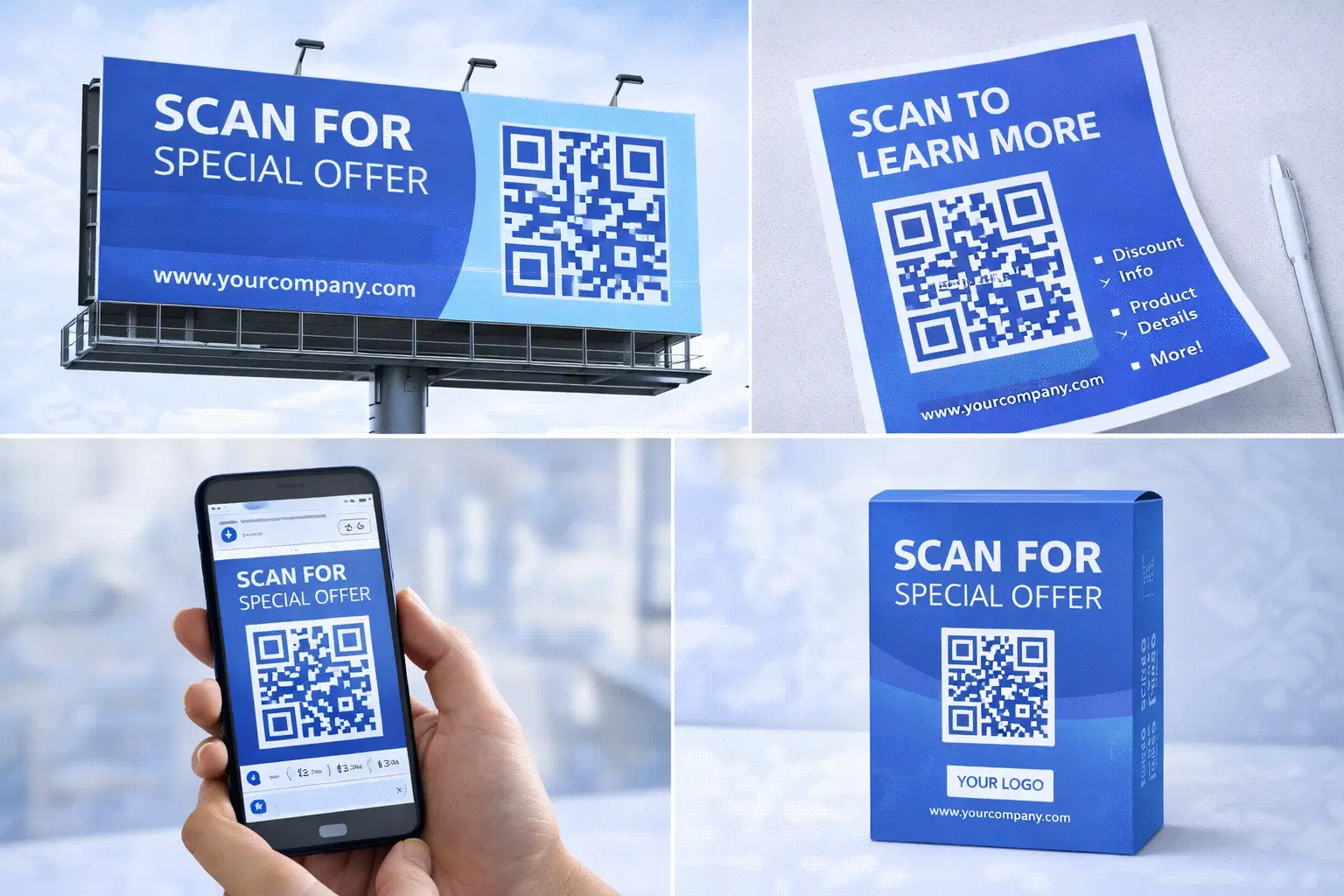
QR Code Marketing Strategy: 15 Campaign Types That Work in 2026
A practical QR code marketing playbook: 15 campaign types with real examples, a channel-by-channel breakdown, attribution setup, and the mistakes that quietly waste budget. Updated June 2026.
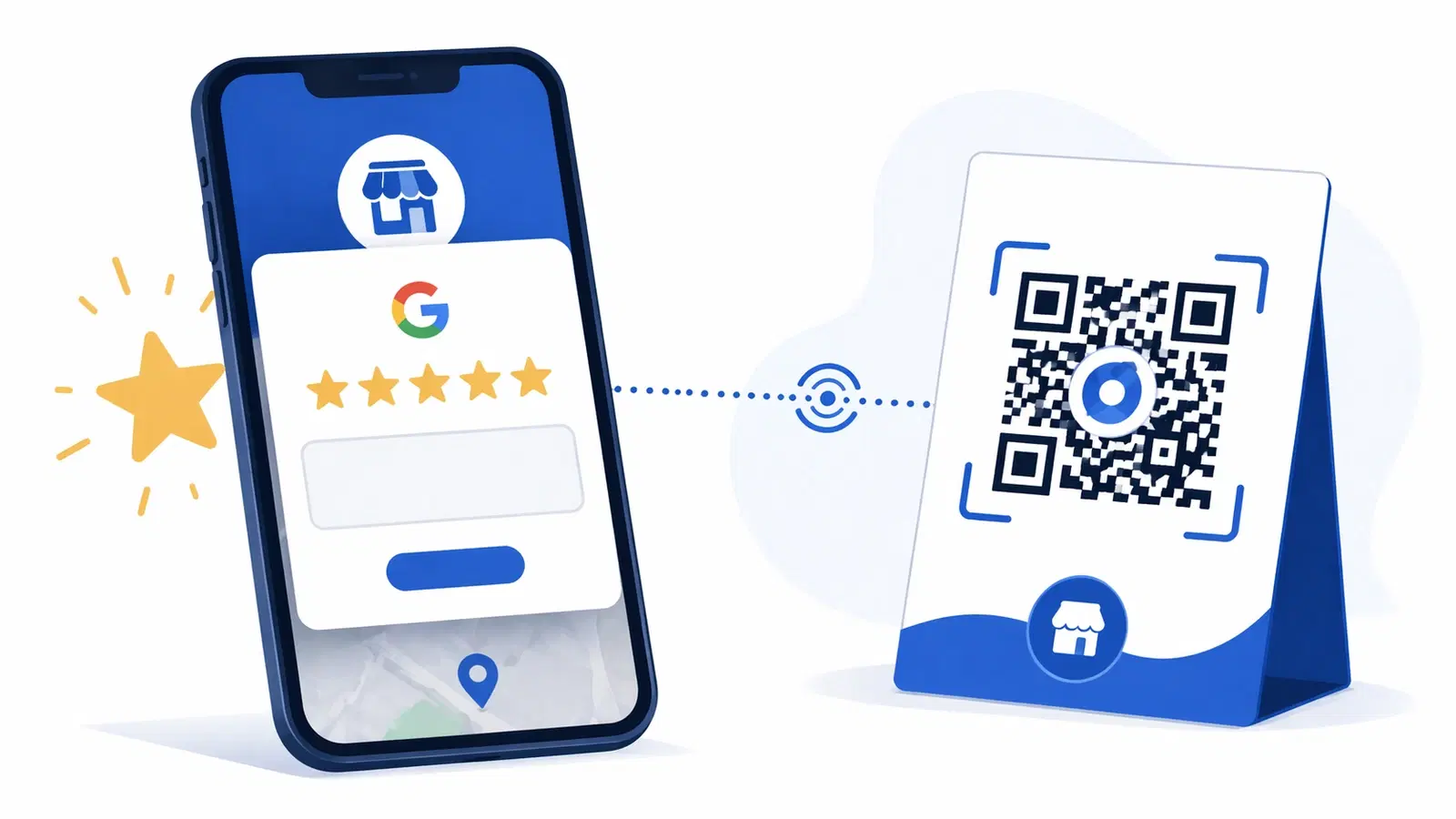
How to Create a QR Code for Google Reviews: Get More 5-Star Reviews in 2026
A Google Review QR code sends customers straight to your review page, no searching, no friction. Learn how to set it up, where to place it, and how businesses 3x their review count.
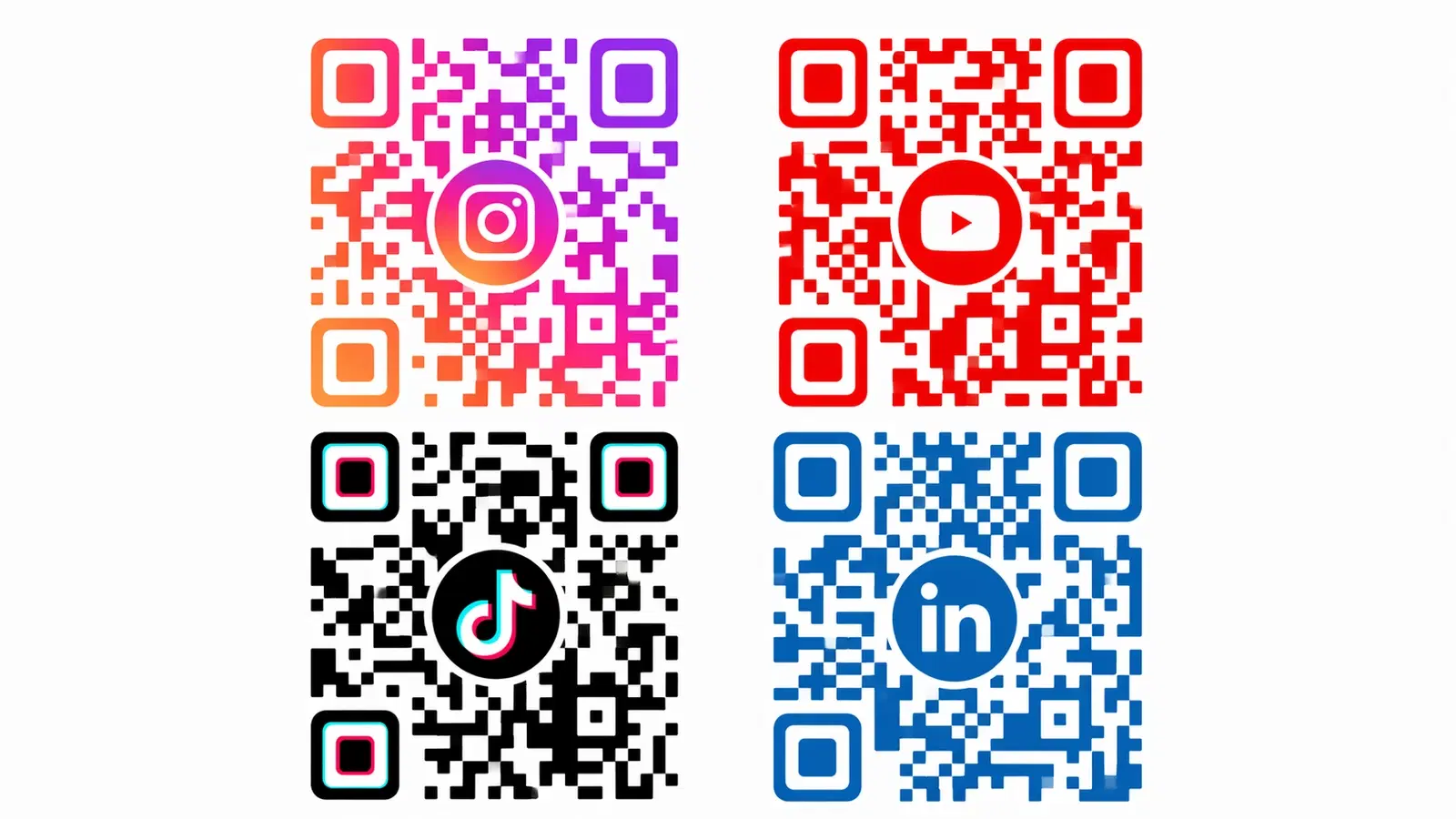
How to Create a QR Code for Your Instagram & Social Media Profiles in 2026
Link your Instagram, Facebook, YouTube, or any social profile to a QR code. Perfect for offline promotions, packaging, and events. Includes Linktree alternatives and multi-link setups.