How to Add a QR Code to a Word Document or Google Docs (2026)
Adding a QR code to a Word document or Google Doc takes under two minutes, but the method differs between the two, and there's a way to make the code editable even after you share the document. Here's the step-by-step 2026 guide.

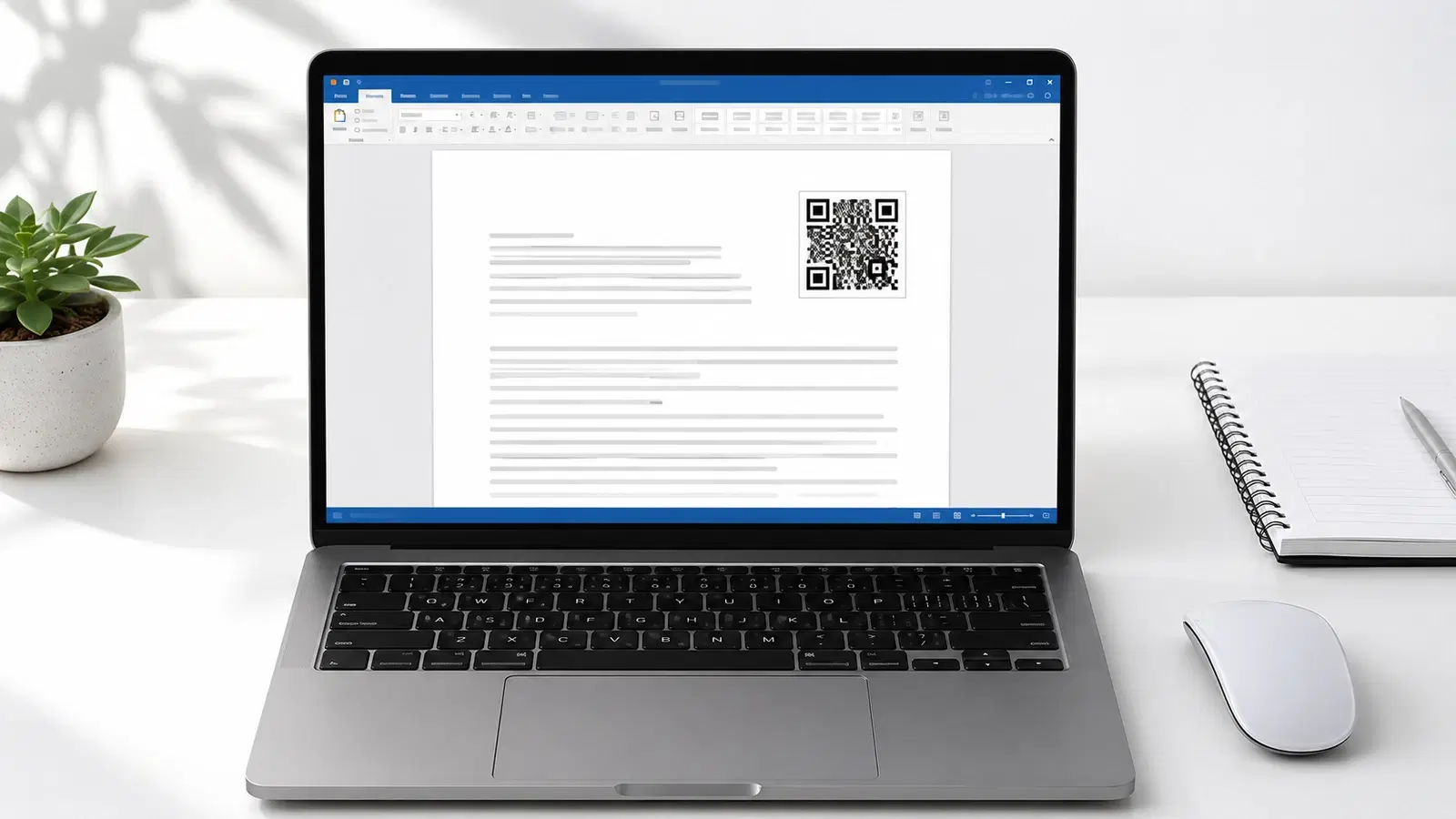
Word documents and Google Docs are everywhere: reports, letters, handouts, newsletters, resumes, proposals. Adding a QR code links these documents to digital destinations: a website, a video, a form, contact details, or a payment page.
The process is quick, but Microsoft Word and Google Docs handle it differently, and each has its own add-ons that can generate QR codes directly inside the document. This guide covers both, step by step, plus the approach that lets you keep the QR code editable even after you've shared the document.
The Universal Method (Works in Both): Insert as an Image
The most reliable method works identically in both Word and Google Docs: generate the QR code separately, then insert it as an image.
Steps: 1. Generate your QR code on a QR platform. Choose dynamic if the destination might ever change 2. Download it as a PNG (or SVG for Word, which supports vector) 3. In your document, place your cursor where you want the code 4. Insert → Image → Upload (or drag the image file directly into the document) 5. Resize and position it 6. Add a caption or call-to-action next to it
Why this method is best:
- Identical in Word, Google Docs, and any other editor
- You control the QR code's type (dynamic vs static), quality, and tracking
- Generate it once on a real QR platform → get analytics and editability
- Works regardless of which add-ons are available
This is the recommended approach because it gives you a proper dynamic, trackable QR code rather than a basic static one from a quick add-on. Generate on a dedicated platform, insert as an image, done.
The sections below cover the built-in add-on methods, which are convenient but usually produce static codes.
Pro Tip
For Word documents, download your QR code as SVG if your platform offers it. Word supports vector images, so the code stays perfectly crisp when printed. For Google Docs, use a high-resolution PNG (Docs handles PNG more reliably than SVG).
Method for Google Docs: Add-Ons
Google Docs has add-ons that generate QR codes directly inside the document.
Using a Google Docs add-on: 1. Open your Google Doc 2. Extensions → Add-ons → Get add-ons 3. Search for "QR code" (several options exist) 4. Install a reputable QR code add-on 5. Open the add-on from the Extensions menu 6. Enter your URL or text 7. The add-on inserts the QR code into your document
Using the IMAGE formula trick (no add-on): Google Sheets has a clever native option, and you can generate there, then copy to Docs: 1. In a Google Sheet, use a QR code image URL formula or a free QR API in an IMAGE() function 2. The QR code appears in the cell 3. Copy it into your Google Doc
Pros of add-ons:
- Fast, no leaving the document
- No separate platform needed
Cons of add-ons:
- Almost always static QR codes (can't be edited after sharing)
- No scan analytics
- Add-on quality and privacy vary: vet them
- Some have usage limits or watermarks
When to use add-ons: For quick, internal, throwaway documents where the URL is permanent and you don't need tracking. For anything important or shared widely, use the universal image method with a dynamic QR code instead.
Method for Microsoft Word: Add-Ins
Microsoft Word has add-ins (Microsoft's term for add-ons) in its Office Store.
Using a Word add-in: 1. Open your Word document 2. Insert → Get Add-ins (or "Office Add-ins") 3. Search the store for "QR code" 4. Add a reputable QR code add-in 5. Open it from the Insert or Home tab 6. Enter your URL 7. Insert the generated QR code
Note on Word versions:
- Add-ins work in Microsoft 365 (desktop and web) and recent Office versions
- Older standalone Office versions may have limited or no add-in support: use the universal image method instead
Pros and cons: Same as Google Docs add-ons: convenient but typically static, no analytics, variable quality.
The cross-platform reality: Whether Word or Google Docs, the built-in add-ons are fine for quick static codes but limited. If you want a QR code that's editable after sharing and gives you scan data, generate it on a dedicated QR platform and insert it as an image (the universal method). This is especially important for documents you'll distribute: see why in our QR codes that never expire guide.
Important
When installing any QR code add-on or add-in, check its permissions and reviews. Some request broad access to your documents. Stick to well-reviewed add-ons from reputable publishers, and avoid any that ask for more access than generating a QR code requires.
Keeping the QR Code Editable After You Share
Here's the scenario that catches people out: you add a QR code to a document, share it widely (email it, post it, hand out printed copies), and then the destination URL needs to change. A new website, a moved page, an updated form.
If you used a static QR code (from an add-on): You're stuck. Every shared copy has a code pointing to the old, now-broken URL. You'd have to recreate and redistribute the document, and you can't fix copies already printed or downloaded.
If you used a dynamic QR code: You simply update the destination URL on your QR platform. Every copy of the document (already shared, downloaded, or printed) now points to the new destination. No re-sharing, no reprinting.
This is why the universal image method with a dynamic code is the recommended approach for any document you'll distribute. The two-minute investment of generating a dynamic code on a real platform protects you from a much bigger headache later.
Practical examples where this matters:
- A handout with a QR code to a registration form (the form URL changes). Dynamic saves you
- A newsletter with a QR code to a campaign page (the campaign ends). Redirect it to the next one
- A resume with a QR code to your portfolio (you move your portfolio): update once, every printed resume still works
- A proposal with a QR code to a pricing page (pricing page moves): fix it without resending
See how to edit a QR code after printing for the full mechanism.
- Add-ons are fine for quick internal docs with permanent URLs
- For shared/distributed docs, use a dynamic QR code via the image method
- Dynamic codes let you fix the destination after the doc is out
- Static codes (most add-ons) can never be changed once shared
- The 2-minute dynamic setup prevents a re-distribution headache later
Conclusion
Adding a QR code to a Word document or Google Doc is a two-minute task with several methods. Built-in add-ons (Word) and add-ons (Google Docs) are the quickest, but they almost always produce static QR codes you can't edit or track. The universal image method (generate a dynamic QR code on a dedicated platform, then insert it as an image) works identically in both and gives you a code that's editable after sharing, plus scan analytics.
For internal, throwaway documents with permanent URLs, an add-on is perfectly fine. For anything you'll distribute, share widely, or print (handouts, newsletters, resumes, proposals), use a dynamic QR code so a future URL change doesn't strand every copy you've shared.
Related reading:
Generate a dynamic QR code for your document with QRForever. Start a 7-day full-access trial, no credit card. Insert it as an image in Word or Docs, then edit the destination anytime.
Explore QRForever Solutions
Ready to Create Your Own QR Codes?
Start creating dynamic QR codes for your business today. Track analytics, update content anytime, and never reprint again.
Related Articles
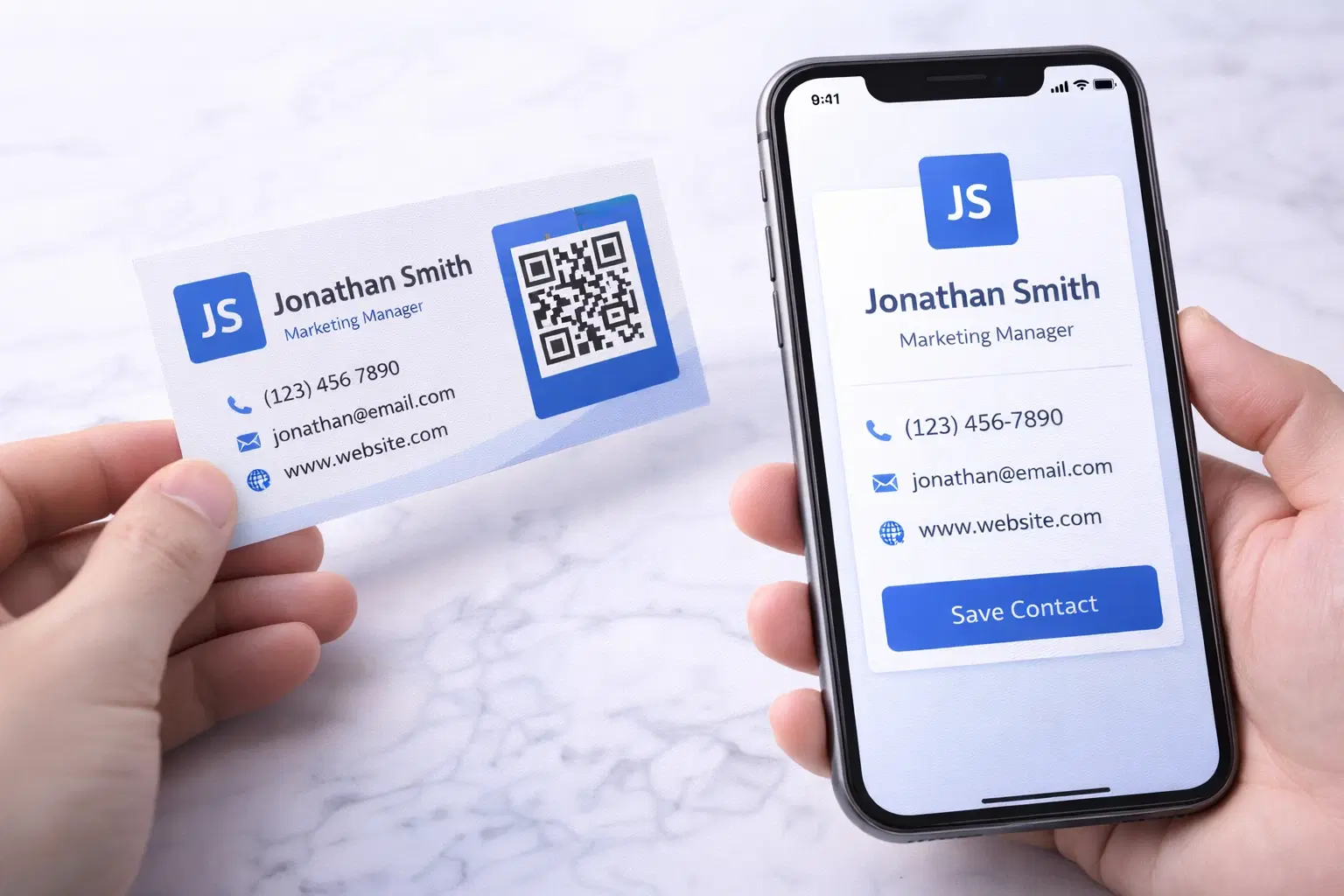
vCard QR Codes: The Complete Guide to Digital Business Cards (Updated 2026)
Create a vCard QR code that shares your contact info instantly, and updates itself when your job, phone, or email changes. Complete guide with placement strategy and networking scripts. Updated September 2026.
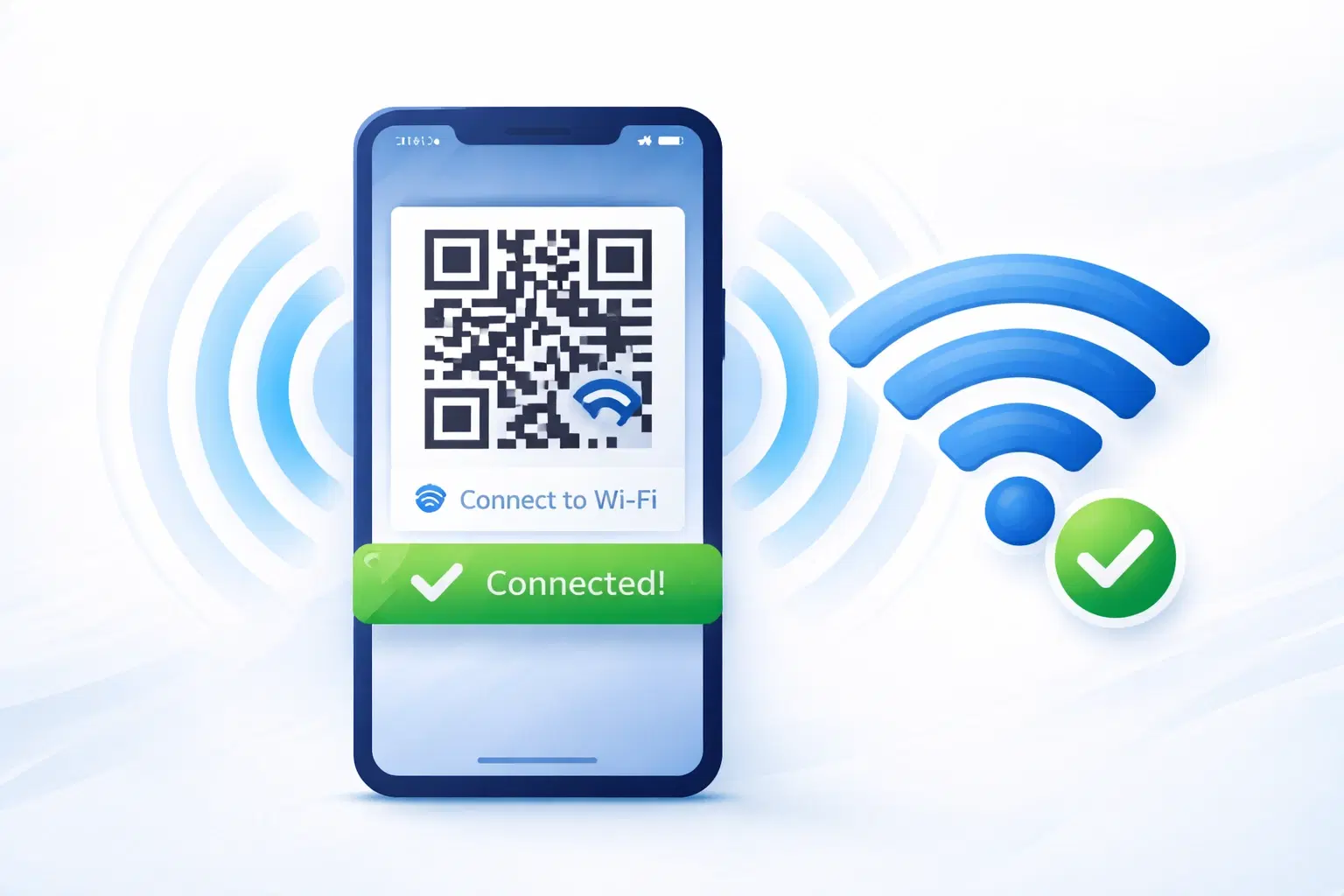
WiFi QR Codes: How to Share Your Network Password Instantly (Updated 2026)
Stop spelling out WiFi passwords letter-by-letter. WiFi QR codes let guests connect in seconds: for your home, café, hotel, or office. Updated 2026 setup guide with platform-specific instructions.

How to Set Up QR Code Check-In for Events: Step-by-Step Guide 2026
Replace paper lists and manual check-ins with a fast, contactless QR code system. Full setup guide for conferences, workshops, weddings, and corporate events.