How to Add a QR Code to a Resume or CV (Modern Job Application Guide 2026)
A QR code on your resume links recruiters straight to your portfolio, LinkedIn, or video intro, a modern touch that sets you apart. But done wrong it looks gimmicky or breaks. Here's how to add one professionally, and exactly what to link it to.

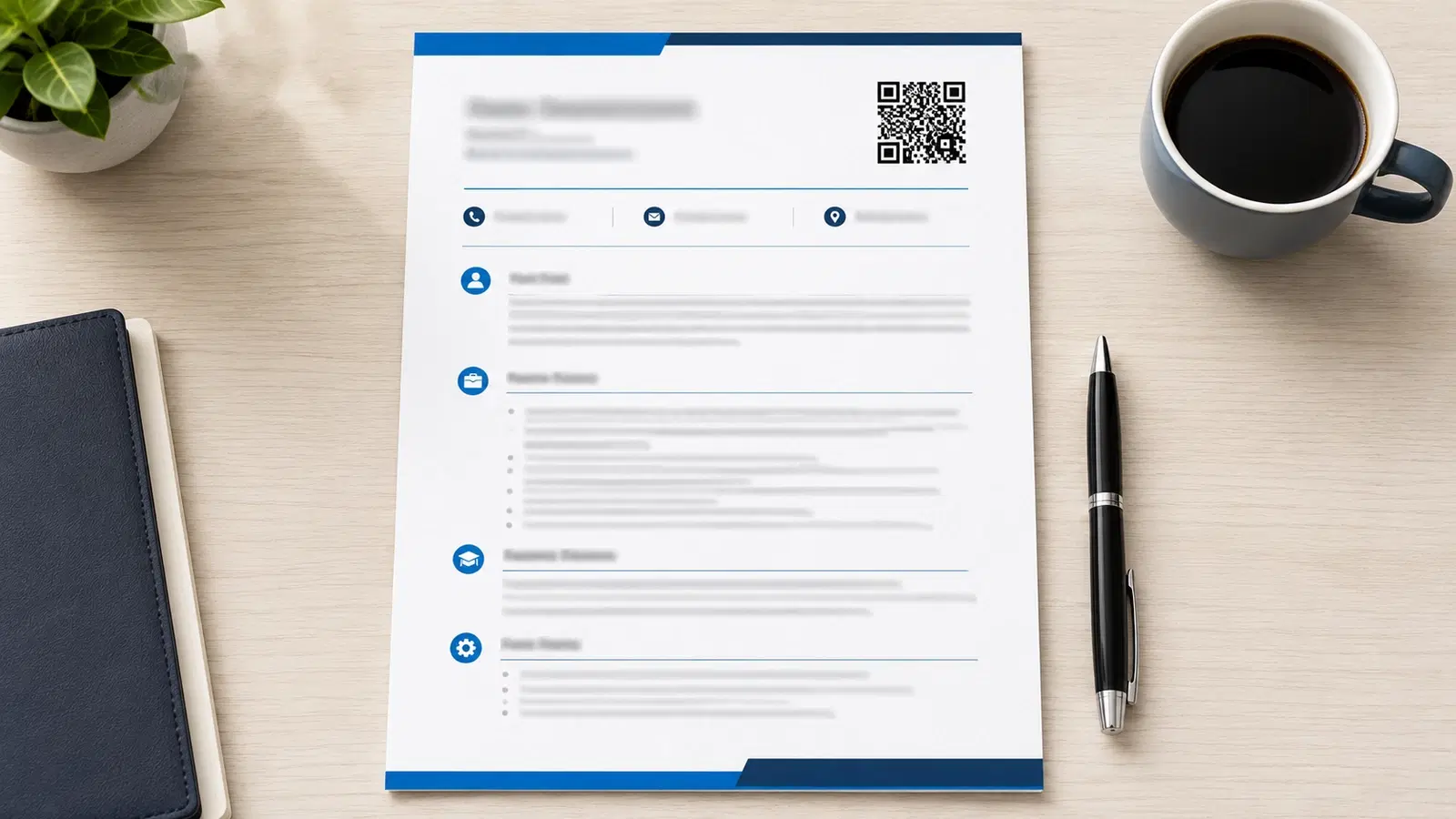
A QR code on your resume is a small modern touch that can set you apart, when done right. Instead of a recruiter typing a long portfolio URL (they won't), they scan a code and instantly see your work, your LinkedIn, or a short video introduction.
But there's a real risk of looking gimmicky or, worse, having a broken QR code that makes you look careless, the opposite of the impression you want. The difference between "modern and impressive" and "trying too hard" comes down to what you link to, where you place it, and a few details.
This guide covers how to add a QR code to your resume or CV professionally, exactly what to link it to (and what to avoid), and how to make sure it works when it matters most.
Should You Even Put a QR Code on Your Resume?
Honest answer first: a QR code on a resume is valuable in some situations and pointless in others.
A QR code makes sense when:
- You're in a visual or digital field where a portfolio matters: design, photography, development, video, architecture, marketing, UX, art
- You have something genuinely worth linking to: a strong portfolio, a project showcase, a video intro, a professional website
- Your resume might be printed or shared as a PDF where the recruiter can't click links
- You're at a career fair, networking event, or handing out physical resumes
- You want to stand out in a field where it's still uncommon but appropriate
A QR code is pointless or risky when:
- You're in a conservative field where it reads as gimmicky (some traditional corporate, legal, finance roles)
- It just links to your LinkedIn (a recruiter can search your name, a QR code adds little)
- You have nothing substantial to link to (don't add one for the sake of it)
- The resume is only ever submitted through online application systems (where links are clickable anyway, making a QR code redundant)
The key question: Does the QR code give the recruiter quick access to something genuinely valuable that they couldn't easily get otherwise? If yes, add it. If it's decoration, skip it.
For printed/PDF resumes specifically: A QR code shines because the recruiter can't click a text URL on paper, and even in a PDF, a scan is faster than typing. This is the strongest case for resume QR codes.
Pro Tip
The best test: would the QR code save the recruiter real effort to see something that genuinely strengthens your candidacy? A code to an impressive portfolio = yes. A code to a LinkedIn they could find by searching your name = not really worth it.
What to Link Your Resume QR Code To
What you link to determines whether the QR code helps or hurts. Best options, roughly in order:
1. Your portfolio (strongest for visual/creative/technical fields): Designers, developers, photographers, writers, architects, link directly to your portfolio. This is the single most valuable resume QR code use. The recruiter sees your actual work in one scan.
2. A personal professional website: A clean personal site with your work, bio, projects, and contact info. Positions you as established and serious.
3. A short video introduction (60-90 seconds): A brief, professional video where you introduce yourself. Powerful for roles where communication and personality matter (sales, client-facing, leadership). Use sparingly and keep it polished.
4. An online interactive CV or project showcase: A richer version of your resume with detail that doesn't fit on one page: case studies, project breakdowns, testimonials.
5. LinkedIn (acceptable but weak): Fine as a fallback, but a recruiter can find your LinkedIn by searching your name. Only mildly useful. If you link LinkedIn, make sure your profile is excellent.
What to AVOID linking to:
- A generic homepage with nothing relevant
- Social media (personal Instagram, Twitter, etc.): unprofessional unless directly relevant to the role
- A file download (recruiters won't download unknown files: security risk)
- Anything not mobile-optimized (recruiters scan on phones)
- A page that requires login or sign-up
The golden rule: Link to the single most impressive, relevant, professional thing you have. One strong destination beats a menu of mediocre links.
Where to Place the QR Code on Your Resume
Placement affects both professionalism and function:
Best placements:
- Header area, near your contact details: The most natural spot. Your name, email, phone, and a small QR code grouped together reads as "here's how to reach me and see my work."
- Top corner (upper right): Clean, noticeable without dominating
- Near a "Portfolio" or "Links" line: If you have a links section, the QR code fits naturally there
Sizing:
- Small and tasteful: roughly 2cm × 2cm (about 0.75-1 inch)
- Large enough to scan, small enough not to dominate the page
- A resume QR code should be a subtle accent, not a billboard
Design:
- Keep it simple and professional: clean black on white, matching your resume's restraint
- Avoid colorful or heavily stylized codes; this is a professional document
- A small, tasteful logo in the center is fine if you have a personal brand mark; otherwise plain is best
- Maintain the quiet zone (clear margin) so it scans
Add a tiny label: A small line like "Scan for portfolio" next to the code tells the recruiter what they'll get and why to scan. A bare QR code is a mystery; a labeled one is an invitation.
One code, not several: Resist adding multiple QR codes (one for portfolio, one for LinkedIn, one for video). It clutters the page and looks busy. One QR code to your single best destination, or to a clean landing page that links to everything.
Important
Make sure your QR code doesn't get cut off or distorted when the resume is printed or converted to PDF. Test the final printed/exported version, not just the on-screen design. A QR code that breaks on print makes you look careless: exactly the wrong impression on a resume.
Use a Dynamic QR Code (Here's Why It Matters for Resumes)
For a resume, a dynamic QR code isn't just nice. It's genuinely smart, for reasons specific to job searching.
Why dynamic matters for resumes:
1. You update your portfolio/links over time. Your portfolio URL changes. You move from one portfolio platform to another. You get a new personal website. With a static code, every resume you've ever sent out points to a dead or outdated link. With a dynamic code, you update the destination and every copy (including ones sent months ago), points to your current work.
2. You tailor your destination per application. Applying for a design role? Point your code to your design portfolio. Applying for a management role? Point it to a leadership-focused page. A dynamic code lets you repoint the same printed resume's code based on the role, though for most people, one strong portfolio destination is fine.
3. You see if recruiters engage. Scan analytics tell you whether recruiters are actually scanning your code. If you're getting interviews but no scans, the code isn't your differentiator. If scans correlate with callbacks, your portfolio is helping. Real feedback on your job search.
4. Resumes circulate longer than you think. A resume you sent six months ago might resurface when a role opens. A dynamic code means it still points to your current, best work, not where your portfolio used to be.
The setup: 1. Generate a dynamic QR code on a QR platform 2. Point it to your portfolio/website 3. Add it to your resume (as an image. See how to add a QR code to a PDF or to Word/Docs) 4. Update the destination anytime your work moves: every resume copy stays current
This small step means your resume's QR code never becomes the broken, careless-looking detail that works against you.
- Dynamic code keeps old resume copies pointing to your current work
- Repoint per role type (design portfolio vs leadership page) if useful
- Scan analytics show whether recruiters actually engage
- Resumes resurface months later: dynamic keeps them current
- Generate dynamic, add as image, update destination as your work moves
Conclusion
A QR code on your resume is a modern, effective touch: in the right field, linking to the right thing, done professionally. For designers, developers, photographers, and other portfolio-driven professionals, a QR code that takes a recruiter straight to your best work in one scan is genuinely valuable, especially on printed or PDF resumes where text URLs can't be clicked.
The rules: only add one if it links to something genuinely impressive (a strong portfolio beats a findable LinkedIn), place it tastefully near your contact details, keep it small and clean, label it, and (importantly), use a dynamic code so it stays current as your work moves and so you can see whether recruiters engage. Then test the printed/exported version before sending.
Done right, it sets you apart as modern and prepared. Done carelessly (gimmicky placement or a broken link), it works against you. The details make the difference.
Related reading:
Create a dynamic QR code for your resume with QRForever. Start a 7-day full-access trial, no credit card. Point it to your portfolio, keep it current as your work moves, and see when recruiters scan.
Explore QRForever Solutions
Ready to Create Your Own QR Codes?
Start creating dynamic QR codes for your business today. Track analytics, update content anytime, and never reprint again.
Related Articles
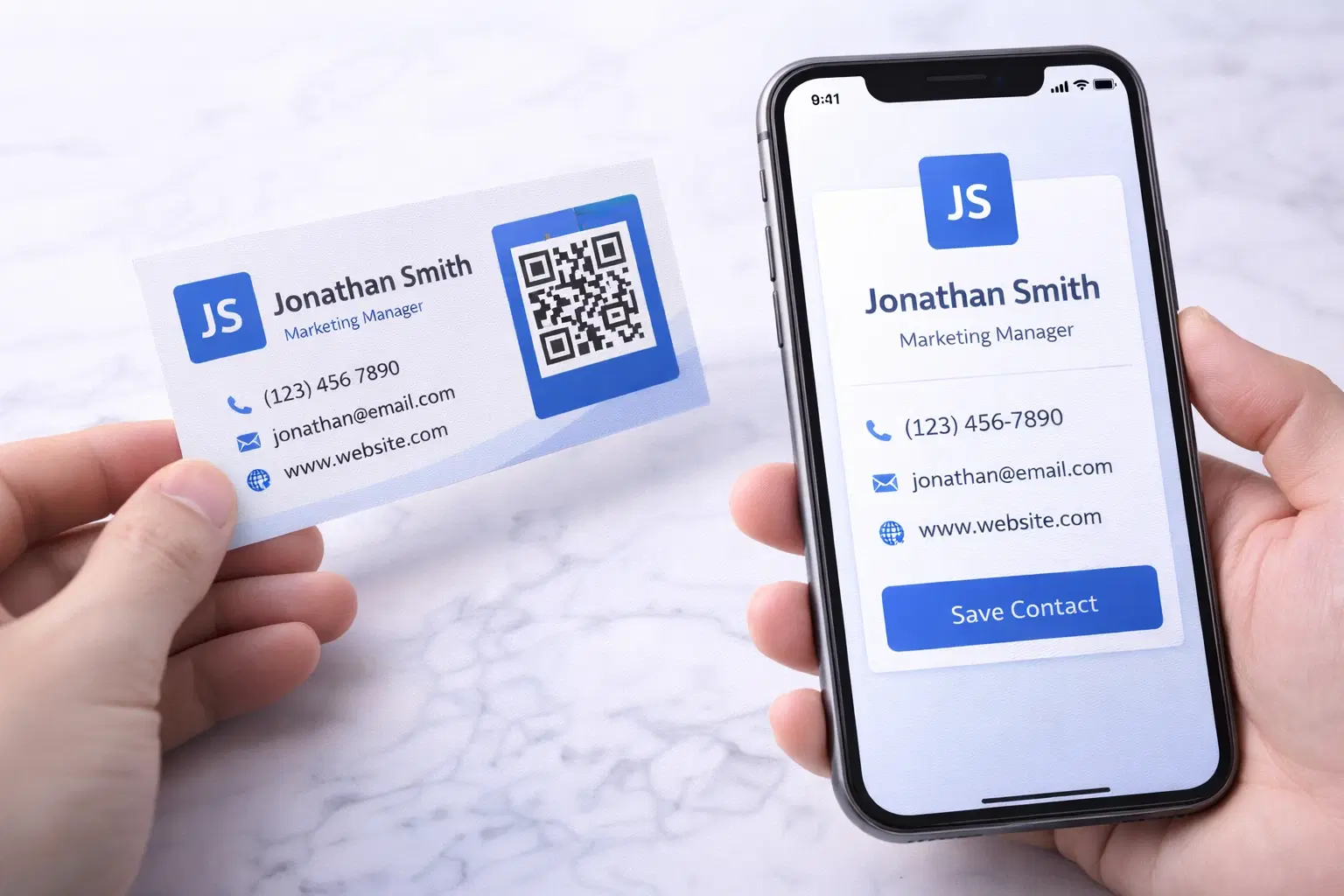
vCard QR Codes: The Complete Guide to Digital Business Cards (Updated 2026)
Create a vCard QR code that shares your contact info instantly, and updates itself when your job, phone, or email changes. Complete guide with placement strategy and networking scripts. Updated September 2026.
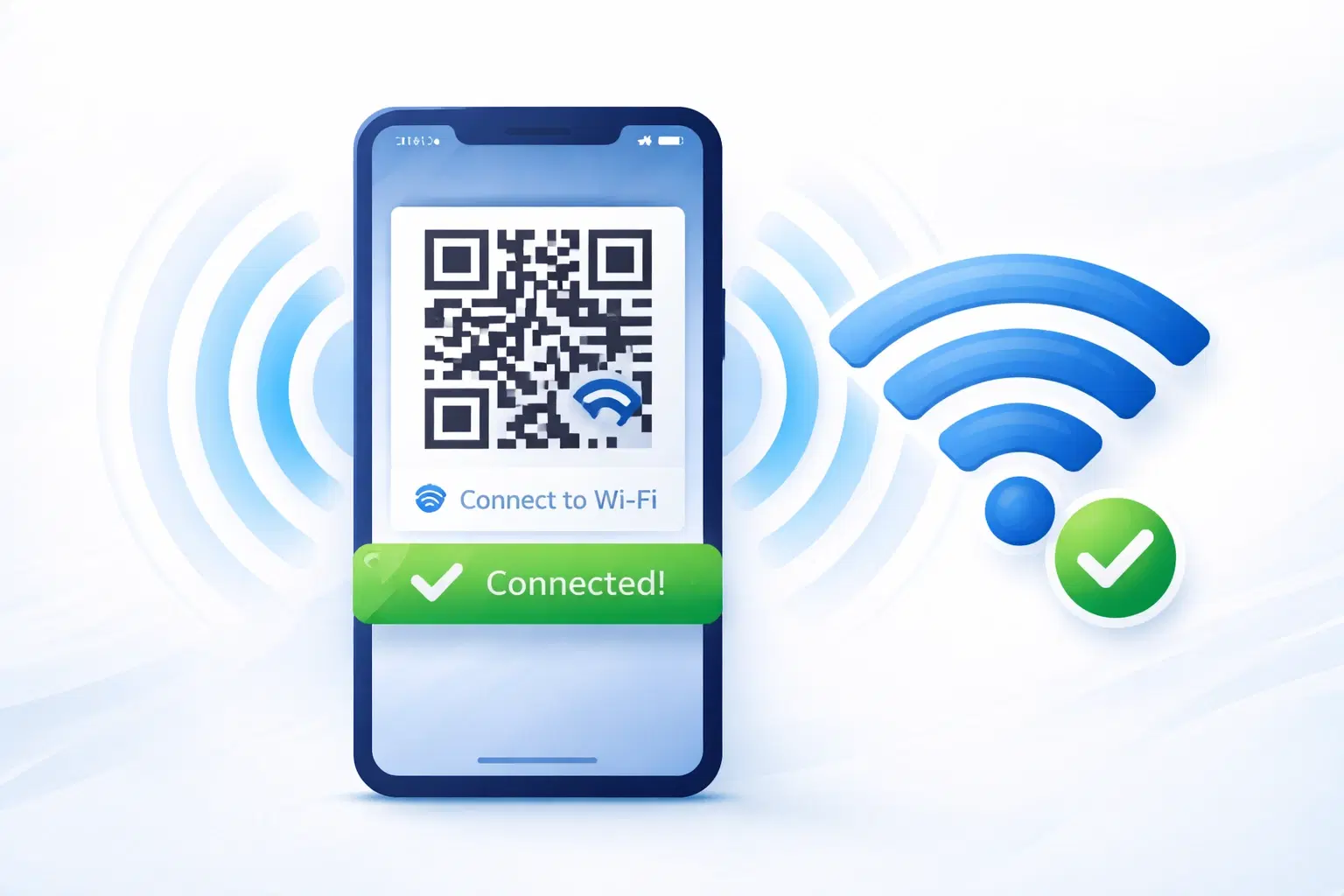
WiFi QR Codes: How to Share Your Network Password Instantly (Updated 2026)
Stop spelling out WiFi passwords letter-by-letter. WiFi QR codes let guests connect in seconds: for your home, café, hotel, or office. Updated 2026 setup guide with platform-specific instructions.
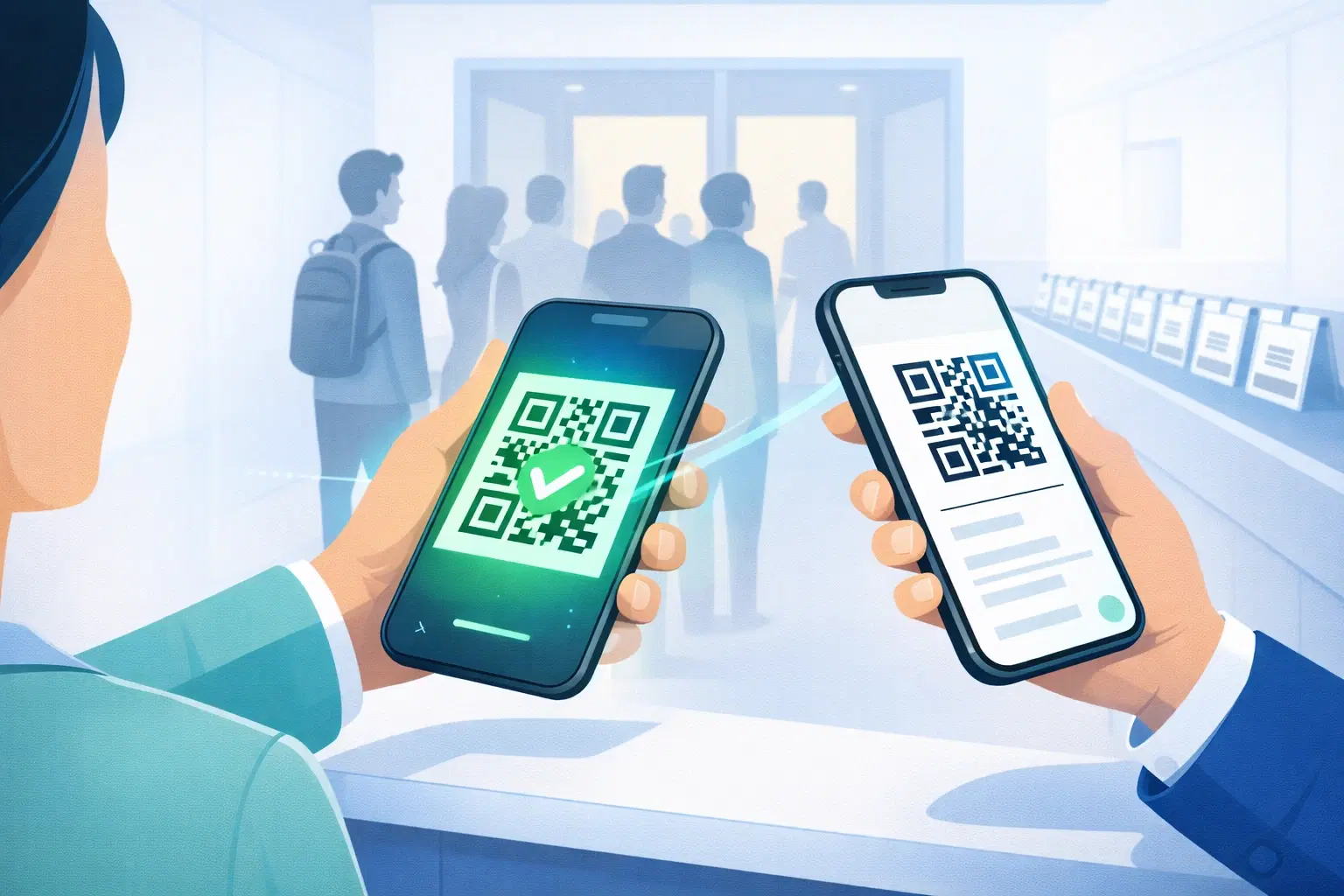
How to Set Up QR Code Check-In for Events: Step-by-Step Guide 2026
Replace paper lists and manual check-ins with a fast, contactless QR code system. Full setup guide for conferences, workshops, weddings, and corporate events.