How to Create a QR Code for Google Reviews: Get More 5-Star Reviews in 2026
A Google Review QR code sends customers straight to your review page, no searching, no friction. Learn how to set it up, where to place it, and how businesses 3x their review count.

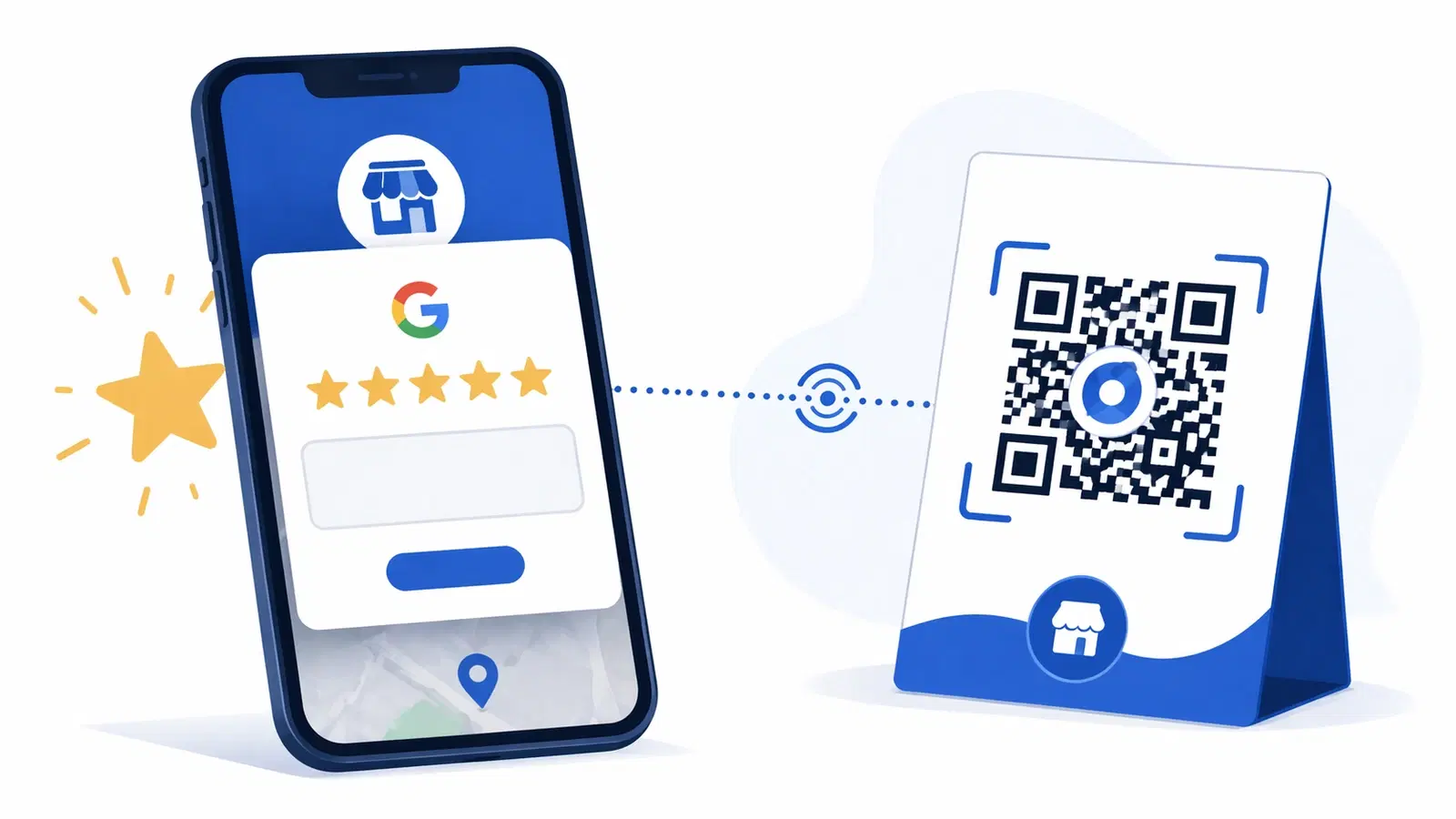
Online reviews are the modern word-of-mouth. 93% of consumers read reviews before visiting a local business, and Google reviews directly influence where you appear in local search results. The problem isn't that customers don't want to leave reviews. It's that the process has too many steps. They forget, they can't find your page, or they give up searching.
A Google Review QR code eliminates every one of those friction points. Scan → Google review form opens → done. Businesses that place these codes at the right touchpoints consistently see 2–3x more reviews within the first month. This guide shows you exactly how to set one up and where to put it.
Why Google Reviews Matter More Than Ever in 2026
Google's local ranking algorithm weighs three main factors: relevance, distance, and prominence. Reviews directly affect prominence. Both the quantity and quality of your ratings signal to Google that your business is trusted and active.
The numbers that matter:
- Businesses with 50+ reviews earn 4.6% more revenue than those with fewer
- Star rating has the biggest impact on click-through from search results
- A response to every review signals active management and boosts local SEO
- Review velocity (getting new reviews consistently) matters, a burst of 20 reviews followed by silence performs worse than a steady trickle
Getting reviews isn't just a vanity metric. It's a direct lever on how many new customers find you through Google Search and Maps.
Pro Tip
Responding to every review (positive and negative), increases your local SEO prominence score. Even a two-sentence response counts.
How to Find Your Google Review Link
Before creating the QR code, you need your business's direct review link.
Method 1, Google Business Profile (recommended): 1. Go to business.google.com and sign in 2. Click your business name 3. In the sidebar, click "Ask for reviews" 4. Google shows you a shareable link. Copy it
Method 2, Google Maps: 1. Search for your business on Google Maps 2. Click your business listing 3. Scroll to the "Reviews" section 4. Click "Write a review". Copy the URL from your browser
Method 3, Google Search: 1. Search "[Your Business Name] Google reviews" 2. In the Knowledge Panel (right side), click "Write a review" 3. Copy the URL
Important: Test the link on your phone before creating the QR code. It should open the review dialog directly, not just your Maps listing.
Important
The review link format that starts with "search?q=" can sometimes change. Use the link from Google Business Profile for the most stable URL.
Creating Your Google Review QR Code on QRForever
QRForever generates dynamic QR codes. Meaning you can update the destination URL anytime without reprinting. This is critical for review links that might change.
Steps: 1. Sign in at qrforever.com (free trial available) 2. Click "Create QR Code" and select "URL / Link" 3. Paste your Google review link 4. Customize the design: - Set primary color to match your brand - Add your logo in the center - Choose a dot style (rounded looks great on printed materials) 5. Download as SVG for print or PNG for digital use
Why dynamic matters here: If you ever move locations, rebrand, or Google changes your review link format, you update the destination in QRForever, the printed QR code stays the same. No reprinting table cards, receipts, or signage.
Where to Place Your Google Review QR Code
Placement is everything. Put it where customers are already happy and have a moment to act.
High-converting locations:
Restaurant / Café:
- Table tent cards with "Enjoyed your meal? Review us" copy
- Receipts (printed at bottom with a short URL alongside)
- Exit door or host stand
Retail store:
- Point-of-sale area while customers wait for card processing
- Thank-you cards inside bags or packages
- Changing rooms / fitting area
Service businesses (salon, clinic, repair shop):
- Sign at reception/checkout counter
- Thank-you card handed over with the invoice
- Waiting area with clear CTA copy
Online businesses:
- Thank-you email after purchase (embed QR as image)
- Packing slip inside the parcel
- Follow-up SMS with the link (QR code for print, link for digital)
- Place at the moment of peak satisfaction: right after a great meal, a completed service, or a successful purchase
- Always pair the QR code with a clear ask: "Loved your visit? Scan to review us on Google"
- Keep the QR code at least 2cm × 2cm for reliable scanning
- Ensure good lighting where the code is placed: dark corners reduce scan rates
- Test the scan yourself before putting codes in front of customers
Copy That Converts: What to Write on Your Review Card
The QR code gets them to the page, the copy gets them to actually scan it. Here are proven formats:
For table cards: > "Did we earn 5 stars today? > Scan to leave a quick Google review. It helps us more than you know."
For receipts: > "Review us on Google → [QR code] > Takes 30 seconds. Means the world to us."
For thank-you cards in parcels: > "Hi [first name], thank you for your order! > If you love what you received, a quick Google review would make our day. Scan below. It takes under a minute."
For email: > Subject: How was your experience with [Business]? > "We'd love your feedback on Google. Scan the code below or tap the link: [link]"
Key principles:
- Be specific about what you're asking (Google review, not just "review")
- Set expectations (30 seconds, one click, quick)
- Make it feel personal, not automated
- Never incentivize reviews. Google's policy prohibits it and it can get your listing penalized
Pro Tip
The word "quick" in your CTA copy consistently outperforms longer descriptions. Customers are more likely to act when they know the time commitment is minimal.
Tracking Your Review QR Code Performance
One of the benefits of a dynamic QR code from QRForever is built-in analytics. You can see:
- Total scans per day, week, or month
- Device type (iPhone vs Android. Helps diagnose scanning issues)
- Location data (which branch or placement is driving the most scans)
- Time of day patterns (helps optimize when to prompt customers)
Cross-reference your QRForever scan data with your Google Business Profile review count to calculate your scan-to-review conversion rate. A well-optimized placement typically converts 15–30% of scans into actual reviews.
If your scan rate is high but review count isn't growing, the issue is in the Google review flow itself (too many steps, requires sign-in, etc.), not the QR code. In that case, simplify your copy and test the link on fresh devices.
Conclusion
A Google Review QR code is one of the highest-ROI marketing actions a local business can take. The setup takes 15 minutes. The payoff (more reviews, better local ranking, more customers finding you) is ongoing.
The key is placement and consistency. Put the code where happy customers already are, pair it with clear copy, and make it a permanent fixture rather than a one-off campaign.
Create your Google Review QR code on QRForever: free trial, branded design, dynamic link you can update anytime. Your next 5-star review is one scan away.
Explore QRForever Solutions
Ready to Create Your Own QR Codes?
Start creating dynamic QR codes for your business today. Track analytics, update content anytime, and never reprint again.
Related Articles
QR Code Marketing Strategy: 15 Campaign Types That Work in 2026
A practical QR code marketing playbook: 15 campaign types with real examples, a channel-by-channel breakdown, attribution setup, and the mistakes that quietly waste budget. Updated June 2026.
How to Create a QR Code for Your Instagram & Social Media Profiles in 2026
Link your Instagram, Facebook, YouTube, or any social profile to a QR code. Perfect for offline promotions, packaging, and events. Includes Linktree alternatives and multi-link setups.
QR Code for Customer Feedback & Surveys: Collect Reviews and Insights Instantly in 2026
A feedback QR code lets customers share opinions in 30 seconds, right after the experience. Setup guide for restaurants, retail, clinics, hotels, and any customer-facing business.