How to Create a QR Code for WhatsApp Business: Complete Setup Guide 2026
Create a WhatsApp QR code that opens a pre-filled chat with your business instantly. Step-by-step guide for WhatsApp Business, custom messages, and print placement.

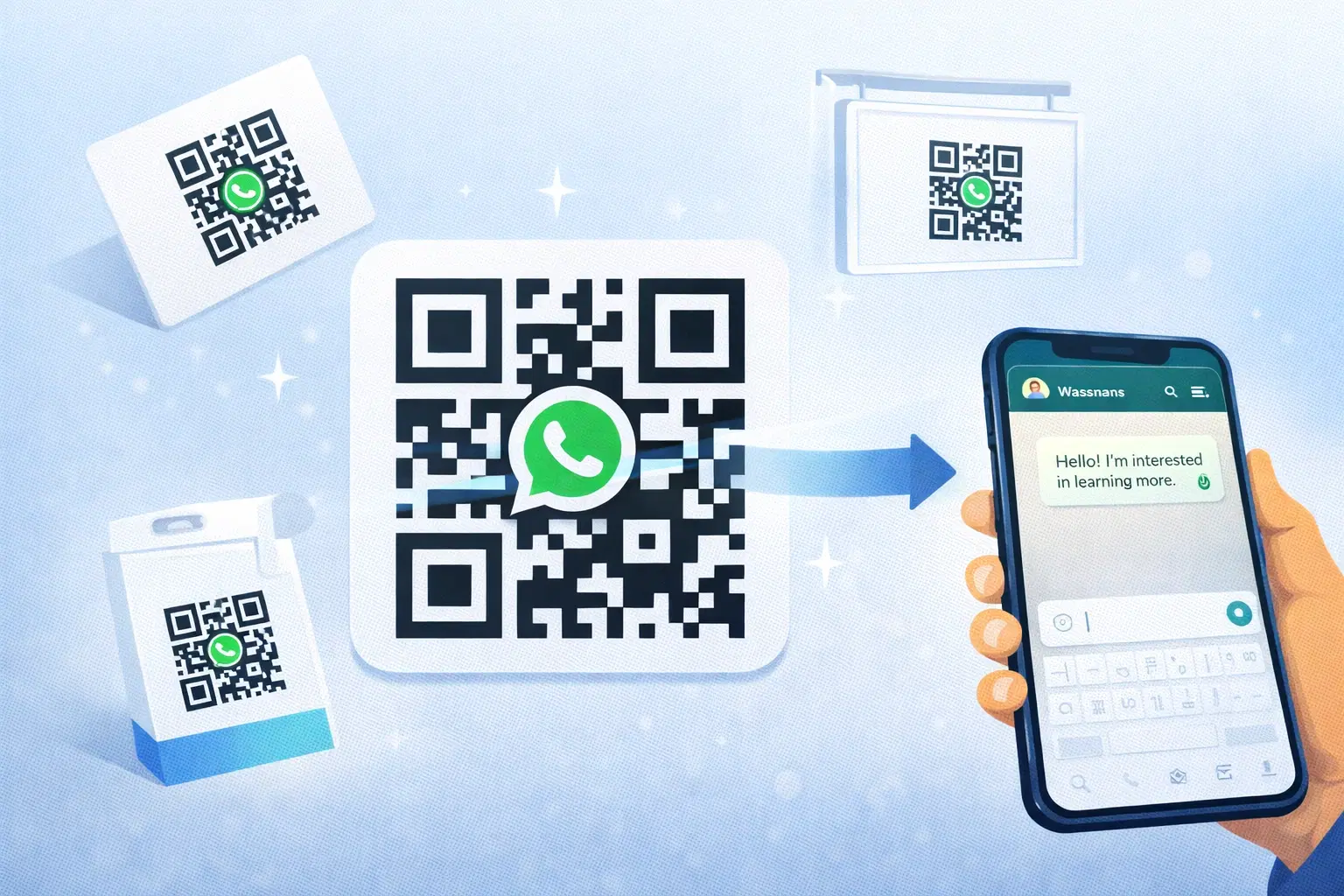
A WhatsApp QR code lets anyone start a conversation with your business by scanning a code: no need to save your number first, no searching for your contact, no typing. They scan, WhatsApp opens, and they're already in a chat with you.
In India, where WhatsApp is the primary business communication channel for millions of SMBs, a WhatsApp QR code on your storefront, packaging, or business card is one of the most practical things you can add. This guide shows you exactly how to set it up.
WhatsApp Business QR Code in 4 Steps
Here is the whole process, start to finish:
1. Get your WhatsApp Business number ready and build the link. Your link is https://wa.me/[country code + number], and you can add a pre-filled message with ?text= (URL-encoded). Example: https://wa.me/919876543210?text=Hi%2C%20I%27d%20like%20to%20know%20more
2. Generate the QR code. A static QR of the wa.me link works and is free. Or create a dynamic WhatsApp QR code on QRForever so you can change the number or message later without reprinting, and see scan analytics.
3. Download as SVG or PNG. SVG for anything printed (it stays sharp at any size), PNG for digital use like websites and email signatures.
4. Place it and test it. Put the code on your business card, menu, storefront, or signage, then scan the final printed version on both an iPhone and an Android phone to confirm the chat opens with the right number and message.
The rest of this guide walks through each step in detail, including pre-filled message templates and placement ideas.
How WhatsApp QR Codes Work
A WhatsApp QR code encodes a special link: https://wa.me/[phone_number]?text=[pre-filled_message]
When scanned: the phone's camera reads the QR code, WhatsApp opens automatically, a chat window with your business number appears, and optionally a pre-filled message is already typed, the customer just hits send.
No app download required beyond WhatsApp itself, which 90%+ of Indian smartphone users already have.
The pre-filled message is powerful: Instead of a blank chat, the customer sees "Hi, I'd like to know more about your products" already typed. They hit send and you immediately know it's an inbound inquiry. Many businesses use this to route customers: "Hi, I'm enquiring about [Product / Service / Support]."
Creating Your WhatsApp Link (wa.me)
Basic format: https://wa.me/91XXXXXXXXXX
Replace 91XXXXXXXXXX with your full number including country code. For India: 91 followed by your 10-digit mobile number. No spaces, dashes, or brackets.
Example: If your number is 98765 43210, your link is: https://wa.me/919876543210
With a pre-filled message: https://wa.me/919876543210?text=Hi%2C%20I%27d%20like%20to%20know%20more
The text after ?text= needs to be URL-encoded (spaces become %20). Use any free URL encoder tool to convert your message.
Test your link first: Paste it into your phone browser. It should open WhatsApp immediately with the correct number and message. Test on both iPhone and Android before creating the QR code.
Creating the WhatsApp QR Code on QRForever
Start by generating a WhatsApp QR code in QRForever, which has a dedicated WhatsApp QR code type, the easiest way to create one without manually building the wa.me link.
Steps: 1. Log in or start your free trial at qrforever.com 2. Click "Create QR Code" and select "WhatsApp" 3. Enter your phone number (with country code) 4. Enter your pre-filled message (QRForever handles URL encoding automatically) 5. Customize the design. Add your brand colors or logo 6. Download as PNG (digital) or SVG (print)
Why use QRForever instead of WhatsApp's built-in QR:
- WhatsApp's built-in QR is static and can't be customized or tracked
- If you change your WhatsApp number, a dynamic QR code lets you update without reprinting
- Scan analytics: how many times your WhatsApp QR was scanned, from where, on what device
- Add your logo and brand colors to the QR code itself
WhatsApp Business vs Personal: Which Number to Use
WhatsApp Business (recommended for businesses): Free app on Android and iOS. Shows your business name, description, hours, and category in the chat. Supports quick replies, away messages, greeting messages, and a product catalog. Allows up to 5 devices.
WhatsApp Business API: For businesses with high message volume needing automation. Requires a BSP like Interakt, Wati, or DelightChat. Monthly cost: ₹2,000–₹10,000/month. Supports chatbots, broadcast messages, and CRM integration.
For most SMBs: WhatsApp Business (free app) is sufficient. Set it up before creating your QR code so the chat shows your business profile.
Setup in 5 minutes: Download "WhatsApp Business," verify your business phone number, then fill in your business name, category, description, hours, and website.
Pre-filled Messages: What to Write
The pre-filled message is your first impression. It should make the customer feel understood and give your team context.
- General inquiries: "Hi, I'd like to know more about your products/services."
- Specific product: "Hi, I'm interested in [Product Name]. Can you share pricing?"
- Support: "Hi, I need help with my order."
- Appointment booking: "Hi, I'd like to book an appointment. Please share available slots."
- Restaurants: "Hi, I'd like to place an order / make a reservation."
Keep it short: One sentence. Long messages feel forced and customers often delete them before sending. Short messages get sent as-is.
Language: Match your customer base. If your customers primarily speak Hindi or a regional language, consider a pre-filled message in that language.
Where to Use Your WhatsApp QR Code
Physical locations:
*Storefront and signage:* A WhatsApp QR on your shop window lets passing customers message you without entering. Size: minimum 8 × 8 cm for sidewalk scanning from 50+ cm.
*Business cards:* Add your WhatsApp QR next to your contact details. In India, this is often more useful than a website link. People prefer to message than browse.
*Packaging:* On product boxes, bags, or labels, a WhatsApp QR for customer support reduces friction after purchase and directly reduces negative reviews from unresolved issues.
*Delivery inserts:* A small card in every delivery package: "Questions about your order? Scan to WhatsApp us."
Digital channels:
*Email signature:* Add your WhatsApp QR as a small image in your email signature. Recipients on mobile can screenshot and scan it.
*Social media:* Add the wa.me link to your Instagram and Facebook bio. For posts and stories, share the QR code image.
Setting Up WhatsApp Business Automations
Once your QR code is driving messages, set up these automations to respond instantly even when unavailable:
Greeting message: Sent automatically when someone messages for the first time. Example: "Hi! Thanks for reaching out to [Business Name]. We typically respond within 2 hours. How can we help you?"
Away message: Sent outside business hours. Example: "Hi! We're currently closed. Our hours are Mon-Sat, 10am-7pm IST. We'll reply as soon as we're back."
Quick replies: Pre-saved responses for common questions: pricing, directions, return policy, menu. Access by typing / in the chat. Saves significant time when the same questions come in repeatedly.
How to set up: WhatsApp Business app → Settings → Business Tools → Greeting Message / Away Message / Quick Replies. Takes 10 minutes, permanently improves response experience.
Dynamic vs Static WhatsApp QR Codes
WhatsApp generates a built-in QR code inside the app. It's static. Tied to your current number and can't be customized or tracked.
Problems with WhatsApp's built-in QR: Changes if you reinstall WhatsApp, no analytics, can't be customized, and if you change numbers all printed materials stop working.
Dynamic WhatsApp QR codes (QRForever): Update the number or message anytime, scan analytics per code, fully brandable with colors and logo, and one QR code works across all printed materials indefinitely.
For a stable WhatsApp number, either works. But for a business printing significant volumes of cards, signage, or packaging: dynamic is the only sensible choice.
Conclusion
A WhatsApp QR code removes the biggest barrier to customer contact, which is finding and saving a number, and drops customers directly into a conversation with you. The setup takes under 10 minutes. Every card, package, or sign that carries your QR code becomes an active inbound channel.
For Indian businesses especially, WhatsApp is the default customer communication channel, which makes this one of the highest-value codes you can deploy. Pair it with a UPI payment QR at the counter and a Google review QR, and you cover contact, payment, and reputation in one setup.
Related reading:
Create your WhatsApp QR code on QRForever. Free trial, no credit card, full customization. Download as SVG for perfect print quality on any material.
Frequently Asked Questions
How do I generate a WhatsApp QR code for a business account?
Build a wa.me link with your WhatsApp Business number (https://wa.me/919876543210, country code included, no spaces) and turn that link into a QR code. WhatsApp Business also generates a built-in QR under Settings, but it is static: no branding, no analytics, and it breaks if you change numbers. On QRForever, pick the WhatsApp QR type, enter your number and an optional pre-filled message, customize colors and logo, and download as PNG or SVG. Because the code is dynamic, you can point it to a new number later without reprinting anything.
How do I create a WhatsApp QR code for business communication?
Create a QR code that encodes a wa.me link with a pre-filled message, so every scan opens a chat with context already typed. For example, https://wa.me/919876543210?text=Hi%2C%20I%20need%20help%20with%20my%20order routes the customer straight into a support conversation. Set up the free WhatsApp Business app first so the chat shows your business name, hours, and catalog, then add greeting messages, away messages, and quick replies to handle inbound volume. Place the finished QR code on packaging, delivery inserts, signage, and business cards, and test it on both iPhone and Android.
Is a WhatsApp Business QR code free?
Yes, a basic WhatsApp QR code is free. The WhatsApp Business app generates one at no cost, and any free QR generator can convert your wa.me link into a static code that never expires. What paid tools like QRForever add is the dynamic layer: change the number or pre-filled message after printing, track how many people scan and from where, and brand the code with your logo and colors. If you are printing significant volumes of cards or signage, that flexibility usually pays for itself the first time your number or message changes.
Can I use one WhatsApp QR code for multiple team members?
A single wa.me link always points to one phone number, so one QR code cannot rotate between personal numbers on its own. You have two practical options. The WhatsApp Business app supports up to 5 linked devices on one number, so a small team can share a single inbox behind one QR code. For larger teams, the WhatsApp Business API (via providers like Wati or Interakt) routes one number to many agents with assignment rules. A dynamic QR code helps either way: if you later move from a personal number to a shared or API number, you update the destination without reprinting.
Explore QRForever Solutions
Ready to Create Your Own QR Codes?
Start creating dynamic QR codes for your business today. Track analytics, update content anytime, and never reprint again.
Related Articles
vCard QR Codes: The Complete Guide to Digital Business Cards (Updated 2026)
Create a vCard QR code that shares your contact info instantly, and updates itself when your job, phone, or email changes. Complete guide with placement strategy and networking scripts. Updated September 2026.
WiFi QR Codes: How to Share Your Network Password Instantly (Updated 2026)
Stop spelling out WiFi passwords letter-by-letter. WiFi QR codes let guests connect in seconds: for your home, café, hotel, or office. Updated 2026 setup guide with platform-specific instructions.
How to Set Up QR Code Check-In for Events: Step-by-Step Guide 2026
Replace paper lists and manual check-ins with a fast, contactless QR code system. Full setup guide for conferences, workshops, weddings, and corporate events.