How to Add a QR Code to Your Business Card: Print & Design Guide 2026
Add a scannable QR code to your business card that links to your contact info, portfolio, LinkedIn, or website. Full guide covering design, sizing, and printing.

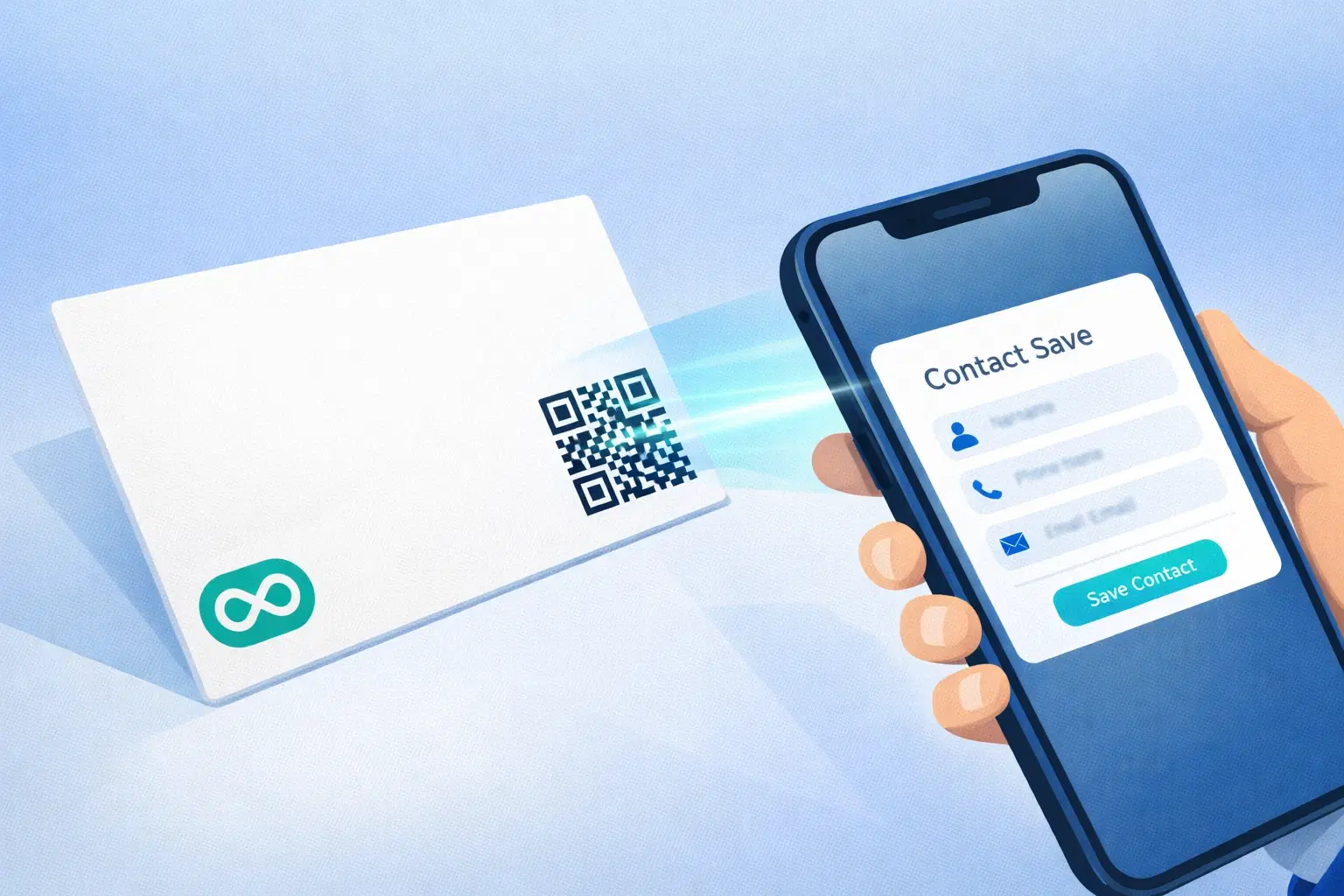
A QR code on your business card turns a piece of paper into an interactive experience. Instead of hoping someone manually types your website URL or saves your number, they scan once and get everything (your contact details, LinkedIn profile, portfolio, or booking link), instantly on their phone.
This guide covers exactly how to create, design, size, and print a QR code on your business card, including the one mistake most people make that causes their QR code to stop working after they change jobs.
What Should Your Business Card QR Code Link To?
Before creating the QR code, decide what it should open. Common options:
1. vCard / contact file (most useful): Opens a digital contact card on the scanner's phone, pre-filled with your name, phone, email, company, and title. They tap "Save Contact" and you're in their phone. This is the most practical option for networking.
2. LinkedIn profile: Good for B2B professionals. The scanner sees your full work history and recommendations and can connect immediately.
3. Personal website or portfolio: Best for freelancers, designers, and photographers. The QR code opens your portfolio directly.
4. Booking / calendar link: For consultants and coaches, the QR code opens your Calendly or Google Calendar booking page. Removes all friction from "let's set up a call."
5. WhatsApp chat: Popular in India and Southeast Asia. Opens a direct WhatsApp conversation with you. Great for sales roles.
Recommendation: Use a dynamic QR code so you can change the destination later. If you get a new job, change your website, or switch platforms, you update the link once: your printed cards still work.
How to Create a QR Code for Your Business Card
Step 1: Gather the link you want the QR code to open.
Step 2: Create a dynamic QR code on QRForever 1. Go to qrforever.com and create a new QR code 2. Select the QR type: URL (for websites/LinkedIn), WhatsApp, or vCard 3. Enter your destination 4. Customize the design (colors, logo) to match your brand 5. Download as PNG (digital) or SVG (print. Scales without quality loss)
Creating a vCard QR code: QRForever has a dedicated vCard QR type. Fill in your full name, phone, email, company, job title, and website. The QR code encodes this information directly, no URL needed, works offline.
Step 3: Test before printing. Scan your QR code with both iPhone and Android before sending to print.
QR Code Size: How Small Can You Go on a Business Card?
Standard business card size is 85 × 54 mm. The QR code should be:
- Minimum: 1.5 × 1.5 cm for scanning from 15 cm
- Recommended: 2 × 2 cm for reliable scanning in all conditions
- Maximum: roughly 1/4 of the card face
The 10:1 rule: A QR code needs to be at least 1/10th of the scanning distance. At arm's length (30 cm), your QR code should be at least 3 cm.
What reduces scannability: Low contrast, too much customization obscuring the finder squares, QR code smaller than 1.5 cm, and glossy lamination causing glare.
Safe minimum for business cards: 2 × 2 cm, black on white or dark on light background, no glossy coating over the QR area.
Where to Place the QR Code on Your Business Card
Back of the card (recommended): The front holds your name, title, and contact info. The QR code on the back keeps the front clean. Include a small label: "Scan to save my contact" or "Scan for my portfolio."
Corner of the front: If you prefer everything on one side, bottom-right corner is conventional. Leave at least 3 mm of white space (quiet zone) around the QR code, scanning fails without it.
Avoid: Placing text or elements inside the QR code's quiet zone, printing over a patterned background, and positioning too close to the card edge.
Add a call to action: "Scan to connect," "Save my contact," or "View my work": 3-4 words next to the QR code increases scan rate significantly.
Design Tips: Making Your QR Code Match Your Brand
Color guidelines: Dark module color on light background always works. Brand colors are fine as long as contrast is high. Never invert (light QR on dark) unless you test extensively.
Adding your logo to the center: QR codes have built-in error correction (up to 30%). You can place a small logo (max 20-25% of the QR area) in the center without breaking scannability. QRForever supports this natively.
File format for printing: Use SVG or PDF. They scale without pixelation. If using PNG, export at minimum 1000 × 1000 pixels at 300 DPI for a 2 × 2 cm print area.
Why You Need a Dynamic QR Code (Not a Static One)
Most free QR code generators create static QR codes, the destination is baked permanently into the code. If you move to a new company, get a new website, or just want to update your LinkedIn, the QR code on all your printed cards is permanently broken.
The real cost of static QR codes on business cards: Reprint costs of ₹500–₹3,000 for 250–500 cards, the embarrassment of handing someone a card with a broken QR code, and missed connections.
Dynamic QR codes from QRForever: You log in, update the destination, and every card you've ever printed now opens the new link. Your card stock doesn't expire when your career moves forward.
This is especially important for professionals who change jobs, freelancers who rebrand, or anyone whose contact details change over time.
Printing Your Business Cards with QR Codes
Finish recommendations:
- Matte finish: Best for QR code scanning. No glare, no reflection.
- Soft-touch matte: Premium feel, still scannable.
- Gloss finish: Avoid over the QR code area. Glare kills scan rates under office lighting.
Before ordering 500 cards: Order a sample pack of 10-25 first. Scan the printed QR code in different lighting: office fluorescent, dim restaurant, outdoor sunlight. If it passes all three, your full order is safe.
Popular printers: Vistaprint, Canva Print, Moo.com, or any local print shop. Bring your design as a PDF with the QR code embedded.
Conclusion
A QR code on your business card is one of the highest-value small changes you can make to your networking materials. It takes 10 minutes to create, costs nothing beyond your card printing budget, and immediately makes your card more useful than 95% of others in someone's stack.
The only rule that matters: use a dynamic QR code so your cards stay current no matter what changes in your career.
Create your business card QR code on QRForever. Free trial, no credit card required. Download as SVG for perfect print quality.
Explore QRForever Solutions
Ready to Create Your Own QR Codes?
Start creating dynamic QR codes for your business today. Track analytics, update content anytime, and never reprint again.
Related Articles
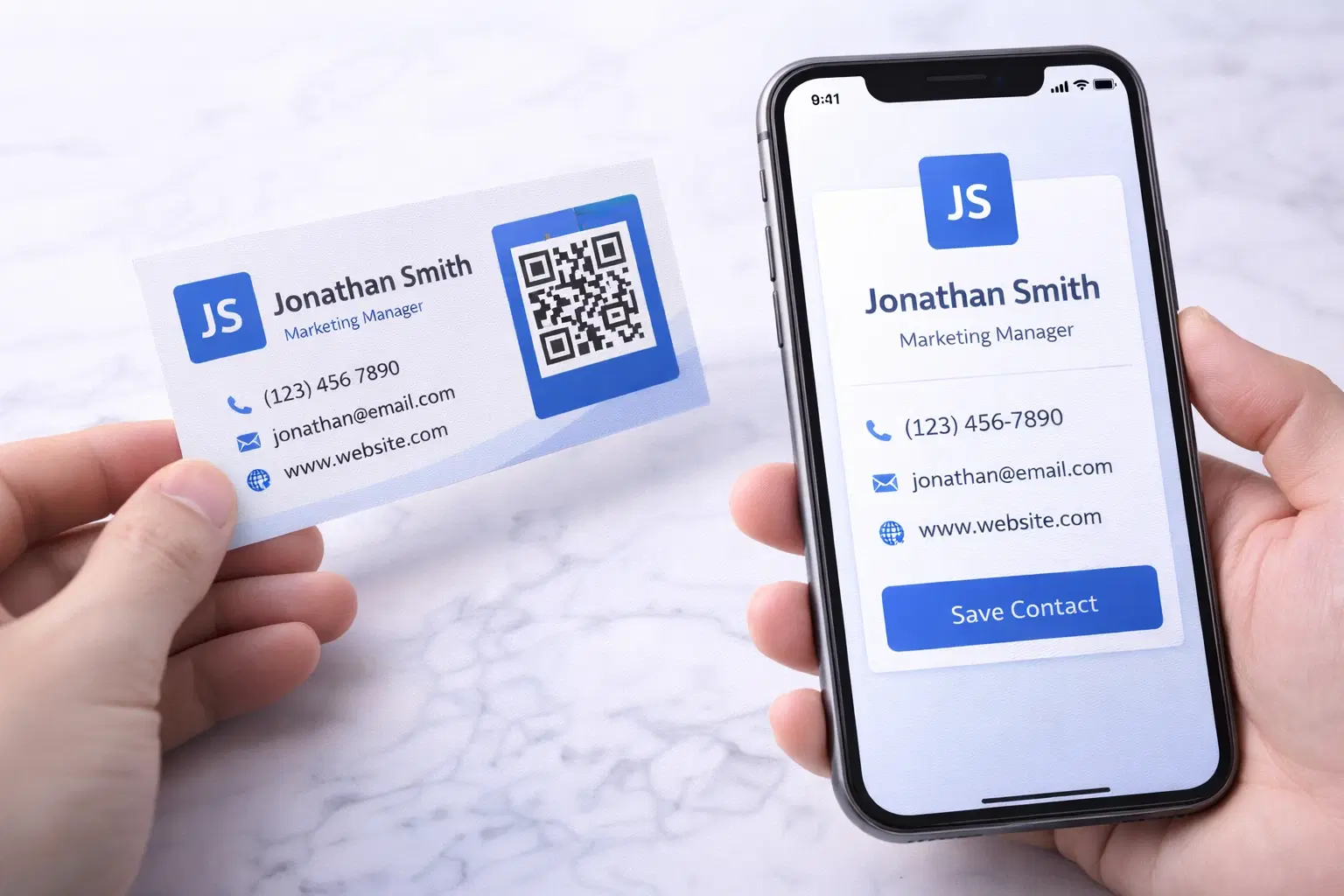
vCard QR Codes: The Complete Guide to Digital Business Cards (Updated 2026)
Create a vCard QR code that shares your contact info instantly, and updates itself when your job, phone, or email changes. Complete guide with placement strategy and networking scripts. Updated September 2026.
WiFi QR Codes: How to Share Your Network Password Instantly (Updated 2026)
Stop spelling out WiFi passwords letter-by-letter. WiFi QR codes let guests connect in seconds: for your home, café, hotel, or office. Updated 2026 setup guide with platform-specific instructions.
How to Set Up QR Code Check-In for Events: Step-by-Step Guide 2026
Replace paper lists and manual check-ins with a fast, contactless QR code system. Full setup guide for conferences, workshops, weddings, and corporate events.