QR Code for Appointment Booking: How to Let Customers Schedule Instantly in 2026
A booking QR code lets customers schedule appointments by scanning, no calls, no app downloads. Setup guide for salons, clinics, consultants, and service businesses.

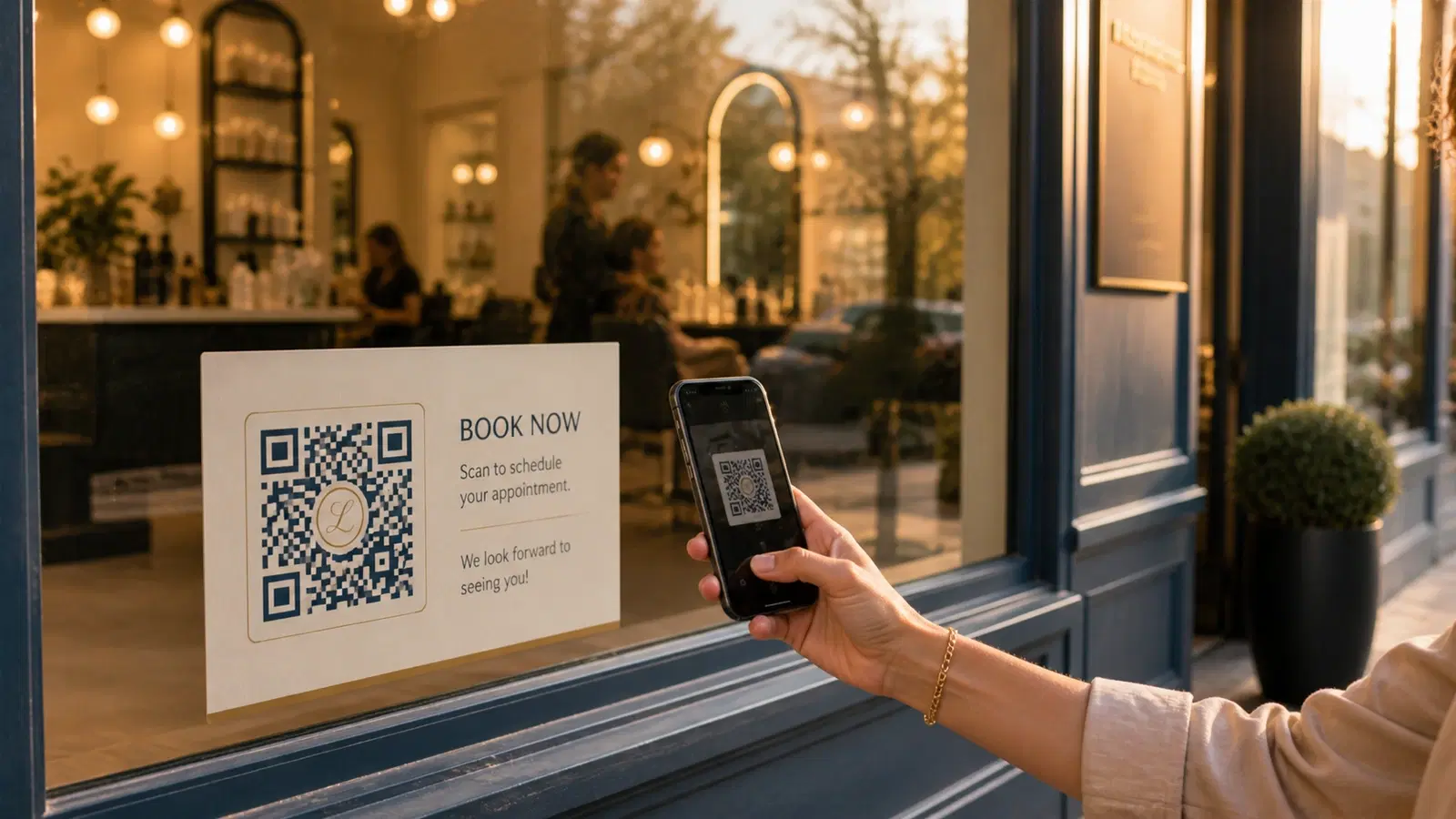
Every missed call is a missed booking. Every "I'll book later" is a customer who probably won't. Service businesses (salons, clinics, repair shops, consultants, tutors), lose appointments daily because the booking process has too much friction: find the number, call during business hours, wait on hold, negotiate a time slot.
A QR code that links directly to your booking page removes all of that. Customer scans, sees available slots, picks one, confirms. Done in 30 seconds, works 24/7, no phone call required.
This guide covers how to set up a booking QR code for any service business, which platforms work best, where to place the code for maximum bookings, and how to track what's working.
How Booking QR Codes Work
The concept is simple: your QR code links to an online booking page. When a customer scans it (from your shop window, business card, flyer, or social media), their phone opens a page showing your available time slots. They pick a slot, enter their details, and the booking is confirmed instantly.
What you need: 1. An online booking platform (you probably already have one) 2. The public URL of your booking page 3. A dynamic QR code from QRForever linking to that URL
That's it. No app for customers to download. No special hardware. No integration work. If your booking page has a URL, you can create a QR code for it right now.
What happens on the customer's end: 1. They see your QR code (on a sign, card, poster, etc.) 2. They point their phone camera at it 3. A link appears. They tap it 4. Your booking page opens in their browser 5. They select a service, pick a time, enter their name and phone number 6. They receive a confirmation email or SMS
What happens on your end:
- The booking appears in your calendar/system automatically
- You get notified (email, SMS, or app notification depending on your platform)
- No manual data entry, no phone tag, no double-bookings
Choosing the Right Booking Platform
Your QR code links to your booking page. The platform behind that page matters for the customer experience.
Popular booking platforms that work with QR codes:
Calendly: Best for consultants, coaches, and 1-on-1 services. Clean interface, easy setup, free tier available. Each service type gets its own URL, which means you can create different QR codes for different services.
Square Appointments: Best for salons, barbershops, and beauty services. Integrated payments, staff scheduling, and client management. The booking page URL works perfectly as a QR code destination.
Fresha. Purpose-built for beauty and wellness businesses. Free for individual practitioners. The booking link is clean and mobile-optimized.
Zocdoc / Practo, For healthcare providers. Patients are already familiar with these platforms, which builds trust.
Google Business Profile booking, If you've enabled the "Book" button on your Google Business listing, you can use that URL directly.
Setmore / Acuity Scheduling. General-purpose scheduling tools with good free tiers. Both generate shareable booking links.
Your own website's booking page, If you have an embedded booking widget on your website, link directly to that page.
The key requirement: The platform must have a shareable, public booking URL that works on mobile browsers without requiring an app download. Test the link on a phone before creating the QR code: if it asks the user to download an app first, pick a different platform or use the web version of the link.
Pro Tip
If your platform offers service-specific URLs (e.g., "book a haircut" vs "book a color treatment"), create separate QR codes for each service. Place the haircut QR code where haircut customers are, and the color treatment QR code where those customers are. Specific beats general for conversion.
Where to Place Your Booking QR Code
The best placement is where booking intent is highest, where customers are actively thinking about scheduling.
Physical locations:
Shop window or door (highest impact for walk-in businesses): A poster or sticker visible from the sidewalk: "Book your appointment. Scan here." Captures walk-by traffic, including people passing when you're closed. This single placement can generate 5–15 bookings per week for busy street locations.
Reception or waiting area: Customers already in your space are the easiest to convert for repeat bookings. A table card or poster: "Book your next visit before you leave." Rebook rates increase significantly when booking is frictionless.
At the point of service:
- Salon mirrors: "Love your look? Book your next appointment"
- Clinic exam rooms: "Need a follow-up? Scan to schedule"
- Repair shop counter: "Book your next service. Scan here"
Business cards: Your business card should have a QR code linking to your booking page, not just your phone number. When someone receives your card, the next action you want is a booking, make it one scan away.
Printed materials:
- Flyers and brochures
- Door hangers (for home service businesses)
- Receipts (printed at the bottom)
- Vehicle wraps (for mobile services: plumbers, cleaners, dog groomers)
Digital placements:
Email signature: Add a small "Book an appointment" link or QR code image to every email you send.
Social media bio: While a clickable link works better in bios, a QR code in your Instagram/Facebook cover photo catches attention for users browsing on desktop.
Google Business Profile: Upload a photo that includes your booking QR code. It appears in your Google listing's photo carousel.
- Start with your shop window. It works 24/7 and captures the highest-intent customers
- Add to your business card: turn every networking interaction into a potential booking
- Place at point-of-service: rebooking existing customers is easier than acquiring new ones
- Add to your waiting area: customers with idle time are primed to book their next visit
- Include on all printed marketing materials: every flyer becomes a booking channel
Creating Your Booking QR Code on QRForever
Step-by-step:
1. Get your booking URL. Log into your scheduling platform and copy the public booking link. Test it on your phone first. It should open directly to your available slots.
2. Create the QR code. - Go to QRForever and sign in - Click "Create QR Code" → select "URL / Link" - Paste your booking page URL - Name the code descriptively (e.g., "Main Salon, Booking Page")
3. Customize the design. - Set the primary color to match your brand - Add your business logo in the center - Choose a dot style that matches your brand's feel - Preview and test the scan
4. Download for print and digital. - SVG for print materials (infinite resolution) - PNG for digital use (social media, email, website)
5. Print and deploy. - Window poster: A4 size, QR code at least 8cm x 8cm - Business card: 2cm x 2cm minimum - Table cards: 4cm x 4cm recommended - Stickers: Weatherproof material for outdoor use
Why dynamic is essential for booking: Booking platforms change URLs. You might switch from Calendly to Square. You might create a new booking page for a new service. With a dynamic QR code, you update the destination in QRForever and every printed code (on business cards, window signs, flyers), instantly points to the new page. No reprinting.
Advanced Strategies for More Bookings
Service-specific QR codes: Don't use one generic "Book Now" code for everything. Create separate codes for your most popular services and place them contextually:
- Salon window display showing a balayage style → QR code linking to "Book Color Treatment"
- Clinic waiting room poster about flu season → QR code linking to "Book Flu Shot"
- Auto shop oil change special sign → QR code linking to "Book Oil Change"
Time-limited offers: Create a QR code for a promotional booking page: "Book this week and get 20% off your first visit." Because the code is dynamic, you can update it to point to the next promotion when this one ends, same physical signage, new offer.
Staff-specific booking: If customers request specific staff members, create individual QR codes per staff member. A hairstylist can have their own QR code on their personal business card that books specifically with them.
Pre-filled booking forms: Some platforms support URL parameters that pre-select a service. For example: booking-url.com/?service=haircut. This skips the service selection step and gets the customer to the time picker faster.
Tracking which placements convert: Create a separate QR code for each placement location (window, business card, flyer) and name them accordingly in QRForever. Compare scan analytics across codes to see which placement drives the most bookings. If your window sign gets 50 scans/week but your flyer gets 3, you know where to invest.
Pro Tip
The single highest-converting placement for most service businesses is the shop window with a clear CTA: "Open now: book your slot" during business hours, and "Closed: scan to book your next visit" after hours.
Common Mistakes to Avoid
Mistake 1. Linking to your homepage instead of the booking page: Every extra click loses customers. Link directly to the booking form, not your website's homepage where they'd need to find the "Book Now" button themselves.
Mistake 2. Booking page requires app download: If your booking link redirects to an app store on mobile, you'll lose 80% of potential bookings. Use the web version of your booking platform.
Mistake 3, Not testing on multiple phones: The code works on your iPhone but crashes on older Android devices. Test on at least 3 different phones before deploying.
Mistake 4, No call-to-action text: A QR code by itself is meaningless. Always pair it with text: "Book Your Appointment. Scan Here." The text tells people what will happen when they scan.
Mistake 5. Forgetting to update when switching platforms: If you switch from Calendly to Square and don't update your QR code, every printed code leads to a dead page. This is why dynamic QR codes are essential. Update once in QRForever, all placements update.
Mistake 6. QR code too small on window signage: People scan window signs from 1–2 meters away. The QR code needs to be at least 8cm x 8cm for reliable scanning at that distance. The 10:1 rule: for every 10 units of distance, the code needs 1 unit of size.
Conclusion
A booking QR code is one of the simplest, highest-ROI tools a service business can deploy. It turns every surface (your window, business card, flyer, social media profile), into a 24/7 booking channel that works without phone calls, without apps, and without staff involvement.
The setup takes 10 minutes. Get your booking page URL, create a QR code on QRForever, print it, and place it where customers will see it. Start with your shop window and business card, then expand from there.
Create your booking QR code on QRForever: dynamic link so you can switch platforms without reprinting, branded design with your logo, and scan analytics to see which placements drive the most bookings. Free trial, no credit card required.
Explore QRForever Solutions
Ready to Create Your Own QR Codes?
Start creating dynamic QR codes for your business today. Track analytics, update content anytime, and never reprint again.
Related Articles
vCard QR Codes: The Complete Guide to Digital Business Cards (Updated 2026)
Create a vCard QR code that shares your contact info instantly, and updates itself when your job, phone, or email changes. Complete guide with placement strategy and networking scripts. Updated September 2026.
WiFi QR Codes: How to Share Your Network Password Instantly (Updated 2026)
Stop spelling out WiFi passwords letter-by-letter. WiFi QR codes let guests connect in seconds: for your home, café, hotel, or office. Updated 2026 setup guide with platform-specific instructions.
How to Set Up QR Code Check-In for Events: Step-by-Step Guide 2026
Replace paper lists and manual check-ins with a fast, contactless QR code system. Full setup guide for conferences, workshops, weddings, and corporate events.