QR Code Inventory Management: Complete Asset Tracking Guide for 2026
Use QR codes to track inventory, assets, and equipment without expensive RFID hardware. Practical setup guide for small businesses, warehouses, and field teams.

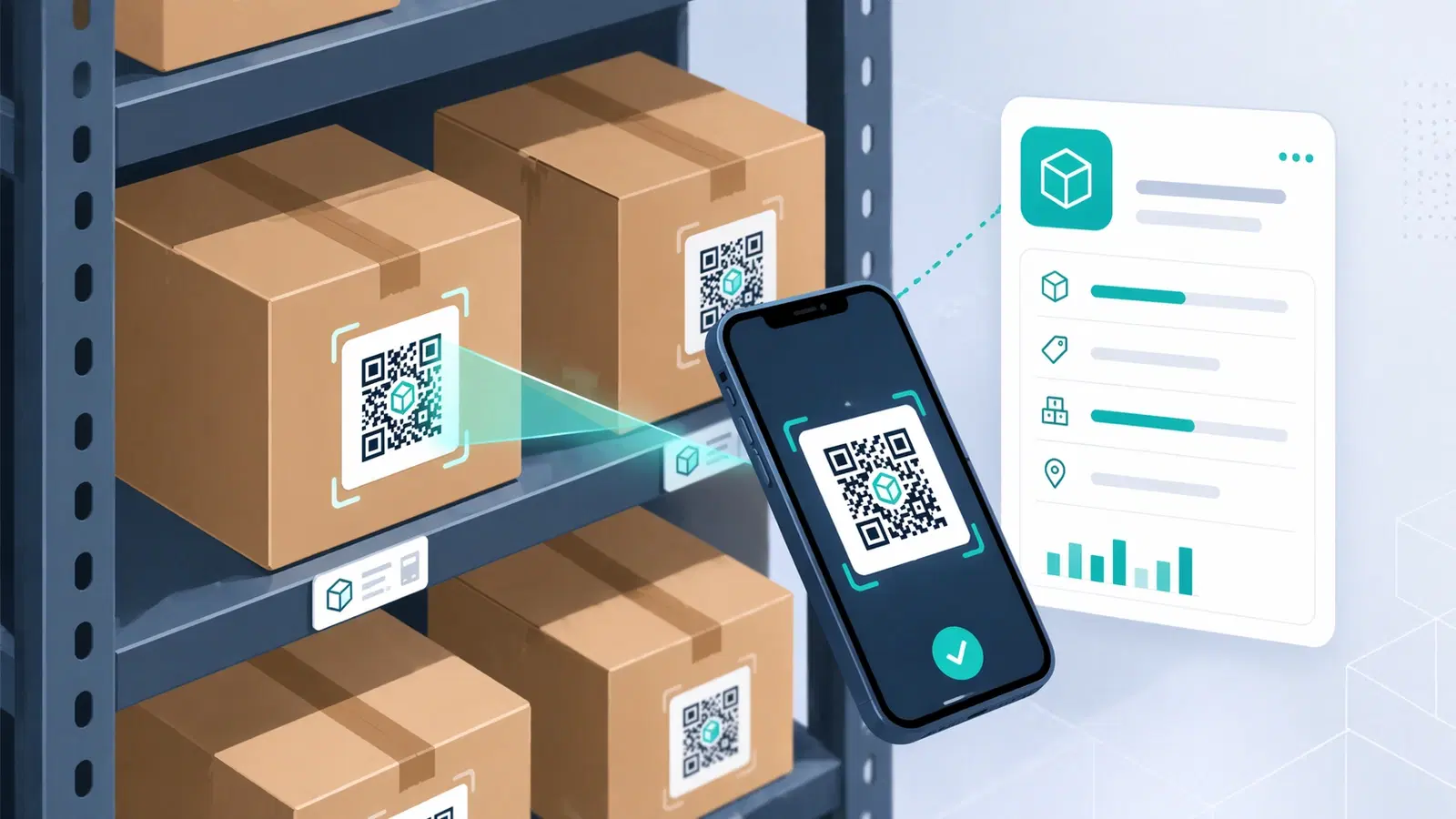
RFID and barcode systems are expensive to implement and often overkill for small and mid-sized businesses. QR codes offer a practical middle ground: zero hardware cost beyond a smartphone, instant scanning with any camera, and the ability to encode rich information or link to live database records.
Thousands of businesses now run their entire inventory and asset tracking operation on QR codes, from spare parts stores to construction equipment fleets to restaurant kitchen supplies. This guide explains exactly how to build a QR-based tracking system, what software to pair it with, and how to handle the details that make or break implementation.
QR Code Inventory vs Barcode vs RFID: Which Should You Use?
Barcodes (1D): The traditional option, cheap to print, widely supported. But they hold minimal data, require a dedicated scanner (or specific app), and only work when the scanner is aimed precisely at the barcode.
RFID: Reads without line-of-sight, works through packaging, and can scan multiple tags simultaneously. Powerful for large warehouses. But readers cost $1,000–$5,000+, tags are expensive, and implementation requires IT involvement.
QR Codes: Hold significantly more data than barcodes, scannable with any modern smartphone (no dedicated hardware), work with both iOS native camera and Android camera apps, and can link to live web-based records. Implementation cost is near zero.
QR codes win for SMBs because:
- Any employee with a smartphone can scan inventory
- No scanner hardware to buy, maintain, or replace
- QR codes can encode URLs that link to live data: not just static text
- Easy to reprint when items are relabeled
- Durable enough for most indoor environments (outdoor and industrial require laminated or metal tags)
What to Encode in Your Inventory QR Codes
There are two approaches: each suits different needs:
Approach 1: Encode the item data directly in the QR code (static) The QR code contains: Product ID, Name, Location, Supplier, Reorder level.
*Pros:* Works offline, no internet required. *Cons:* Data is frozen at time of printing, any change requires reprinting.
Approach 2: Encode a URL that links to a live record (dynamic) The QR code links to: https://yoursystem.com/inventory/item/[ItemID]
Scanning opens the item record in your inventory system: with live stock levels, history, location, and any other fields you maintain.
*Pros:* Data is always current. Change anything in the system, the QR code automatically reflects it. Can include photos, spec sheets, maintenance history. *Cons:* Requires internet to scan. Requires a web-accessible inventory system.
Recommendation: Use dynamic/URL-based QR codes for most inventory applications. The ability to update records without reprinting is worth the internet dependency in most business environments.
Pro Tip
Use a consistent URL structure for your inventory items: yoursystem.com/item/SKU123. When all items follow the same pattern, you can generate hundreds of QR codes programmatically from a spreadsheet.
Inventory Software That Works With QR Code Scanning
For small businesses and simple setups:
Google Sheets / Airtable with QR links: The simplest implementation. Each row is an item. Each item has a unique URL (using the row ID or a custom field). Create QR codes that link to the record. Free, instant, no coding.
Sortly: Purpose-built QR code inventory app. Generates QR labels, tracks quantities, locations, and history. Works on iOS and Android. Affordable for small teams.
Asset Panda: Asset tracking with QR code support. Better for equipment and fixed assets than consumable inventory. Built-in mobile app for scanning.
For mid-market and enterprise:
inFlow Inventory: Full inventory management with built-in QR/barcode support. Handles purchase orders, sales, reporting. Desktop and mobile apps.
Cin7 / Dear Inventory: Multi-location inventory with QR scanning. Integrates with accounting software (Xero, QuickBooks).
For custom builds:
If you have existing software (ERP, custom CRM), you can add QR scanning by: 1. Generating QR codes pointing to your item record URLs (using QRForever's URL QR codes) 2. Scanning with the phone camera opens the record in your existing system 3. No additional software needed: just QR labels on your items
- Start simple: a spreadsheet with item IDs and QR codes linking to rows works for most small businesses
- Upgrade to purpose-built software only when the spreadsheet becomes unmanageable (typically 500+ SKUs)
- Prioritize mobile-first software: employees scanning items need fast, easy mobile access
- Ensure your chosen system exports item URLs so you can generate QR codes systematically
- Test scanning speed: if it takes more than 3 seconds from scan to record, the system will be abandoned
Printing QR Code Labels for Inventory and Assets
Label materials by environment:
| Environment | Recommended Label | Notes |
|---|---|---|
| Indoor warehouse / office | Standard paper labels | Avery 5160 or equivalent |
| Cold storage / freezer | Polypropylene labels | Paper delaminates in cold |
| Outdoor equipment | Polyester + laminate | UV and moisture resistant |
| Industrial / high heat | Anodized aluminum tags | For extreme conditions |
| Clean room / medical | Autoclavable labels | Survives sterilization |
Minimum QR code size on labels: For hand-scanning at 20–30cm distance: minimum 1.5cm × 1.5cm. Recommended 2cm × 2cm. For scanning at arm's length (40–60cm): minimum 2.5cm × 2.5cm.
Generating labels in bulk: Export your item list as CSV, then use QRForever's bulk generation (or similar tools) to create QR codes for each item systematically. Most label design software (Avery Design & Print, Dymo Label) supports importing QR codes directly.
Print checklist before committing to a large run:
- Print one sheet, scan every code on a real phone
- Check quiet zones aren't clipped by label borders
- Verify URLs resolve correctly in your system
- Test on the oldest/worst camera among your team's phones
Important
Cheap thermal printer labels fade within 6–12 months. If your assets have a longer lifecycle, use higher-grade label stock or plan for periodic relabeling.
Building a QR Code Check-In / Check-Out System for Equipment
For tools, equipment, vehicles, or any asset shared among multiple people or locations, a check-in/check-out system built on QR codes is highly practical.
Basic flow: 1. Each asset has a QR code label 2. Employee scans the QR code on their phone 3. A form opens (Google Form, Airtable form, or custom). They fill in their name and action (check out / check in) 4. The record updates with who has the item, when, and where
Implementation with Google Forms (no-code option):
- Create a Google Form with fields: Asset ID (pre-filled via URL parameter), Action (dropdown), Employee Name, Notes
- Use QR codes that link to the form with the asset ID pre-filled: forms.gle/yourformid?entry.123456=AssetID001
- Responses go to a Google Sheet. You have a full audit trail
Implementation with Airtable:
- Create a base with an Assets table and a Transactions table
- Each asset record has a unique URL
- Use Airtable forms (linked to transactions) with the asset pre-selected via URL parameter
- Airtable's Views show you who has what, in real time
What this gives you:
- Full history of who had each asset and when
- Real-time visibility into asset location
- Accountability for lost or damaged equipment
- No dedicated hardware. Every employee's phone is a scanner
Pro Tip
Pre-fill the asset ID in the form URL so employees don't have to type anything. They scan → name appears → select check out → done. The fewer taps required, the higher the adoption rate.
Common Implementation Mistakes to Avoid
Mistake 1: Labels placed where they cannot be scanned On the bottom of heavy equipment, inside sealed packaging, or on curved surfaces that cause phone cameras to struggle. Place labels on the side or front face that is visible during normal use.
Mistake 2. QR codes too small for scanning distance A 1cm QR code on a heavy pallet rack that employees scan from 60cm away will not scan reliably. Size to your actual scanning scenario.
Mistake 3, No backup identifier If the label is damaged and the QR code fails, what happens? Always include a human-readable item ID (printed text or barcode) alongside the QR code.
Mistake 4: Encoding data instead of linking to records If the QR code contains the item data directly, any update (location change, quantity update, spec revision) requires reprinting every label. Use URLs pointing to live records instead.
Mistake 5: No process for damaged labels Labels get torn, smudged, and covered in grease. Define a relabeling process before you go live. Who prints replacements? How quickly? Where are label stocks kept?
Mistake 6, Not testing with the worst phone in the building The newest iPhone scans everything. The three-year-old Android with a cracked camera lens is what you should test with.
Conclusion
QR code inventory management is one of the most accessible operational improvements a business can make. The technology cost is essentially zero. Your employees already have the scanners in their pockets. The real investment is process design: deciding what to track, where to place labels, and how to connect scans to your records.
Start small. Label one category of assets, run it for a month, measure what breaks, and improve before scaling. A QR inventory system that works reliably for 100 items is worth more than an ambitious system that fails for 1,000.
Create your inventory QR codes on QRForever: dynamic codes that link to live records, bulk generation for large item catalogs, and durable SVG output for label printing. Free trial available.
Explore QRForever Solutions
Ready to Create Your Own QR Codes?
Start creating dynamic QR codes for your business today. Track analytics, update content anytime, and never reprint again.
Related Articles
QR Codes for Small Businesses: A Practical Getting Started Guide (Updated 2026)
QR codes give small businesses the same tools big brands use, for free or near-free. This 2026 guide covers the essential use cases, the one mistake that costs reprints, and how to start in an afternoon. Updated June 2026.
How Much to Charge for QR Code Design Services (Freelancer Guide 2026)
Freelancers and agencies can charge ₹500 to ₹15,000+ for QR code work, the spread depends on what you bundle. Here's how to price QR code design services, what to include, and how to turn one-off projects into recurring revenue.
QR Codes for Etsy Shops & Online Sellers: Packaging & Reviews (2026)
For Etsy sellers and small online shops, the package is your only physical touchpoint with a customer. QR codes turn that package into repeat sales, reviews, and a direct customer relationship. Here is the 2026 guide for online sellers.